The "Zoom storage almost full" email is the moment most coaches realize their client recordings — the actual deliverable, the thing they re-watch before next week's session — have been sitting in a place that was never designed to keep them long-term. The real Zoom Cloud vs Google Drive question isn't should I clean up Zoom storage. It's where should these recordings live in the first place?
This post is the honest comparison for solo coaches, consultants, online educators, and small teams already on a paid Zoom plan and a Google account. Four things consistently make Google Drive the better long-term home for your recordings, and we'll also flag the cases where Zoom Cloud is the right call.
If you're already convinced and just want the workflow, the companion guide on backing up Zoom recordings to Google Drive automatically walks through the setup.
Why this question matters
Zoom Cloud is built around a meeting. Once the meeting ends, the recording is, in Zoom's product terms, a notification artifact: it tells you it's ready, points you at it, and assumes you've moved on. For a coach, a therapist, or a tutor, that recording isn't an artifact. It's work product. It's the thing the client paid for, the reference for next session, the piece of evidence you might need 18 months from now if a relationship goes sideways.
Storing work product in a tool optimized for "archive and forget" is the source of most missing-recording stories. The fix is to treat the recording like a document and put it where you keep documents.
How much does Zoom cloud storage actually cost?
Zoom's add-on cloud storage is priced per gigabyte. The cheapest published Zoom storage add-on is roughly $10 a month for 30 GB. Higher tiers exist; the per-GB rate doesn't get dramatically better.
Google's storage is priced per terabyte. Google One Premium is $99.99 a year for 2 TB, which works out to under $0.005 per GB per month. Workspace plans bundle even more: 30 GB on Starter, 2 TB pooled per user on Standard, 5 TB on Plus.
Three concrete scenarios make the gap concrete:
- Solo coach, Zoom Pro, 15 sessions a week. A typical hour of HD recording is a few hundred megabytes once Zoom's compression finishes, so 60 sessions a month adds up fast and the 10 GB pool included with Zoom Pro and Business is gone before quarter-end. Buying the cheapest add-on costs another $10 a month. The same coach's Google One 100 GB plan is around $2 a month, and a 2 TB plan would be enough recordings for years.
- Ten-person consultancy on Workspace Standard. Already paying for ~20 TB of pooled Drive storage that's mostly empty. Recording every client call into Zoom Cloud and paying for an add-on is asking the business to pay for storage twice.
- Nonprofit on Workspace for Nonprofits. The base tier is free and the Standard upgrade is heavily discounted; the marginal cost of storing recordings on Drive is effectively zero.
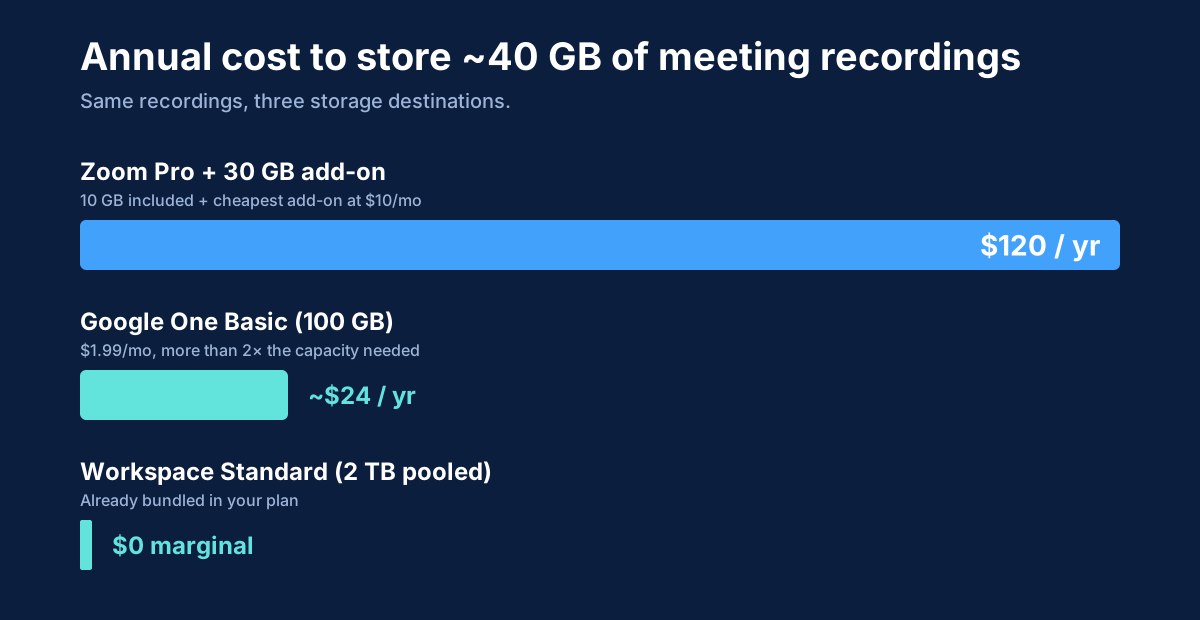
For most readers, the right comparison isn't "Zoom add-on vs Google One." It's "Zoom add-on vs storage we already pay for and don't use." That's not a fair fight.
Does Google Drive auto-delete recordings?
No. Google Drive doesn't auto-delete files. Anything you put in Drive stays until you (or someone with access) explicitly deletes it, and even then Trash retains deleted items for 30 days before final removal. That's the right default for work product.
Zoom Cloud has a few ways recordings disappear that surprise people. When the storage cap fills, Zoom blocks new cloud recordings until space is freed or the plan is upgraded. Account owners can also turn on auto-delete after a configurable number of days — useful for hygiene, painful when you forget the policy is on. License rotations between users in a small team can leave recordings stranded under an admin-only view that the original host can no longer reach.
What about sharing recordings with clients?
Zoom share links can be public-with-passcode, but in many account configurations the host has toggled on "require authentication to view," which locks out clients who don't have a Zoom account. The link UI is built around the meeting it came from, not the long-running asset it produced.
Drive sharing is the same workflow your clients already use for proposals, contracts, and invoices: link or email, viewer or commenter, optional expiry, revoke any time. No new account, no learning curve, no "I can't get into the recording from last week." If you charge for content (recorded courses, group programs, replay-only sessions), Drive's permission model also lets you bind access to a paying email list rather than a static link.
Where do your recordings need to be reachable?
The most underrated benefit. Once a recording lives in Drive, it shows up in Drive search, sits next to the client's other files, and is reachable by every transcript, search, and editing tool that integrates with Drive. Want to find that one session from eight months ago where the client mentioned their co-founder? You can grep Drive across a year of transcripts and find it in a second. Recordings stuck in Zoom Cloud are reachable by Zoom-aware tools and almost nothing else.
If you ever migrate off Zoom — to Meet, to Teams, to a webinar platform, to in-person — the archive stays put.
When Zoom Cloud is the right answer
Three situations where keeping recordings in Zoom Cloud is the right call:
- You need the share link 30 seconds after the meeting ends. Zoom Cloud is faster to a shareable URL than any pipeline that copies the file somewhere else.
- Your compliance posture is built around a vendor-specific BAA or contract that doesn't extend to your Drive setup. Don't break a working compliance story to save $10 a month.
- You're a solo user, very low volume, comfortably under any cap, and you don't share recordings. The convenience of "it's just there" is real, and there's no problem to solve.
If none of those apply, the rest of this post applies.
What changes when you move to Drive
The mechanics of recording don't change. Zoom keeps recording to its cloud, processes the file, and notifies. What changes is that as soon as the recording is ready, it's copied into a Drive folder you control, and from that point on Drive is the source of truth. You can let Zoom's own auto-delete policy remove the Zoom copy on whatever schedule you prefer, knowing Drive has it — the safe order is back up, verify, then delete.
Doing the copy by hand is the most fragile part of this. It's the step that breaks when you have a busy week. The companion how-to post walks through automating it.
How RecordFlow fits
RecordFlow does one thing: the moment Zoom marks a cloud recording ready, RecordFlow copies it (along with the audio file, transcript, and chat log Zoom generates) into a Google Drive folder you choose. Setup is sign in with Zoom, connect Drive, pick a folder — about 60 seconds. Passcode-protected sessions, multi-hour calls, and large files all work the same way. Once you've watched a few backups land safely, you can let Zoom's auto-delete remove its copy on schedule and stop paying for storage you don't need.
What if neither is the right home?
This post frames the choice as Zoom Cloud versus Google Drive because for most people it is. But both are storage with a plan attached — a ceiling you periodically pay a vendor to raise — and if your archive is measured in hundreds of gigabytes rather than tens, there is a third shape worth knowing about: object storage you own, priced per gigabyte all the way up with no tier to graduate to. Amazon S3 Standard is $0.023 per GB per month and cold tiers are a fraction of that. We work the whole thing through — Zoom's own add-on table against S3, R2 and B2, with the catch that matters — in what Zoom recording storage actually costs.
Move your archive somewhere built to keep it.
Pick a Google Drive folder once. Every Zoom recording from that point on lands there automatically — passcode-protected calls and multi-hour sessions included. Free during beta.