An NGO board meeting recording vanishes a month after the AGM — the executive director changed roles, the license rotated to someone else, and the cloud copy is now gated behind an admin screen no one on the new team can reach. The recording was the only contemporaneous record of a vote that's now being asked about. This is the version of "Zoom storage almost full" that nonprofits hit, and it's avoidable.
RecordFlow exists because I watched this happen at a Polish watchdog NGO I work with — a recording of a board vote went missing exactly when someone asked to see it, and there was no good answer. The fix isn't a bigger Zoom plan. It's the 100 TB of Google Drive storage your nonprofit may already have, sitting unused.
Google Workspace for Nonprofits and Zoom: the 100 TB no one talks about
Workspace for Nonprofits is Google's free tier for eligible organisations: $0 per user, 100 TB of pooled storage across the org, Gmail with your domain, Drive, Calendar, and Meet. Eligibility runs through Goodstack verification (Google's global validation partner, formerly Percent) — usually a few business days to a couple of weeks once your paperwork is in.
100 TB is enough headroom that most small and mid-sized nonprofits will never touch it. A team of 15 recording every board meeting, every training session, and every community call in HD won't fill 5 TB in a decade. And yet the same organisations routinely pay Zoom for add-on storage — $10/month for 30 GB, up to $500/month for 5 TB — because the 10 GB per licensed user that Zoom Pro and Business pool at the account level runs out faster than you'd think (a four-person nonprofit on Pro shares a 40 GB pool — one long quarterly AGM and a few training sessions get you most of the way there). It's the budget equivalent of renting a storage unit while the basement sits empty. For the broader cost/retention math, the Zoom Cloud vs Google Drive comparison lays it out side-by-side.
Why nonprofits especially need a recording archive
For an accountability-minded NGO the recording isn't a souvenir, it's evidence:
- Board meetings and AGMs. Members and regulators occasionally ask to see how a decision was made. The minutes are the formal record; the recording is the unambiguous one.
- Training and onboarding. Staff turnover at small NGOs is higher than at most for-profits. The two-hour onboarding call you ran in March is the cheapest way to onboard the person who joins in September — if you can still find it.
- Community calls and consultations. Funders increasingly want to see participation evidence. A recording disappearing six months after the call closes a door you'd want open.
- Reach beyond the live call. The people who watch the recording a week or a year later aren't competitors — they're often the supporters you most wanted to reach. A file in Drive can be embedded on the website, linked from a newsletter, or shared with a partner org; a Zoom share link with "require authentication to view" quietly cannot. Well-organised archives are how a single hour of staff time keeps compounding into impact.
- Transparency obligations. Watchdog organisations, public-interest groups, and grant-funded projects often have explicit retention obligations. "We had it but Zoom auto-deleted it after 120 days" is not an answer that satisfies an auditor.
Zoom Cloud is built around the meeting that produced the file. Once the meeting ends, the recording is, in product terms, a notification you've already acted on. When the storage cap fills, new cloud recordings simply stop being saved; existing files aren't auto-purged to make room. Auto-delete policies tidy things up on a schedule (deletions land in Trash for 30 days before permanent removal, so a recent misfire is recoverable). Licenses rotate between users when a team is small. None of that is malicious; all of it loses recordings.
What Workspace for Nonprofits won't do: record Meet calls
The free Workspace for Nonprofits tier doesn't include cloud recording in Google Meet. You'd need the Business Standard upgrade (heavily discounted for nonprofits — around $3.50/user/month on an annual commitment — but not zero) to record natively in Meet. Zoom itself also offers a nonprofit discount via Zoom Cares — up to 50% off paid plans for eligible organisations — but storage add-ons aren't free at that tier either, so the underlying math doesn't change.
The obvious follow-up question is can we upgrade only the two or three people who actually need to record? For a small association with low membership fees, or an org built around volunteers who bring their own Google accounts, paying for the whole roster to scratch the recording itch of a few staff makes no sense. Unfortunately, Google's own upgrade documentation is explicit on this point: "When you upgrade, everyone in your Google Workspace account gets the same subscription". Partial-domain or per-user licensing for Workspace for Nonprofits isn't supported through the standard self-serve upgrade path. A Google Cloud reseller can sometimes provision mixed editions, but that moves billing and admin out of the self-serve console — rarely worth the overhead for an NGO that needs two or three recording seats.
So for most NGOs the calculation lands here: Zoom is already the meeting tool the board, the donors, and the community use; switching the meeting platform to chase free recording is not the win it sounds like, and partially upgrading Workspace to get Meet recording for the handful of users who need it isn't actually on the menu.
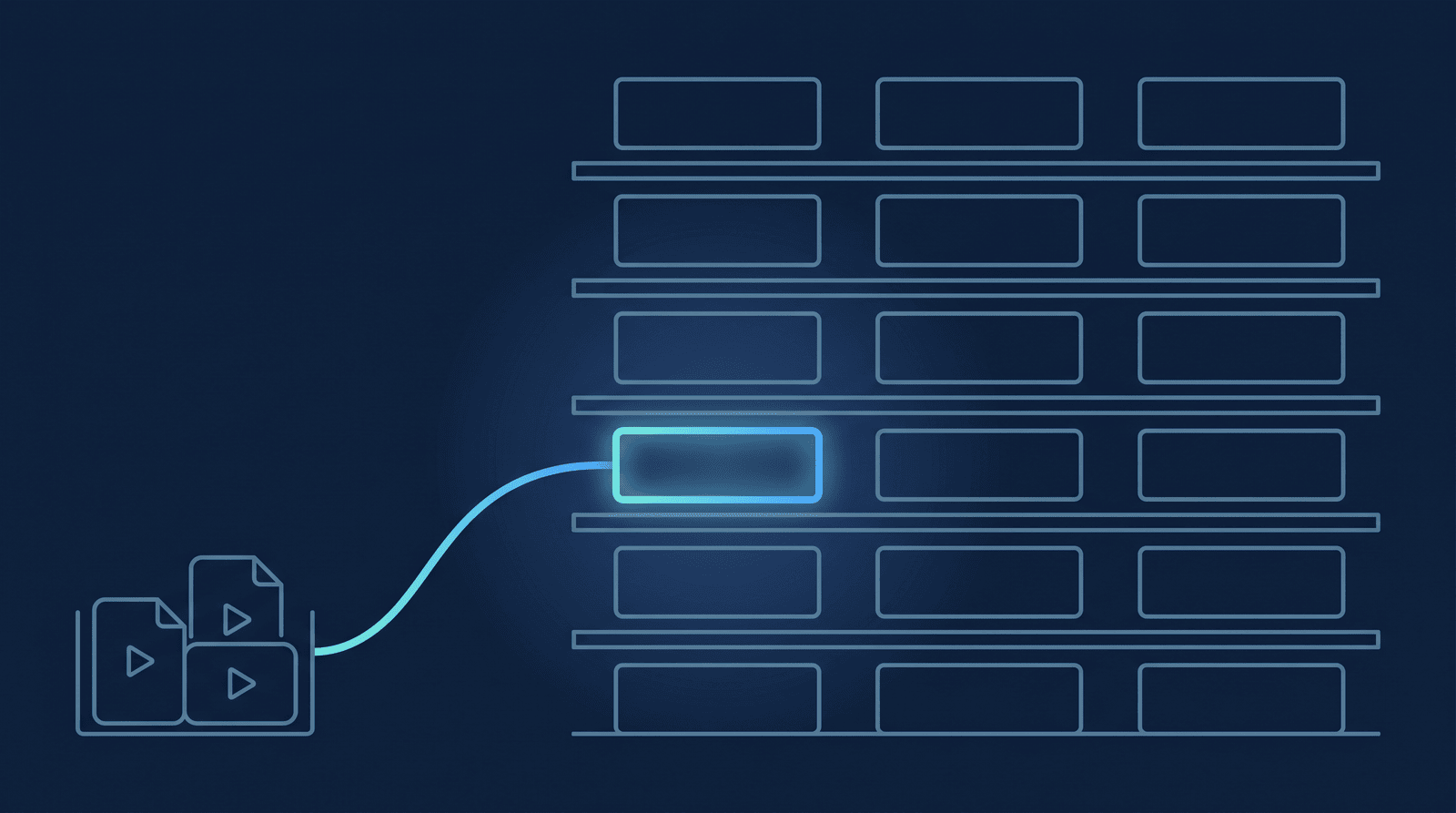
The cheaper move is to keep Zoom as the meeting tool, and let Drive be the archive. Record in Zoom, store in Drive automatically, retire the Zoom storage add-on. You get the platform everyone already knows, the free archive you're already entitled to, and one fewer line item on the operating budget.
The simplest workflow
- Apply for Workspace for Nonprofits if you haven't already, via Google's nonprofit application — Google routes verification through Goodstack globally. Approval typically takes a few business days to a couple of weeks; nothing else on this list needs to wait.
- Turn on cloud recording in Zoom. Zoom Settings → Recording → Cloud recording must be on. Without it, recordings only save to whichever laptop hosted the meeting.
- Create a dedicated Drive folder.
/Board Meetings/or/Recordings/2026/— a shared drive is ideal for nonprofits because it survives staff turnover (files in a shared drive don't disappear when the original owner leaves). - Connect an automation that copies Zoom recordings into that folder. RecordFlow is built for exactly this; the companion how-to walks through the setup.
- Let Zoom's auto-delete do its job. Once you've watched a few backups land safely in Drive, turn on Zoom's retention policy at 30 or 60 days. The Zoom add-on storage becomes unnecessary.
What to check before you turn off the Zoom add-on
How RecordFlow fits
RecordFlow does one thing: the moment Zoom marks a cloud recording ready, RecordFlow copies it — video, audio, transcript, chat log — into a Google Drive folder you choose. Setup is sign in with Zoom, connect Drive, pick a folder; about 60 seconds. Passcode-protected board meetings, multi-hour AGMs, and large files all work the same way. A webhook plus an hourly sweep catches anything Zoom's notification didn't deliver. RecordFlow is free during beta.
Use the 100 TB you already have.
Pick a Google Drive folder once. Every Zoom recording — board meetings, AGMs, community calls, trainings — lands in your nonprofit's Drive automatically. Free during beta, which matters when the budget is tight.