The "Zoom storage full" email always lands at the worst moment — usually right before your next session — and the first thing you do is Google what to do about it. There's a safe way to free up Zoom cloud storage fast, without paying for an add-on and without the gamble of deleting a client recording you can't get back. The whole trick is the order you do things in.
Why Zoom fills up so fast
Zoom Cloud storage is small and shared. Most paid tiers include 10 GB pooled across all Licensed Users on the account — not per person — and a single hour of HD recording runs a few hundred megabytes once Zoom finishes compressing it. A coach running a dozen sessions a week burns through the included pool in a couple of months. On a team account it's faster still: every host draws from the same shared pool, so one heavy week from one person can wall off everyone.
When the pool fills, Zoom can block new cloud recordings until you free space or buy more. So the cap becomes a recurring chore: delete to make room, record, hit the cap again, delete again. The treadmill.
Manual cleanup is where recordings get lost. The Zoom recording list shows topics and dates and not much else; under time pressure it's genuinely easy to trash a client session you meant to keep. And Zoom's trash is not a backup — deleted cloud recordings are typically recoverable for 30 days, and once that window closes the recording is gone for good. (For a full breakdown of all the ways recordings can disappear from Zoom — not just manual deletion — see What Disappears From Zoom Cloud, and When.)
The safe order: back up, verify, then delete
The fix isn't "stop deleting." It's "never delete a recording that doesn't already live somewhere else." Three steps, always in this order:
- Back up. Copy the recording — video, audio, transcript, chat — to a place you control, like a Google Drive folder.
- Verify. Confirm the copy actually landed. A backup you haven't checked is a hope, not a backup.
- Delete. Only now delete the cloud recordings from Zoom and reclaim the space.
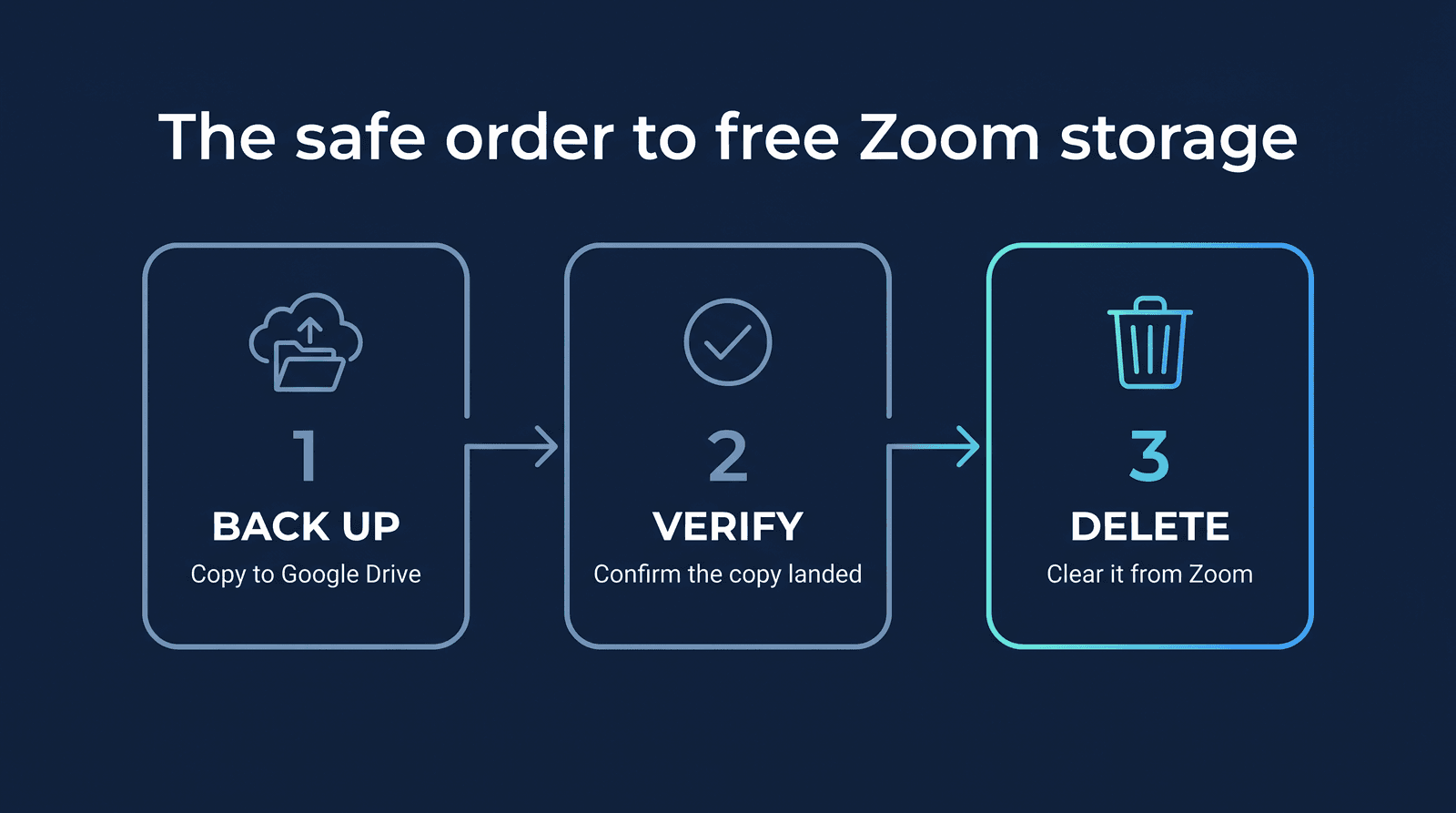
Reorder or skip a step and you're gambling again. The reason this works is that the durable copy lives somewhere that doesn't delete itself: Google Drive doesn't auto-delete files, and even an explicit delete sits in Drive's own trash for 30 days first. Your recordings only leave Zoom — they never leave your hands. (For the full case on why Drive is the better long-term home, see Google Drive vs Zoom Cloud.)
How RecordFlow automates it safely
Doing back-up-then-verify-then-delete by hand every week is exactly the kind of chore that falls apart on a busy week. RecordFlow runs the whole sequence for you — and the safe order is built into how it works, not bolted on after.
First, set up the backup — about 60 seconds: sign in with Zoom, connect the cloud storage you use — Google Drive, OneDrive, Dropbox, or YouTube — and pick a folder or channel. From then on, every cloud recording lands there within minutes of Zoom marking it ready (the companion how-to walks through the Drive setup). That part is read-only — RecordFlow never asks for permission to delete anything.
Auto-delete is a separate, opt-in switch in Settings. It's off by default, and turning it on is the only time RecordFlow asks Zoom for the delete permission — if you never enable it, that permission is never requested, and read-only users are never prompted for it. Once it's on, RecordFlow waits until every file from that meeting has been archived to your destination and the upload confirmed — on YouTube, that means waiting for YouTube to finish processing the video and confirming it stored the size RecordFlow uploaded — then holds for a three-day grace period before moving the recording to Zoom Trash. Nothing is removed that wasn't safely copied first, and Zoom's 30-day Trash window stays available as a final safety net. You can switch it back off at any time.
If you already use Zoom's own auto-delete
If you've turned on Zoom's own recording auto-delete — the configurable-day retention policy in your recording settings — let RecordFlow handle the cleanup instead. Zoom's setting runs on a fixed schedule and doesn't check whether your copy is safely in Drive yet, so it can delete a recording before it's ever been archived. RecordFlow only trashes a recording once it's verified in your destination storage — and then waits three days as a buffer — so you get the same storage savings without risking a recording that was never backed up.
Free up Zoom storage without losing a thing.
RecordFlow backs every Zoom recording up to the cloud storage you own — Google Drive, OneDrive, Dropbox, or YouTube — automatically, and, if you opt in, clears the Zoom copy only once the backup is verified. Off by default, yours to switch on. Free during beta.