A registrant who had to drop off early emails asking for the webinar replay. You go looking for it in Zoom's recordings list, and it isn't there — somewhere between running that session and the next one on the calendar, the account's cloud storage filled up, and the reply you send back is an apology instead of a link.
That's the webinar-specific version of a problem plain Zoom meetings don't hit quite as hard: bigger files, a separate recording setup, and a replay that has to stay reachable for people who never showed up live.
What's actually happening — and where a webinar recording actually lives
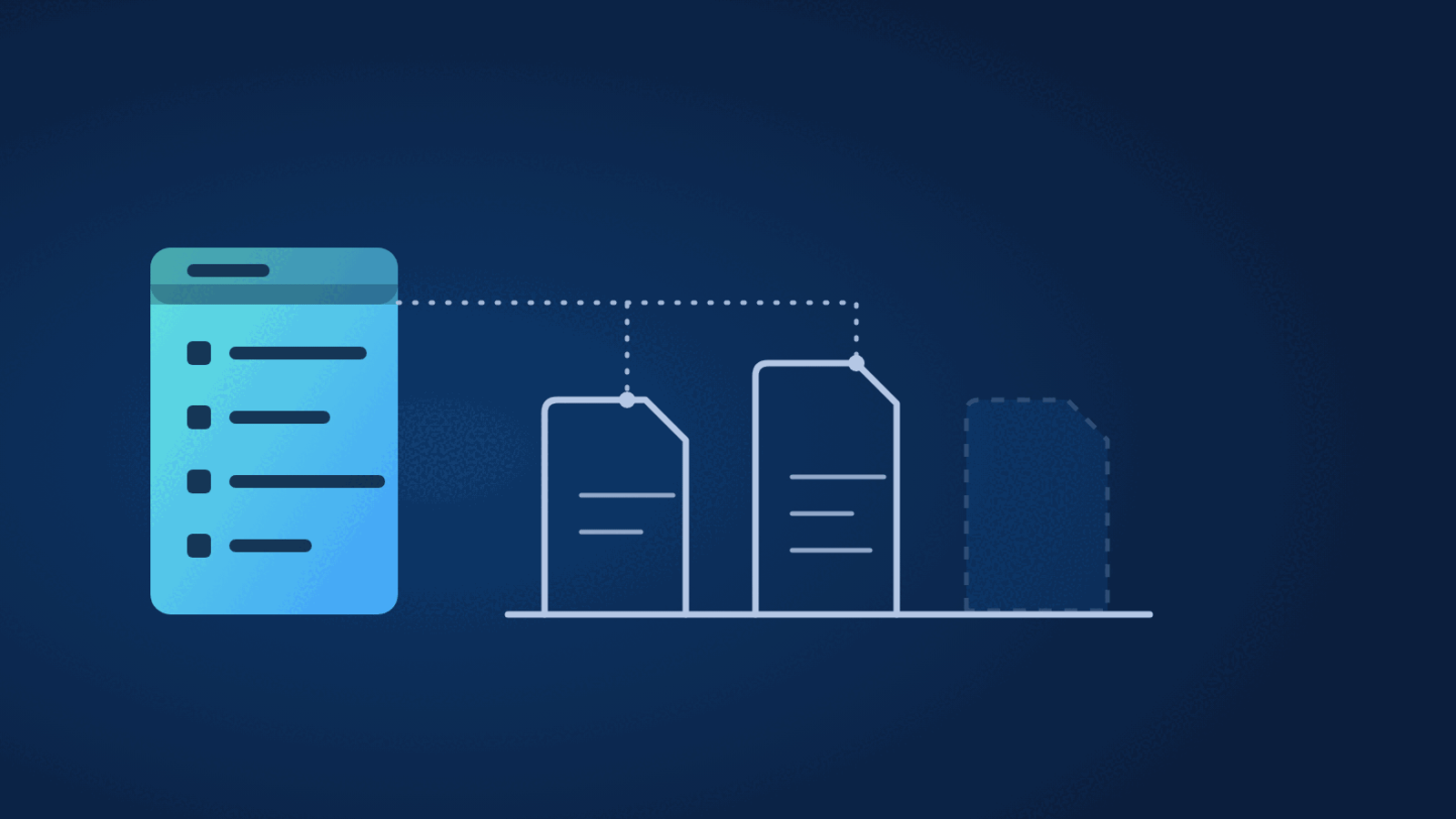
Zoom Webinars isn't a bigger meeting — it's a distinct product with its own license, layered as the Webinar add-on on top of a paid Zoom plan, scaling from 500 up to 1 million view-only attendees depending on the tier purchased. It also draws a hard line meetings don't: panelists are full participants who can share video, share their screen, and appear on camera, while attendees are view-only unless the host unmutes them. That split carries straight into the recording. A Zoom Webinar recording can produce separate output files for the main video, the chat log, the Q&A panel, and the panelists — more distinct files per event than a standard meeting recording generates, and more data behind each one.
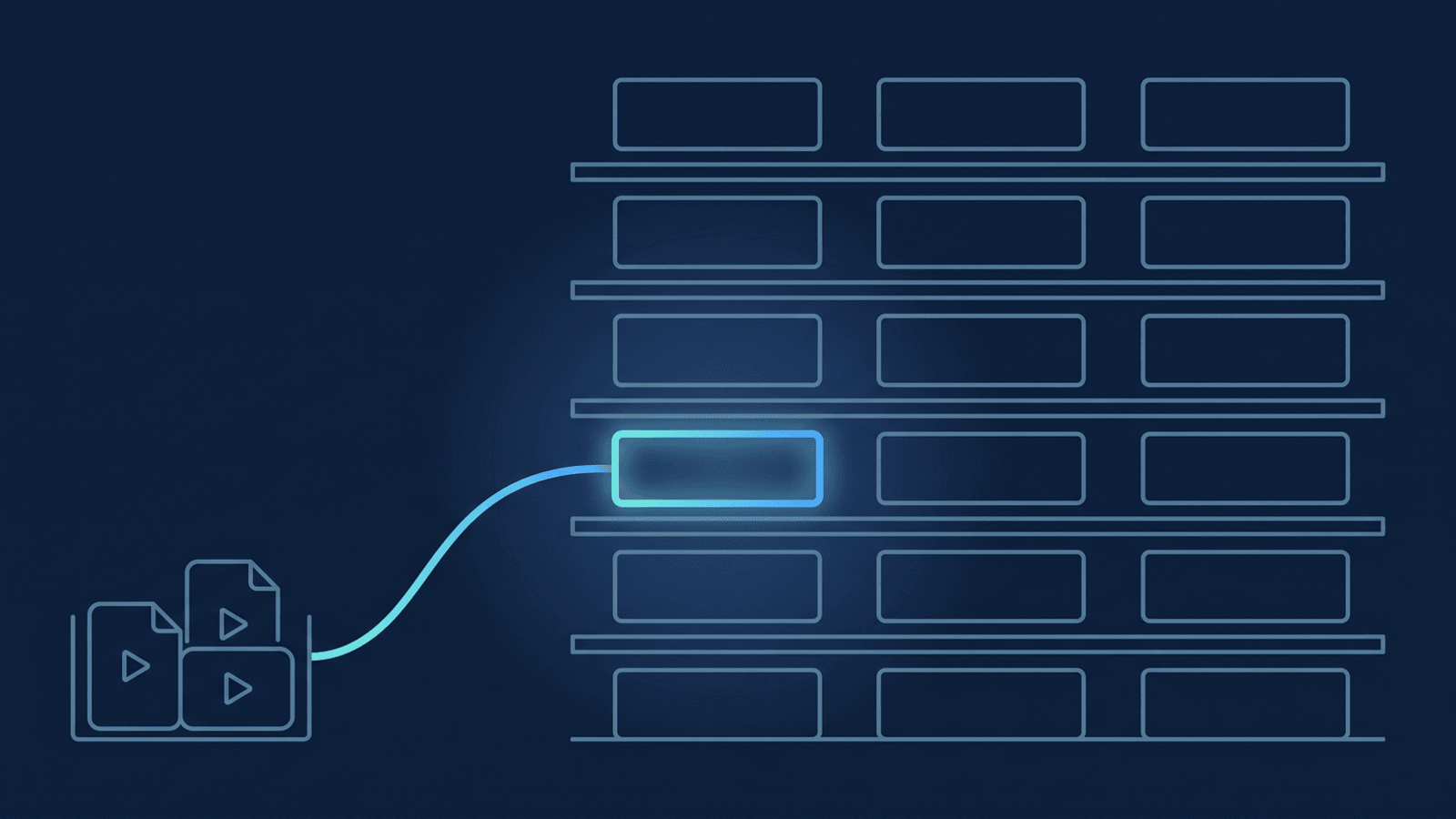
All of that still lands in the same place as everything else you record: the same pooled cloud storage sitting on your Zoom account, 10 GB per licensed user on Pro and Business, scaling up by plan. Webinars don't get a separate bucket — they draw down the identical pool your regular meetings do, just faster per event. A solo host running just one webinar a month still watches that add up quietly in the background — the kind of slow drain that's easy to ignore until the day it blocks a recording — and a production team or agency running several webinars for different clients out of one Zoom account can burn through it in weeks. And when the pool is empty, Zoom stops starting new cloud recordings for the whole account — not just webinars, everything — until someone frees space or buys more.
If you use Zoom's on-demand webinar feature, the replay problem looks solved on paper: registration stays open after the event, and anyone who registers gets a link — a live join link if they register before or during the webinar, and a direct link to the cloud recording if they register after it's over. It's a genuinely useful lead-capture mechanic, and checking the "make the webinar on-demand" box automatically turns on cloud recording for you. But it comes with real limits: on-demand only works with cloud recording, and it flatly doesn't support recurring webinars. If your webinar is a standing weekly training or a recurring office-hours session rather than a one-off, on-demand isn't available to you at all — Zoom generates no automatic replay link, and getting the recording to a late registrant is entirely on you.
How to save every webinar recording to Google Drive
- Turn on cloud recording for every host who runs a webinar under the account, not just the account owner — Zoom Settings → Recording → Cloud recording. A co-host recording locally is invisible to any backup automation and gone the moment their laptop isn't around.
- Decide whether on-demand is the right fit case by case. Turn it on for a genuinely one-off, non-recurring webinar where you want Zoom to auto-issue replay links. For a recurring series, plan from the start to send the replay yourself — on-demand won't do it for you.
- Connect an automation that copies every webinar recording into a dedicated Drive folder — video, audio, chat log, Q&A, and panelist files — the moment Zoom finishes processing. RecordFlow does this without you ever opening the Zoom portal to download anything by hand.
- Name the Zoom webinar's topic consistently (
Series Name — Session 04, always the same pattern) so the backup lands labeled the same way in Drive. A producer scanning a folder six months later shouldn't have to open five files to find the right one. Running the same webinar every week? Naming the topicSeries Name/Session 04(series before the slash) lets RecordFlow group the whole series into one shared folder automatically instead of a flat list — off by default; the linked docs cover how to turn it on. - Put a Drive link, not a Zoom link, in the follow-up email to registrants. Sharing straight from Google Drive opens for anyone with the link, no Zoom account required on their end — the same fix that solves this for a client who can't open a Zoom recording link works just as well for a registrant list, and the replay doesn't age out with your account's storage clock or a retention policy set independently of your webinar settings.
- Running webinars for more than one client? If each client has their own Zoom account, connect RecordFlow separately for each one — every connection gets its own Drive destination, so handing off a finished engagement is a folder transfer, not a search through someone else's Zoom recordings list. Running multiple clients' webinars through one shared Zoom account instead? Use a client-named subfolder inside your single connected Drive destination to keep them apart.
How RecordFlow fits
RecordFlow connects your Zoom account to a Google Drive folder once — about 60 seconds — and every webinar recording lands there automatically from that point on: video, audio, chat log, any separate Q&A and panelist files Zoom generates, and a clean Google Doc transcript with speaker labels and timestamps, so a producer can search a session for the exact minute a question was answered instead of scrubbing an hour of playback. Files move straight from Zoom to the Drive folder you already own — RecordFlow never keeps a copy on its own infrastructure — and it works the same way whether you're a solo host running one webinar series or a production team archiving several client accounts in parallel. Once a replay is safely in Drive, the account's storage pool stays small, and the next scheduled webinar is never at risk of failing to record because an old one is still sitting in Zoom's cloud.
Stop losing webinar replays to a full storage pool.
Connect Zoom and Google Drive once. Every webinar recording — video, audio, chat, and a clean transcript — lands in a folder you own automatically. Free during beta.