Reliable backup & recovery
A backup that quietly fails is worse than no backup. These posts cover how automated Zoom-to-Google-Drive archiving actually works, the failure modes that strand recordings — large files, password-protected calls, missed webhooks — and the design choices that keep every recording safely copied.

How to Automatically Back Up Zoom Recordings to Google Drive
Set up a Zoom to Google Drive integration that backs up every cloud recording automatically — no manual uploads, no storage add-ons. Step-by-step guide.
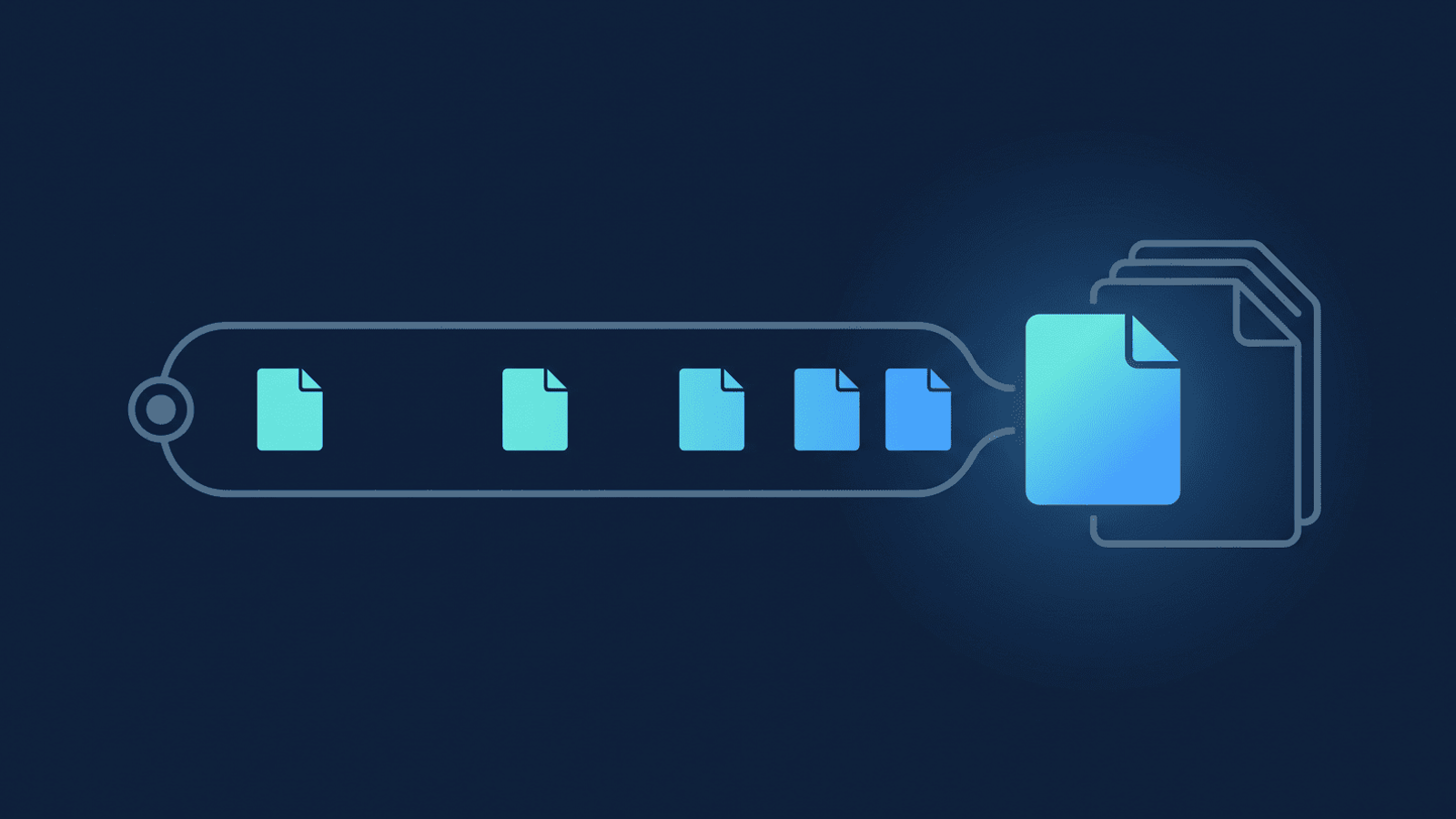
The No-Code Automation Trap: Why DIY Zoom-to-Drive Backups Break on Large Recordings
A DIY Zoom-to-Google-Drive automation looks solved — until a big recording hits it. Why large files break no-code builders, and what to check first.
Your VA Is Downloading and Re-Uploading Zoom Recordings by Hand — Stop
A VA downloading and re-uploading Zoom recordings by hand is slow, and it silently misses whole weeks of recordings. Here's the automatic alternative.
RecordFlow Now Archives Zoom Recordings to Dropbox
Dropbox joins Google Drive as a general-availability RecordFlow destination — pick it at setup, no waitlist, and back up new recordings plus your backlog.
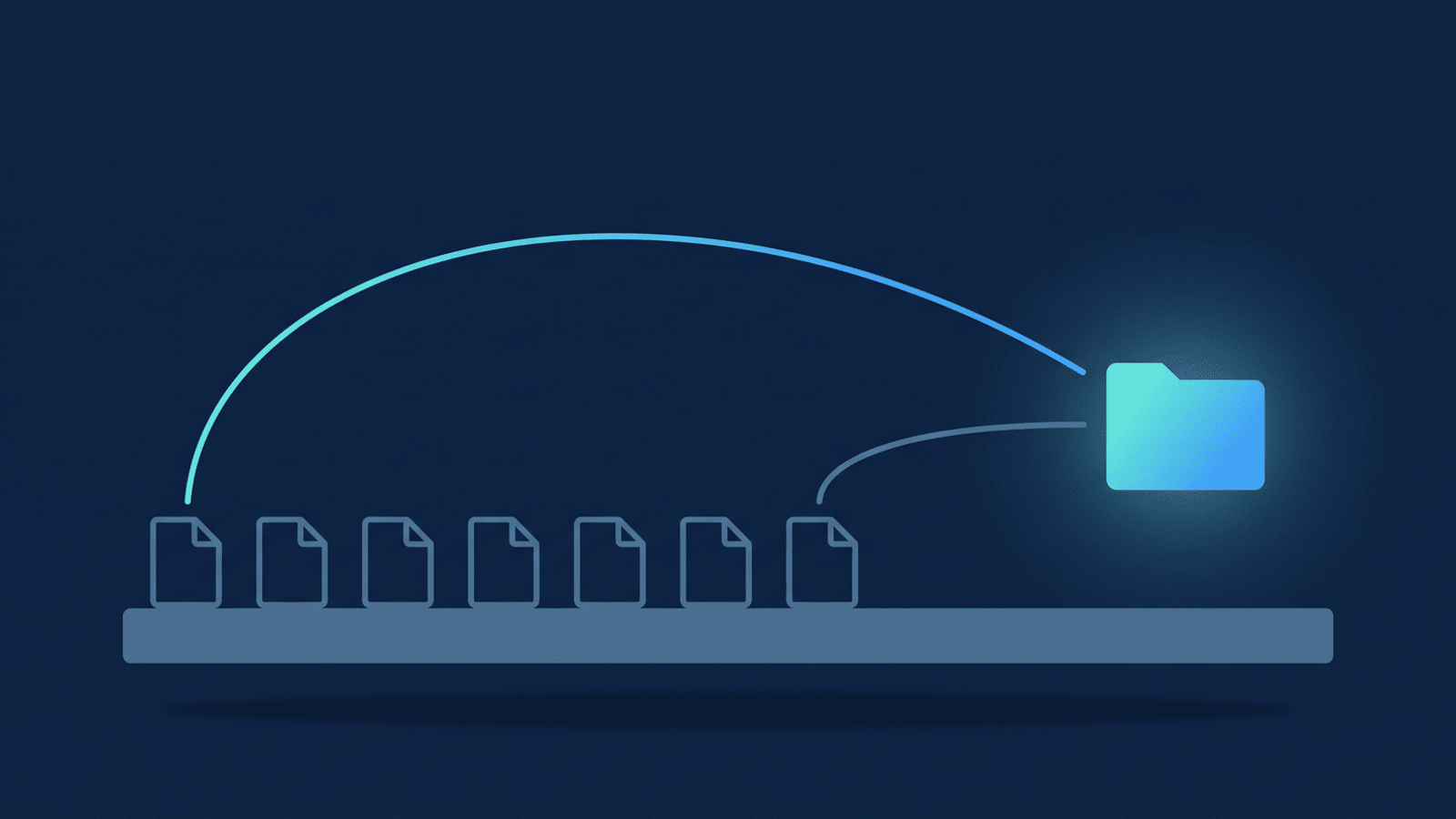
How to Save Zoom Recordings to Dropbox Automatically
Dropbox's own Zoom connection only catches new recordings, not your backlog. Here's how to save every Zoom cloud recording to Dropbox — old and new.
How to Save Zoom Recordings to OneDrive Automatically
Zoom has no official OneDrive backup feature. Here's how to automatically save every Zoom cloud recording to OneDrive, including your existing backlog.
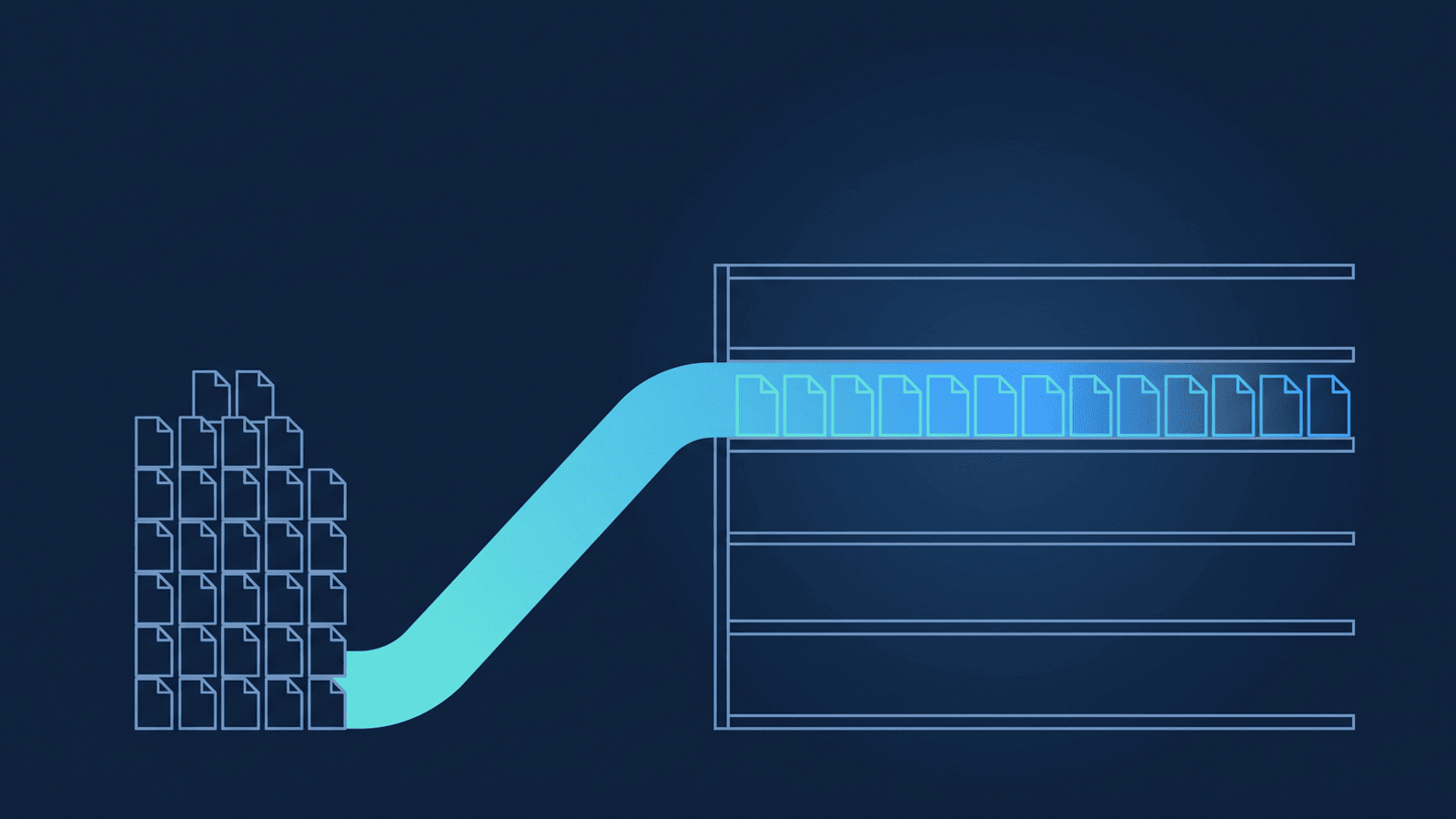
How to Move Your Entire Zoom Recording Backlog to the Cloud You Own
Most Zoom backup tools only catch new recordings. Here's how to move years of existing Zoom recordings to Drive, no matter how far back your backlog goes.
Automatically Save Your Zoom Webinar Recordings to Google Drive
Zoom Webinar recordings share your account's meeting storage pool and fill it faster. Here's how to save every replay to Google Drive automatically.