Short answer: no. Renaming, moving or deleting a Zoom recording you've already backed up with RecordFlow doesn't make it upload that file again, because it tracks each file by Zoom's own file ID, not by name or folder. If you're about to commit a multi-year backfill, the worry is fair: nobody wants a duplicate explosion in a client archive. Below are the three questions buyers ask most, how it works, and the cases where a new file does appear.
Rename, delete, re-run: will anything be uploaded twice?
If I bulk-rename recordings in Drive, does it treat them as new?
No. Once a file is recorded as transferred, a rename in Drive, OneDrive or Dropbox changes the name, not the Zoom file ID the record is keyed on. Renaming the meeting in Zoom afterwards doesn't re-trigger a copy either.
Does RecordFlow re-upload a recording I deleted from Drive?
No, and that's deliberate: clearing out something you meant to clear out shouldn't be silently undone on the next sync. The flip side is that RecordFlow won't re-create it for you. If you delete one by mistake, restore it from your storage's trash within its retention window, or download it from Zoom while it's still in your account.
Is the sync safe to run twice (idempotent)?
Yes. Every sync, including the hourly safety check, lists what Zoom has and skips whatever is already recorded, so running it again after a retry or a manual sync produces the same archive. A per-user lock also stops two syncs from running over each other.
Does a Zoom backup create duplicates? It tracks file IDs, not names
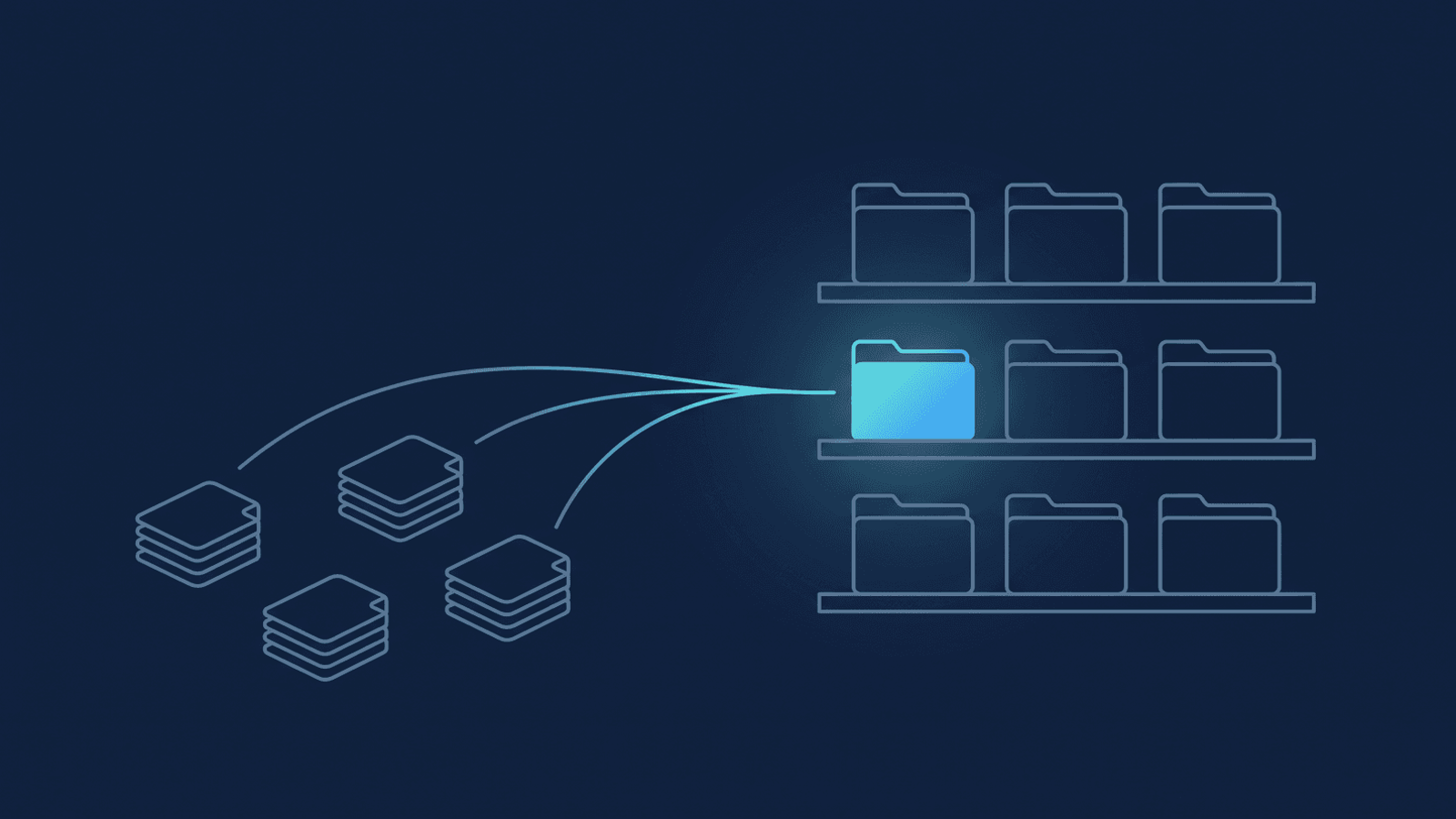
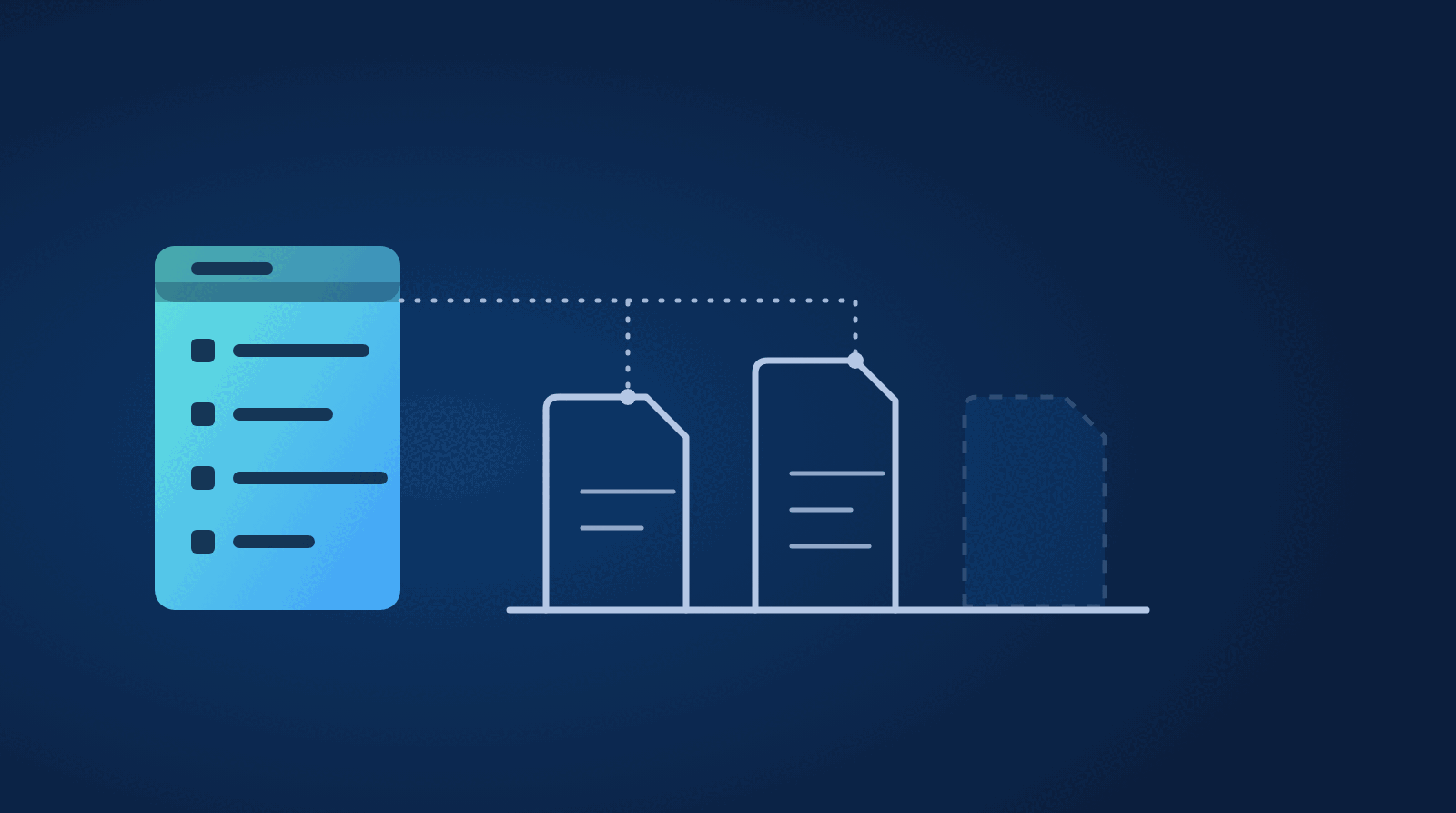
Each recording file Zoom stores for a meeting (video, audio, chat, transcript) carries its own file ID, as the Zoom API documents. When RecordFlow copies one to your storage, it writes that ID into a per-meeting record of what has been transferred. On later passes it compares Zoom's current file list against that record and skips anything already in it.
That record is what protects you. On Google Drive there is also a second safeguard: RecordFlow stores the ID in the file's description field, and a Drive file's description is separate metadata from its name, so a later pass can recognise a file whose record was never written. Other destinations don't rely on a description field; for the raw recording files they fall back to matching the deterministic file name.
Because the check never looks at where a recorded file sits, moving it doesn't matter to RecordFlow. One practical note: if you want a per-client view, use Drive shortcuts rather than moving the meeting folder, so a later-arriving file lands next to the rest, as covered in organizing client recordings in Drive.
When RecordFlow does copy something again
Four situations produce a new file in your storage, and one more produces none:
- A file Zoom finishes later. A transcript often appears well after the recording. It has its own ID, so it's copied once, alongside the rest. If you've deleted the meeting folder, a new one is made for it.
- A transfer that never completed. A file that failed was never recorded, so it's retried. You end up with one copy.
- An older meeting. Widening your archive history brings earlier meetings into scope. Those are new to the archive, so they're copied; everything already recorded is skipped.
- Deleting or renaming too early. The record is written when a meeting's files have finished uploading. If you delete a copy while that meeting is still uploading, the next pass uploads it again. On OneDrive and Dropbox, which rely on the file-name match instead of a description, renaming a copy in that window can do the same.
- Switching destination copies nothing old. The record belongs to the meeting, not the destination, so after you connect a different storage provider, meetings already recorded aren't copied there again. Only new files and meetings not yet recorded are.
Renames and deletions after a file is recorded, the two the question is usually about, aren't on this list.
How to check it yourself before a big backfill
- Connect with the default window, the past month, which is included free, and let the first pass finish. It copies what your settings put in scope and Zoom has finished processing.
- Rename two files and delete one in your storage.
- Wait for the next sync, then compare. Renamed files keep their new names, the deleted one stays gone, and nothing new appears for those meetings. The sync history in your dashboard lists each meeting RecordFlow has processed.
- When you're satisfied, widen the window. Going deeper than the past month, up to your full history, is a one-time paid add-on (the backlog guide has the details).
How RecordFlow fits
RecordFlow copies each file once, directly from Zoom to storage you own, and records that it's done, so your archive is plain files in folders you can rename, share or clean up without paying for it in re-uploads. It doesn't delete files from your storage, and it doesn't delete from Zoom unless you separately switch on auto-delete.
Test it on one month, then go as deep as you need.
Connect in about a minute, run the rename-and-delete test above on your past month (included free), and widen the window when you're satisfied.