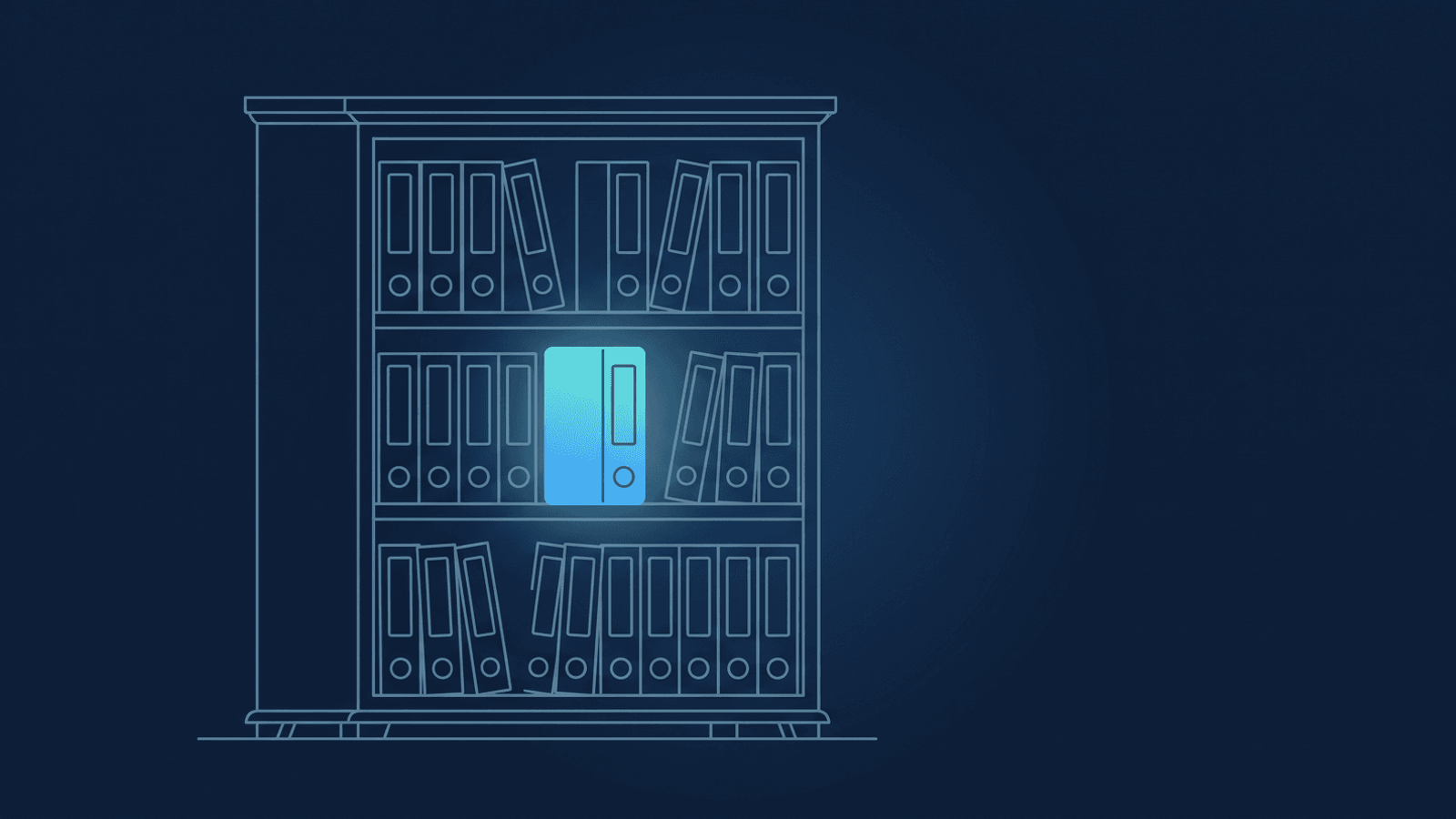
The years of Zoom recordings already sitting in your account are still one storage cap or retention policy away from gone — even after you set up a backup tool. Most of these tools only start capturing recordings from the moment you connect them. Everything that was already there — client sessions, training replays, board meetings, whatever your account has accumulated — is exactly as exposed as it was before you set anything up.
For a lot of accounts, that "everything already there" isn't a few weeks of gap — it's a handful of years. That's the migration people actually show up to do: not "protect tomorrow's recording" but "move the entire history before something forces the issue."
That backlog is usually the bigger risk, not the smaller one. New recordings get caught the moment they land. It's the years of existing recordings racing the storage cap right now that most backup setups quietly leave behind — and the accounts we hear from most aren't missing a week or two, they're carrying a handful of years of history that's never been touched.
What's actually happening
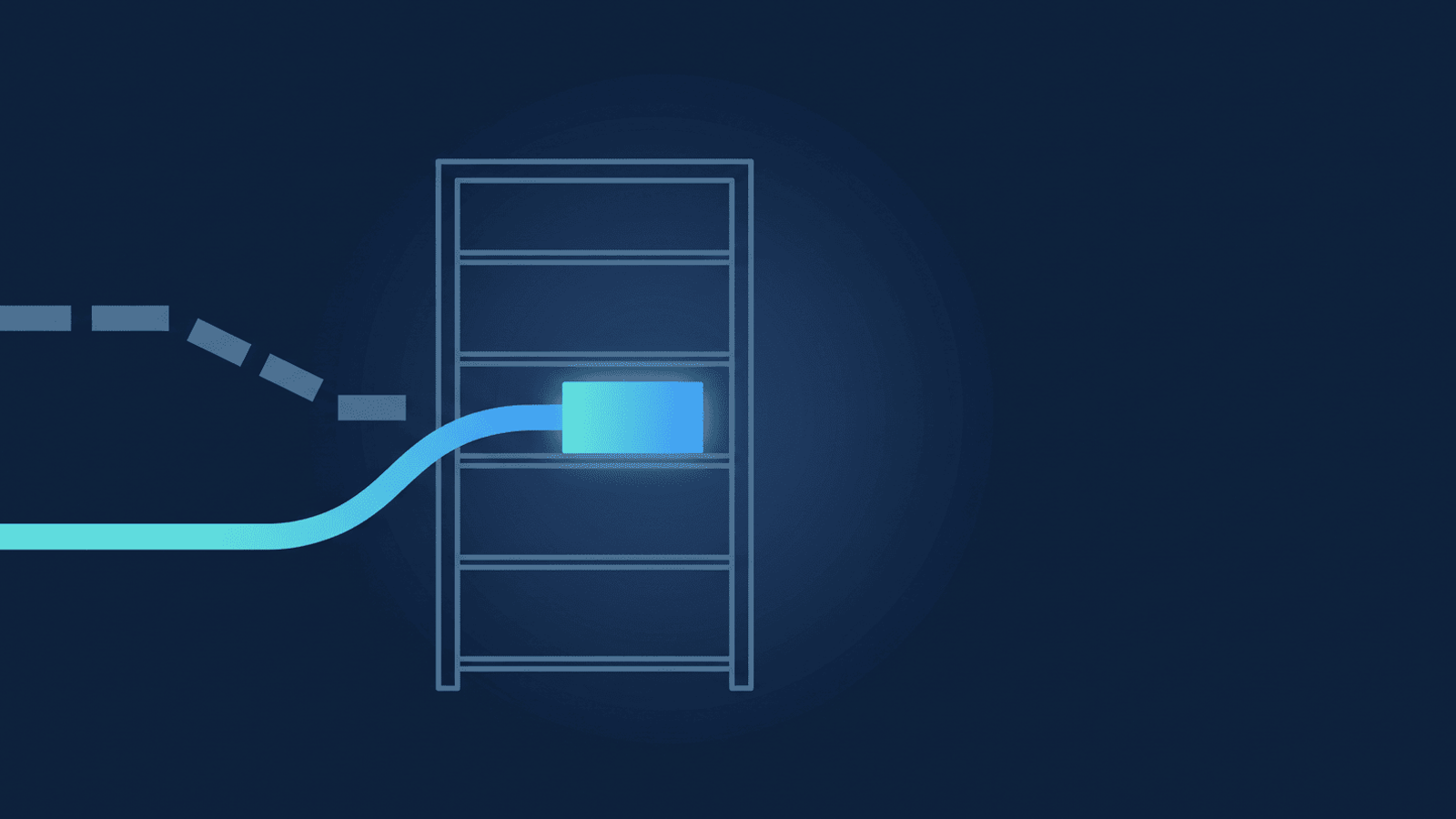
Most Zoom backup integrations — no-code automations, first-party connectors, anything triggered by a "recording completed" event — are built to react going forward. They watch for new recordings and copy each one as it lands. None of that logic reaches backward into what's already in your account, so a backlog built up over months or years just sits there, unprotected, no matter how long the automation has been running.
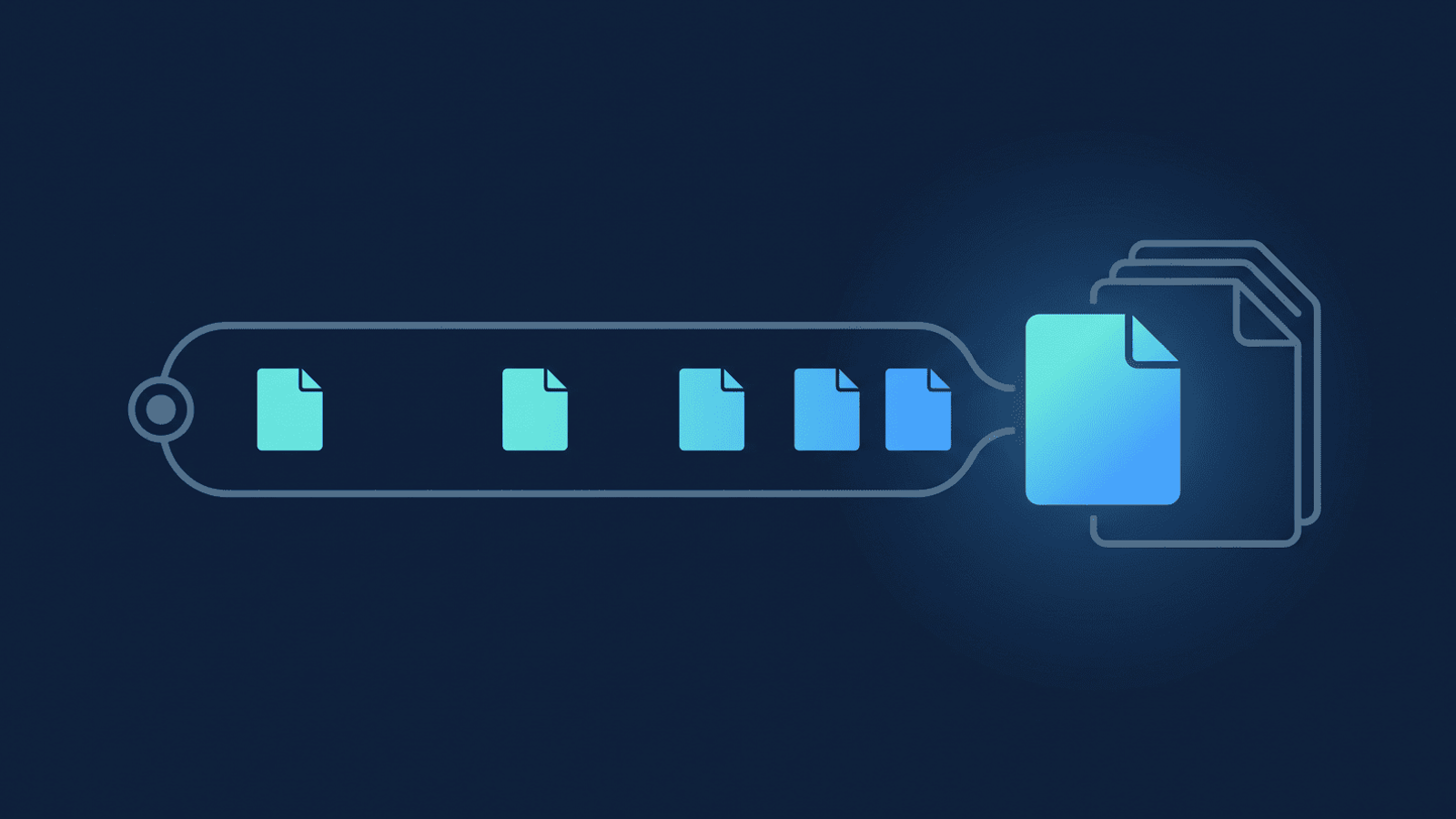
Even setups that do attempt to pull older recordings tend to choke on the files themselves. A single hour of Zoom recording typically runs a few hundred megabytes once Zoom finishes compressing it. A lot of general-purpose file-transfer automations cap how large a single file transfer can be — built for spreadsheets and form submissions, not hour-long video. Point one at a multi-year backlog and the failure mode is predictable: it works fine on short clips, then silently drops or errors out on anything longer than a few minutes.
Zoom's own web portal doesn't help either. Downloading a cloud recording means opening it and downloading it from its own page, one recording at a time, with no bulk-export option in the recordings list — impractical past a handful of meetings and genuinely not viable across a backlog that spans years. Meanwhile the clock on that backlog keeps running: storage pools fill and, on accounts with a retention policy set, recordings older than the policy window age out automatically — regardless of whether anyone got around to backing them up first.
That one-at-a-time limit is exactly why the job often ends up delegated: a virtual assistant or admin opens each recording in the Zoom portal, downloads it, and re-uploads it to Drive by hand, one meeting at a time. It's how a lot of solo practitioners and small teams have been keeping up — until the VA's hours run out, they move on, or the backlog quietly outgrows what anyone signed up to do manually. What's left afterward isn't "mostly backed up with a small gap" — it's however many months went by since the last person touched it, on top of whatever was never covered in the first place.
How to migrate the whole backlog, not just what's new
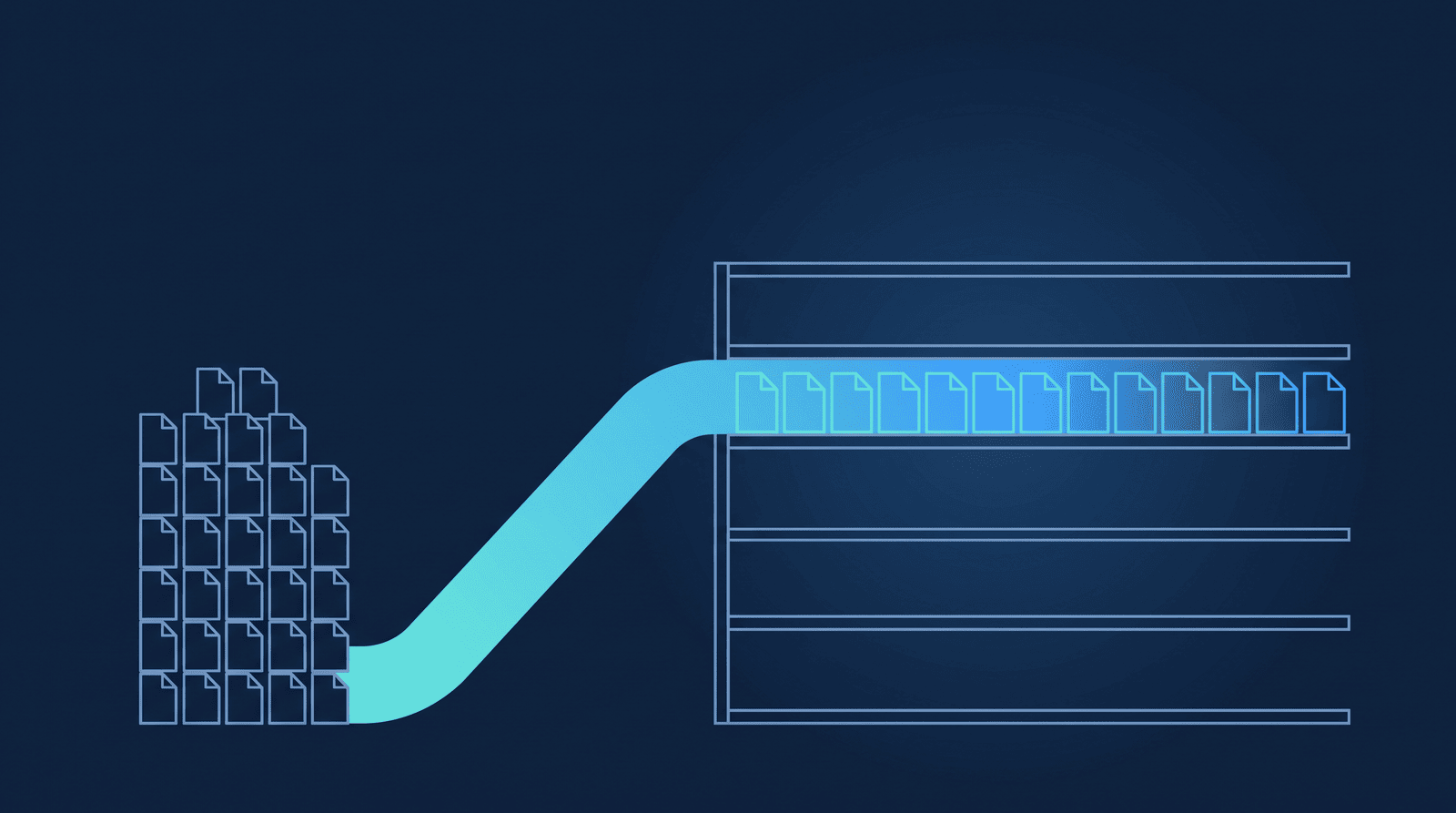
RecordFlow's archive history setting exists specifically for this — it controls how far back into your existing Zoom recordings a connected account reaches, separately from the fact that it also archives everything new going forward.
- Connect Zoom to your Google Drive. About 60 seconds — sign in with Zoom, connect Drive, pick a folder. This part is read-only; nothing is deleted or changed in Zoom. Consolidating to Dropbox or OneDrive instead works the same way — the archive-history setting below is the same regardless of destination.
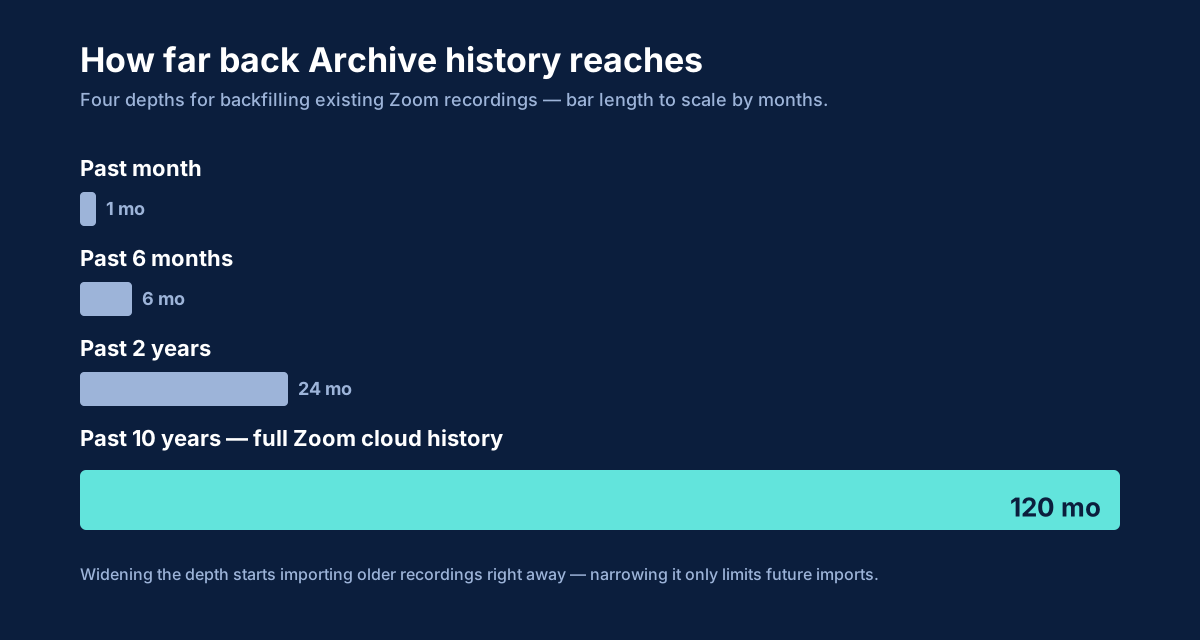
- Open Settings and set Archive history to match your backlog. Four depths are available: the past month, the past 6 months, the past 2 years, or your full 10-year Zoom cloud history. A new connection starts on the past month, included free, so a decade of video doesn't land in your Drive on day one. Going deeper than the past month is a one-time paid unlock — pick a deeper option and Settings shows a "contact support" panel; send your invoicing details and we'll turn it on. Once unlocked, picking a deeper option than what's currently set starts importing the older recordings immediately — narrowing it later only limits future imports, and nothing already archived to Drive is ever removed. (Comparing Drive's cost against Zoom's paid storage add-ons is worth a look if the price of a deep backfill is giving you pause.)
- Let it run. Recordings appear in your Drive folder progressively as each one is fetched and verified, not all at once. A backlog of a few dozen meetings usually finishes in minutes; a library spanning years and thousands of meetings runs in the background over a longer stretch — RecordFlow has completed single-day backfills of well over a thousand meetings without manual intervention.
- Running the archive on behalf of a team? An admin-managed install applies the same backfill account-wide — one admin connects once, and every enrolled member's existing recordings import into their own sub-folder under a Drive root the org controls.
The part that makes a large, old backlog actually finish is how each file moves. RecordFlow streams recordings from Zoom to your storage in small chunks rather than holding an entire multi-gigabyte video in memory at once. A three-hour training recording transfers the same reliable way a five-minute session does, and if one chunk fails partway through, the transfer resumes rather than restarting the whole file from zero.
How RecordFlow fits
Backfilling isn't a separate mode bolted onto RecordFlow — it's the same archiving pipeline that handles new recordings, just pointed at a deeper slice of your Zoom history. Widen the archive-history setting and the same chunked-transfer, verified-before-anything-else logic that copies tomorrow's meeting also reaches back and copies last year's — years of client sessions and board meetings included, transferred directly from Zoom to your Drive rather than stored on RecordFlow's servers in between. Once your backlog is safely in Drive, auto-delete is there if you want Zoom's copy cleared too — but only after each recording's Drive copy is verified, never before, and always opt-in.
Stop leaving your backlog exposed.
RecordFlow backfills your existing Zoom recordings into the Google Drive you own, the same reliable way it archives everything new — free during beta. The past month back is included free; going deeper, up to your full 10-year history, is a one-time paid add-on.