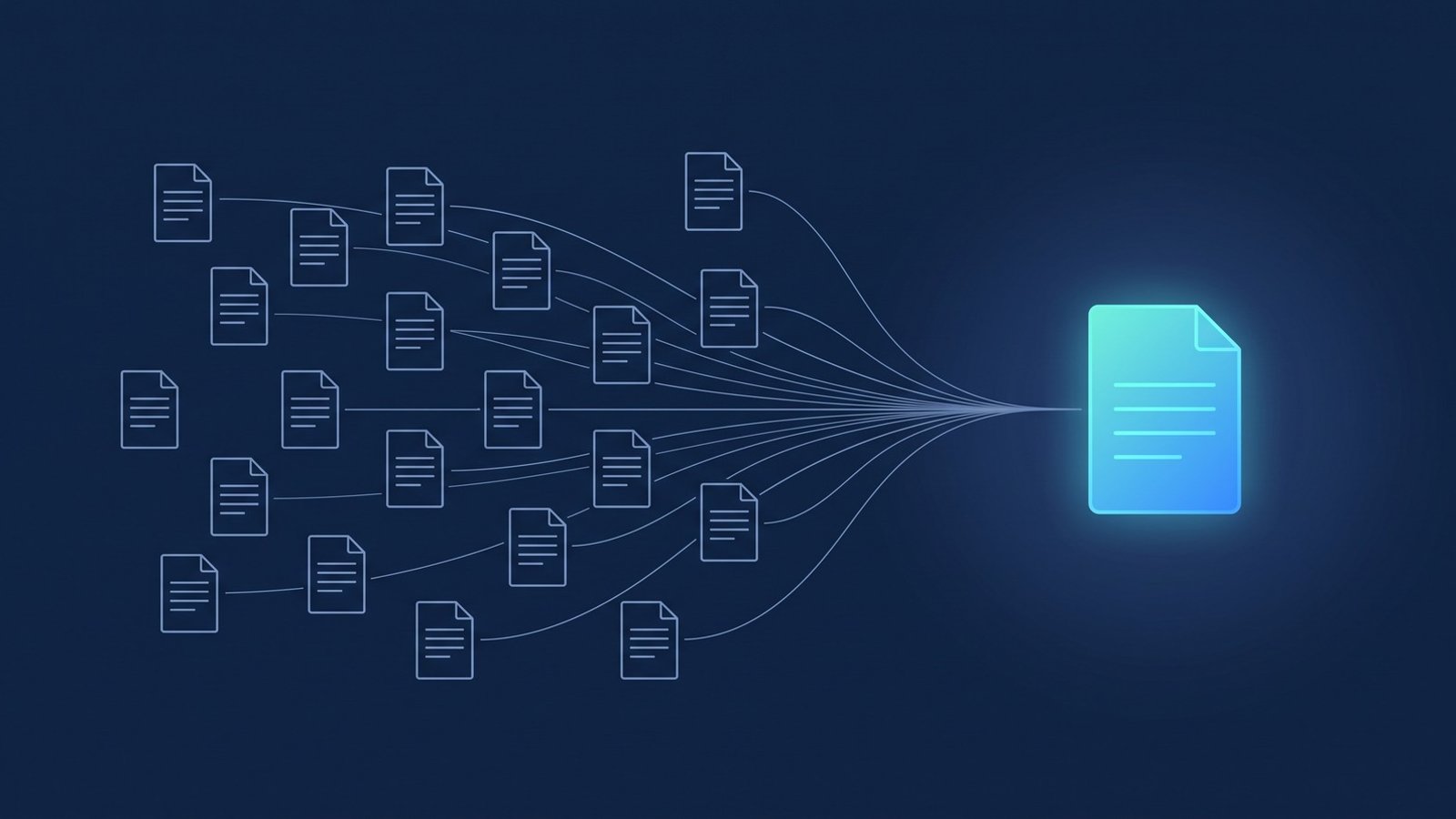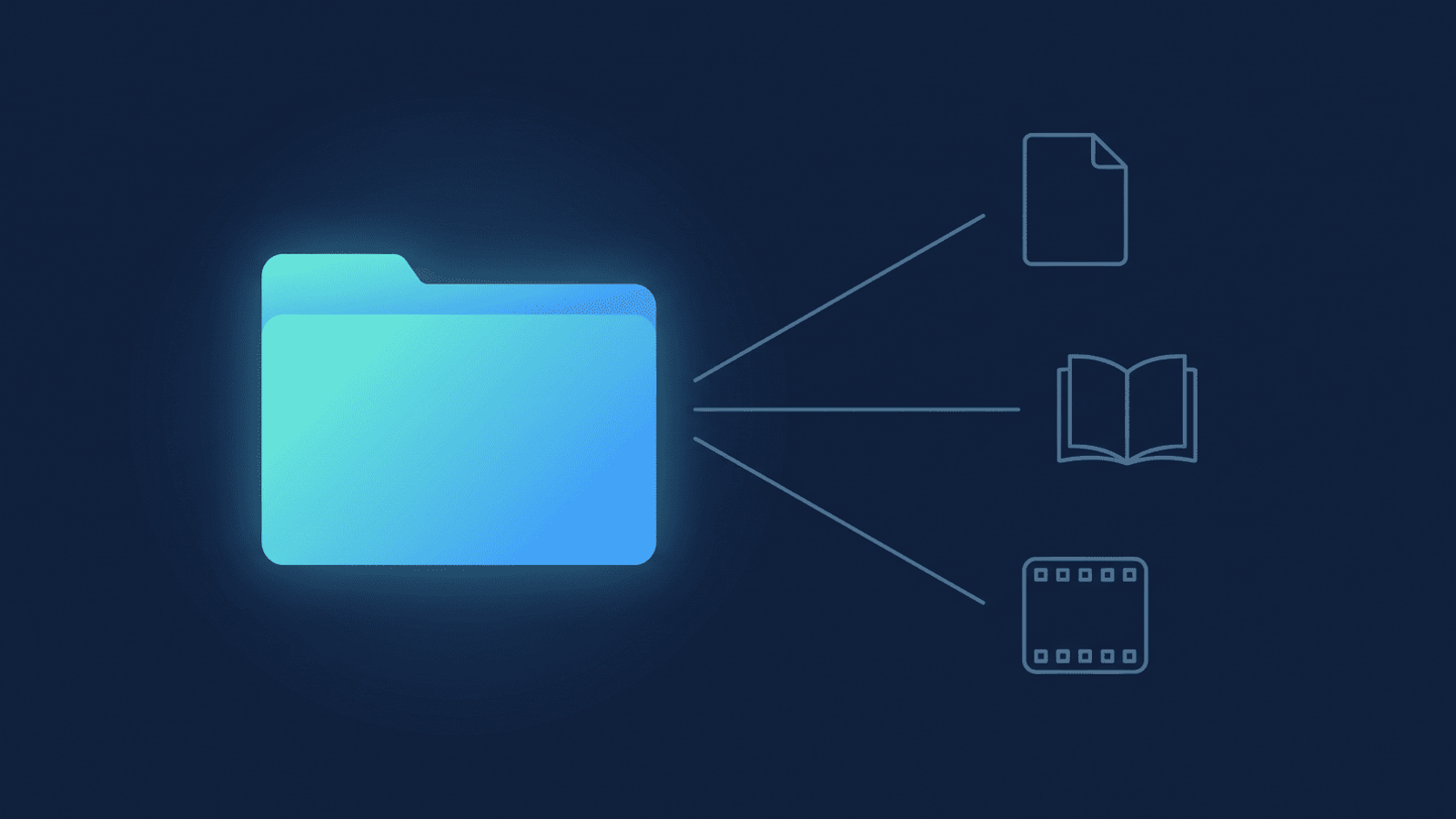
You want to ask Gemini Notebook (formerly NotebookLM — Google renamed it in July 2026; same product, same URL, new name) "what did all my coaching clients ask about this month?" The answer is in your Zoom recordings — except those recordings live in Zoom Cloud, the transcripts are .vtt files no AI tool can read cleanly, and the only way to get them into Gemini Notebook today is to download each one and paste it in by hand. The unlock is moving the recordings — and a readable transcript — into Google Drive, where every AI tool you already use can reach them.
To convert a Zoom transcript into something those tools can actually read, you need it in Drive as a clean Google Doc — not the raw .vtt Zoom hands you. This post is the workflow: what Zoom actually gives you, why the raw .vtt is a dead end for AI tools, and how to turn each transcript into a readable Google Doc (which also downloads to a Word file in two clicks) once it's in Drive. If you haven't set up the backup itself yet, the companion how-to on backing up Zoom recordings to Google Drive automatically covers the 60-second setup.
If you've already read the companion post on where Zoom recordings should live, this is the next layer — what becomes possible once they're in Drive.
What Zoom actually gives you
Zoom Cloud can generate two .vtt artifacts for a recorded meeting: an audio transcript (recording type audio_transcript — the post-meeting transcription of the spoken audio) and, when live captions were enabled during the meeting, a closed-caption file (recording type closed_caption). The Zoom documentation on audio transcripts walks through enabling the feature on your account. The audio transcript is the one most coaches want — it covers the whole meeting whether or not anyone turned captions on.
The format itself is WebVTT, a W3C caption standard built for video players, not for reading. A real Zoom .vtt looks like this:
WEBVTT

1
00:00:03.120 --> 00:00:06.480
Sarah Chen: So the thing I keep coming back to is

2
00:00:06.480 --> 00:00:09.760
Sarah Chen: that I can't tell if I'm building the right thing.

3
00:00:09.760 --> 00:00:11.200
Marcus Webb: Yeah. Say more about that.
It's parseable by code, but it's not readable as a document. Every three-second caption is its own cue. The same speaker's thought gets fragmented across five or six cues. Paste that into Gemini Notebook or a chat-based LLM and you've handed it a stack of timestamps and noise to work around before it can read the content.
Why Zoom Cloud is a dead end for AI tools
Zoom Cloud stores the recording where Zoom can find it. The problem is that nothing else can. Gemini Notebook accepts Google Docs and Slides from Drive, PDFs and text files, web URLs, YouTube videos, audio uploads, and pasted text — not Zoom Cloud URLs. Gemini in Workspace reads files and folders from your Drive. The transcript, note-taking, and knowledge-base tools coaches and consultants stack on top of meetings almost always integrate with Drive; almost none integrate with Zoom Cloud as an archive destination.
Drive is the integration point. Once a recording and its transcript live in a Drive folder you own, every AI tool you already pay for can reach them. That's the unlock; the rest of this post is what to do with it.
Convert the Zoom VTT into a Google Doc
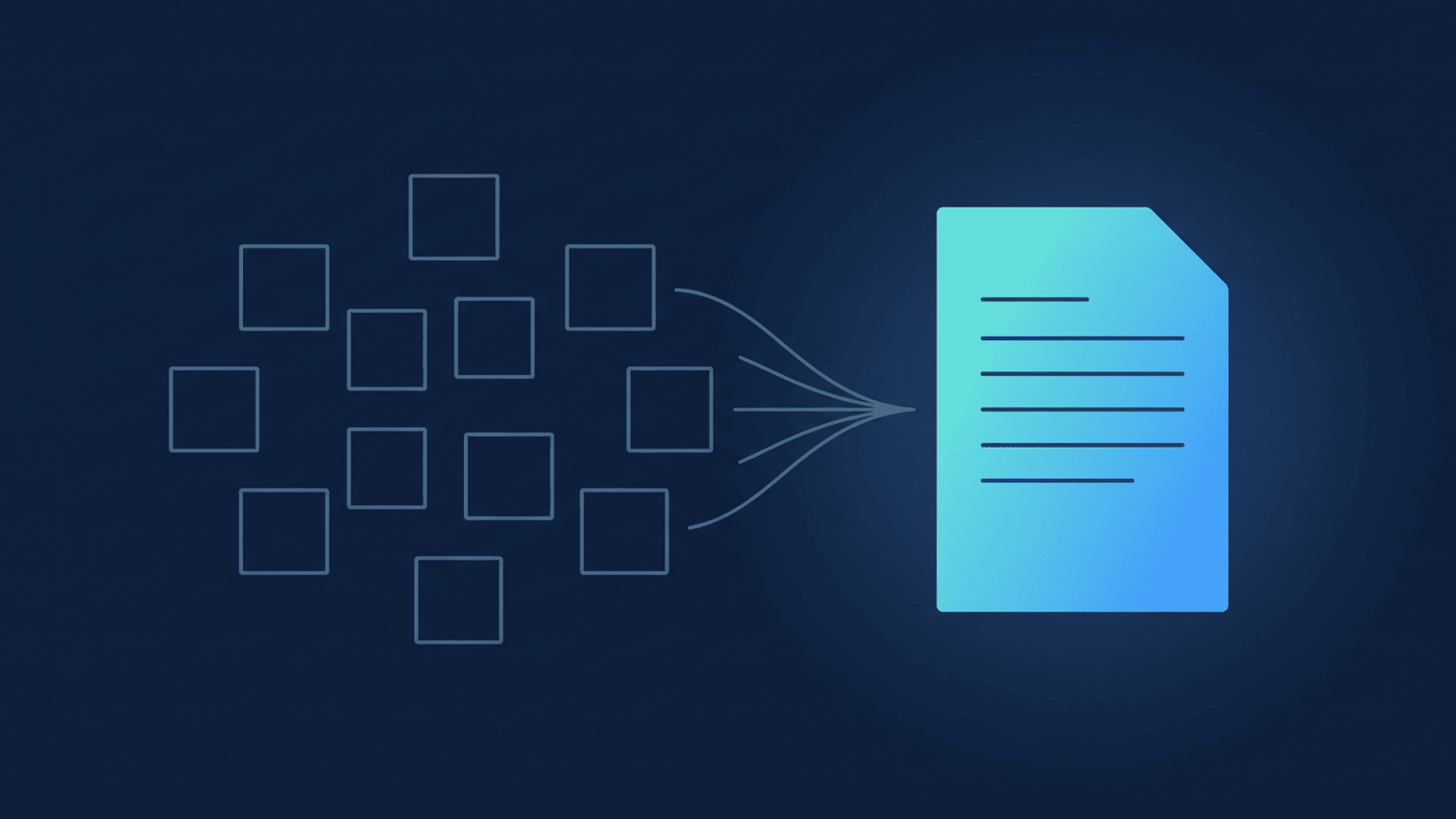
The transcripts arrive in Drive in two forms. The raw .vtt is always there — that's the source file, untouched. Alongside it, RecordFlow uploads the same transcript as a native Google Doc: cue numbers and end-times dropped, consecutive lines from the same speaker merged into paragraphs, each paragraph prefixed with a rounded [HH:MM:SS] start, and the speaker's name bolded. The same exchange above lands as:
[00:00:03] Sarah Chen: So the thing I keep coming back to is that I can't tell if I'm building the right thing.
[00:00:09] Marcus Webb: Yeah. Say more about that.
It's the same content. It now reads like a transcript instead of a caption file. That single change is what makes the downstream workflows work — a native Google Doc previews in Drive, opens cleanly in Gemini Notebook, and pastes into Gemini or any other AI chat without timestamp clutter. And because it's a real Google Doc, you can download it straight to a Microsoft Word (.docx) file — File → Download → Microsoft Word — if you'd rather convert the Zoom transcript to Word for editing or sharing, without hand-stripping cue numbers out of the .vtt first.
The conversion is lossy on purpose — end-times and per-line cue boundaries go away. That's why the raw .vtt stays in the folder alongside it. If you ever need the original, it's still there. If you ever need to import the same transcript into a video player, the .vtt is what you use. The Google Doc is the version you hand to an AI.
Both files land automatically every time RecordFlow syncs a new recording — no setting to flip, no separate enable step. Older meetings synced before the Doc upload shipped were backfilled, so the Google Doc is sitting next to the existing .vtt in your archive too.
Once your transcripts are readable Google Docs, the rest of the Zoom recordings & AI guides cover what else opens up. Here are four workflows to start with.
Four workflows once your transcripts are in Drive
1. Gemini Notebook — ask questions across a quarter of client calls
Gemini Notebook accepts Google Drive Docs as sources (check the current per-notebook source cap on your tier). Create a notebook per client (or per quarter, or per program cohort), add the Google Doc transcripts as sources, and ask the questions you can't search for: What themes came up across these eight coaching calls? Which commitments did this client make and never revisit? When did we first talk about the co-founder conflict? Gemini Notebook cites the source document for every claim, so you can jump from an answer back to the exact transcript.
2. Gemini in Workspace — summarize one recording at a time
Gemini in the Workspace side panel opens directly on a Google Doc and can summarize, extract action items, pull decisions, or answer a question grounded in just that one transcript. This is the right tool for "give me the action items from yesterday's strategy session" — single document, fast answer, no notebook setup. The Drive-native Doc is what makes this work; Gemini won't process a raw .vtt the same way. For the wider set of things the rest of Google Workspace can do with your Zoom recordings once they're in Drive, that companion post walks through Docs, Vids, and search.
3. Transcript and meeting tools — point them at the Drive folder
If you use a meeting-intelligence or note-taking tool that reads Drive, point it at the folder your RecordFlow transcripts land in. It can index, tag, and search across the archive the same way it does for documents you author yourself. The "where are my old meeting notes?" search problem stops being a Zoom-specific problem and becomes a normal Drive search.
4. Group programs and cohorts — share the transcript, not the recording link
For group programs, retreat replays, or cohort-based courses, the transcript Doc is often what participants actually want to revisit — searchable, skimmable, copy-pasteable. Drive's sharing controls let you restrict access by email so a cohort's transcripts follow the same paid-access rule as the rest of the program, without ever handing out a raw Zoom share link.
If it's a recurring class rather than a one-off cohort call, naming the Zoom meeting with a slash — Cohort 3/Week 6 — lets RecordFlow collect every week's session and transcript into one shared class folder instead of a new one each time, so a Gemini Notebook you point at the folder picks up the whole series without re-adding sources every week. It's off by default — the linked docs below cover how to turn it on. It applies to future syncs only. Full mechanics.
Setup notes that pay off later
Two small choices make the AI workflows above much smoother:
- You don't have to reorganize first. RecordFlow groups recordings into year folders by default. Gemini Notebook lets you cherry-pick individual Google Docs as sources from anywhere in Drive, so you can build a per-client (or per-cohort) notebook without moving any files. If you'd later prefer client folders for general Drive search, you can reorganize whenever you want.
- Don't rename the meeting folders. RecordFlow creates one folder per meeting and names it with the start date and the meeting topic (e.g.
2026-06-03-Quarterly review). That folder name is what disambiguates "which session?" when you pick the transcript Doc as a Gemini Notebook source or grep through Drive search — the files inside express the artifact type (audio_transcript,shared_screen_with_speaker_view, etc.), not the meeting.
What this is not
RecordFlow is not an AI tool. It doesn't summarize your meetings, doesn't answer questions about them, doesn't sit between you and your transcripts. It moves your Zoom recordings and a clean transcript Doc into a Google Drive folder you own, and from that point on the AI tools you already use can reach them. The intelligence — what to ask, what to do with the answer — stays with you and the tools you chose.
If you want a single backup tool whose job is to put recordings and readable transcripts where Drive-native AI can find them, that's the job RecordFlow does.
How RecordFlow fits
Sign in with Zoom, connect Drive, pick a folder. The moment Zoom marks a recording ready, RecordFlow copies the video, audio, chat log, and .vtt transcript into that folder — and uploads a readable, AI-ingestible Google Doc version of the transcript alongside the raw .vtt. From there, the rest of your stack — Gemini Notebook, Gemini, whatever you reach for next — can read your meetings without a download step.
Put your Zoom transcripts somewhere Gemini Notebook and Gemini can read them.
Pick a Google Drive folder once. Every Zoom recording lands there automatically, with a clean Google Doc transcript alongside the raw .vtt. Free during beta.