You've got months of client sessions, workshops, or cohort calls sitting in Zoom Cloud. They're recorded, they're technically "saved" — and they do nothing for you. You can't search across them, you can't hand one to a teammate to summarize, you can't cut a highlight reel from one. A recording in Zoom Cloud is a file Zoom is holding, not a tool you can use.
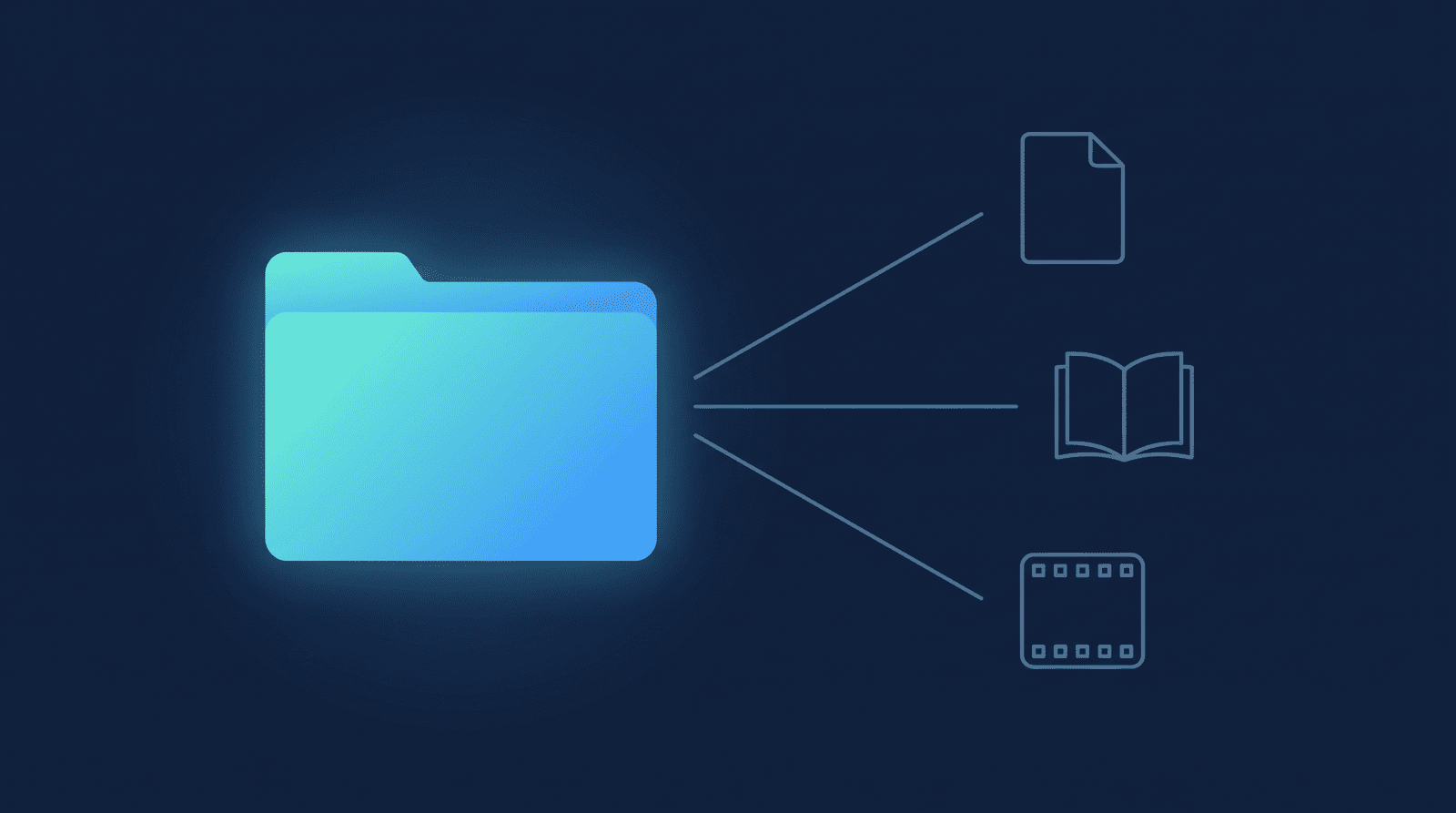
The fix isn't a new app. It's moving the recording — and its transcript — one layer over, into Google Drive. The moment they're there, three Google tools can reach them: Docs for a readable transcript, Gemini Notebook (formerly NotebookLM, renamed in July 2026) for asking questions across many sessions at once, and Vids for turning footage into an edited clip. Docs and Gemini Notebook work with any Google account; Vids' ability to open an existing Drive video for editing needs an eligible Workspace plan (more on that below). This post is the ecosystem overview — what each tool actually does with a recording once it's in Drive, and where to go for the deeper how-to on each.
Why Zoom Cloud can't do any of this
Zoom Cloud is built to notify you a recording is ready, not to feed it into anything else. None of Google's tools read a Zoom Cloud URL directly — not Docs, not Gemini Notebook, not Vids. They read files in Drive. So the first move, before any of the workflows below are possible, is getting the recording out of Zoom's silo and into a Drive folder you control. If you haven't set that up yet, the companion how-to on backing up Zoom recordings to Google Drive automatically covers the 60-second setup, and the Zoom Cloud vs Google Drive comparison makes the case for why Drive is the better long-term home in the first place.
Once a recording and its transcript land in Drive, they stop being a Zoom artifact and become an ordinary file — which is exactly what makes the rest of this work.
Three things you can do once a recording is in Drive
1. Read it — a clean transcript in Google Docs
Zoom's own transcript is a raw .vtt caption file: cues just a few seconds long, no paragraphs, timestamps on every line. It's built for video players, not for reading, and none of the tools below will touch it directly.
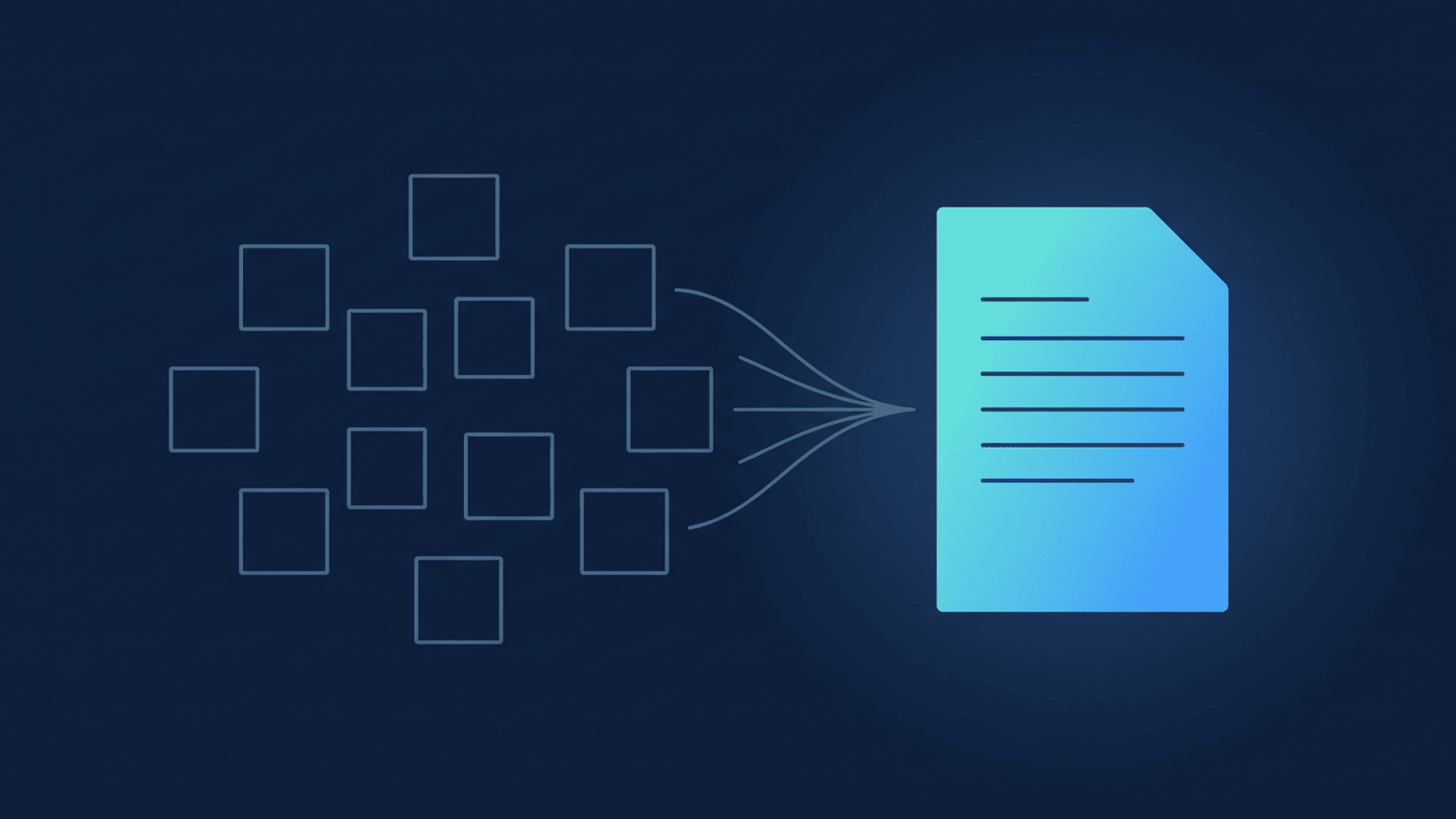
The fix is a readable version. RecordFlow uploads each transcript into Drive twice — the original .vtt, and a native Google Doc with cue numbers stripped, consecutive lines from the same speaker merged into paragraphs, and a rounded timestamp plus bolded speaker name at the start of each one. That Doc is what makes the transcript searchable in Drive search, skimmable on its own, and downloadable as a Microsoft Word file in two clicks (File → Download → Microsoft Word) if you need to hand it to someone who isn't in your Drive.
The full walkthrough — what Zoom's .vtt actually contains and why the raw file breaks every downstream tool — is the companion deep-dive on converting Zoom transcripts to Google Docs.
2. Ask it questions — Gemini Notebook across many sessions
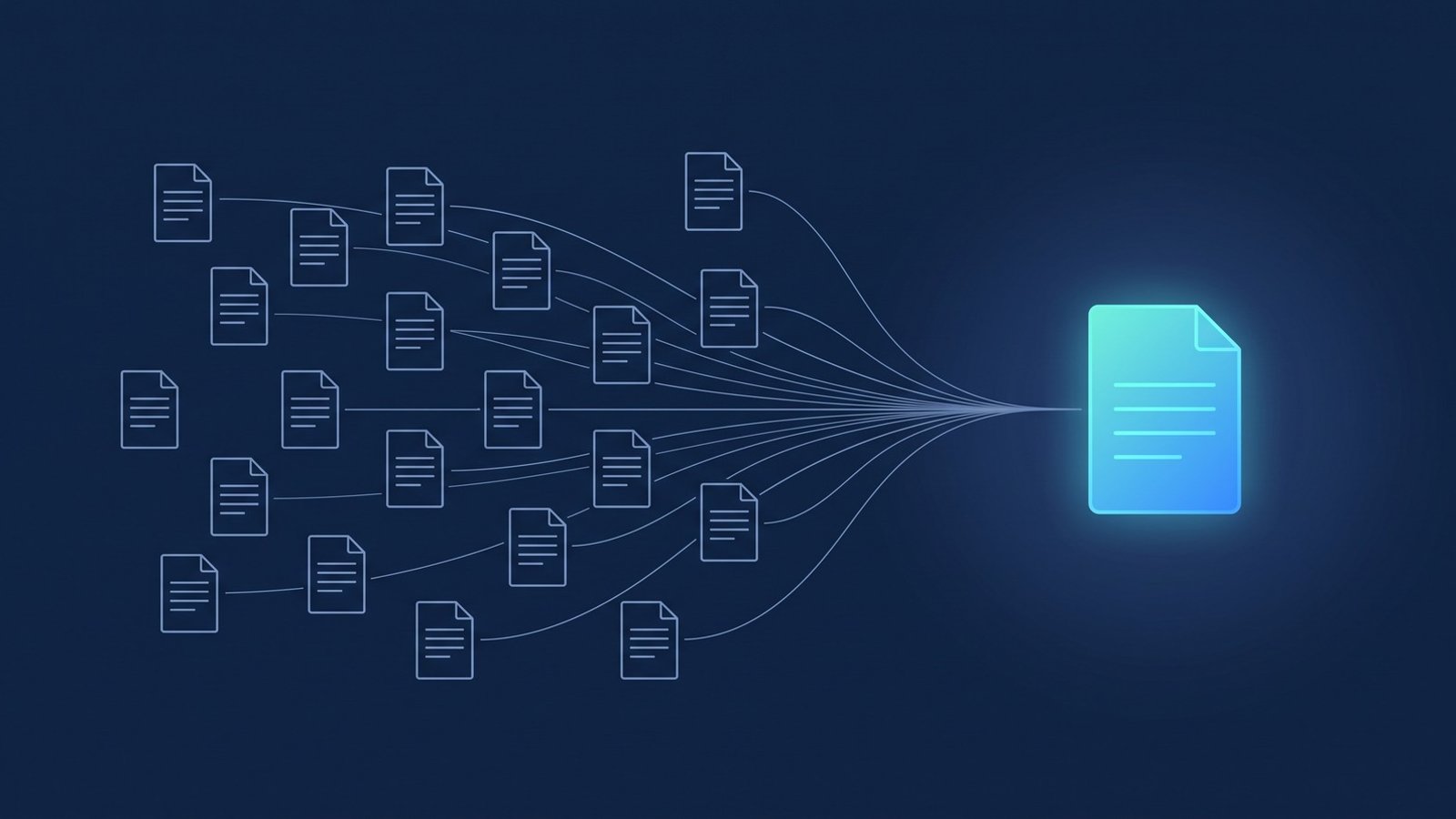
Gemini Notebook — Google renamed NotebookLM to Gemini Notebook in July 2026; same product, same URL, new name — takes Google Docs, Slides, PDFs, and a handful of other source types from Drive and lets you ask questions grounded in exactly those documents, with citations back to the source. Point it at a stack of transcript Docs — a quarter of coaching calls, a cohort's worth of class sessions — and you can search across sessions instead of re-watching them one at a time. Gemini Notebook cannot read a raw .vtt or a Zoom Cloud link; it needs the Doc version sitting in Drive, which is the artifact from workflow #1. Setting up a notebook, source limits, and what a good prompt looks like is covered in full in the companion deep-dive on Zoom transcripts and Gemini Notebook — that's the one to read next if this is the workflow you want.
3. Cut it — turning footage into a clip with Google Vids
Google Vids is Google's browser-based video editor, and it works directly against files already in Drive: open a recording from Drive and choose "Open with Google Vids," and the clip drops straight into a new project as the first scene, ready to trim, reorder, or combine with other footage — no download-then-reupload step (Google's guide to editing Drive videos in Vids). That's the workflow for pulling a five-minute highlight out of an hour-long workshop recording, stitching together the best moments from a multi-session cohort, or turning a client testimonial call into something shareable. This specific capability — opening an existing Drive video straight into Vids — requires an eligible Google Workspace plan, and individual clips inserted this way are capped at 35 minutes and 4 GB (Google's Vids getting-started guide), so check your plan's access before you build a workflow around it. For anyone already on a qualifying Workspace plan, the ability to edit is already sitting on top of whatever RecordFlow has archived, no separate upload required.
What this doesn't require
None of the three workflows above need the recording reorganized first. RecordFlow groups recordings into year folders and names each meeting folder with the date and topic — that's enough to find the right session by eye or by Drive search, and Gemini Notebook and Vids both let you pick individual files as sources regardless of where they sit in the folder tree. Don't rename the meeting folders, though: that date-plus-topic name is what disambiguates "which session was this?" once you're three files deep in a Gemini Notebook source picker or a Vids project.
How RecordFlow fits
RecordFlow isn't an AI tool, and it doesn't try to be Docs, Gemini Notebook, or Vids. Its job is narrower and more mechanical: sign in with Zoom, connect Drive, pick a folder — about 60 seconds — and from then on, the moment Zoom marks a recording ready, RecordFlow copies the video, audio, chat log, and transcript into that folder, transcript included as both the raw .vtt and a readable Google Doc. How much of what's already sitting in Zoom Cloud comes along is your call: the Archive history setting starts at the past month, so your Drive isn't flooded on day one, and widens to 6 months, 2 years, or a full 10 years whenever you want — backfilling the newly-included sessions as soon as you widen it. Everything past that point is Google's tools reading files you already own in a folder you already control. RecordFlow is the plumbing; what you build on top of it is up to you.
Get your Zoom recordings where Google's tools can reach them.
Pick a Google Drive folder once. Every recording and a clean Google Doc transcript land there automatically, ready for Docs, Gemini Notebook, or Vids. Free during beta.