A student emails halfway through week six: "Can I get the replay from Module 3? I was traveling and missed the live call." You go looking, and the Zoom recordings list has forty session titles that all say some variant of "Cohort Call" with a timestamp, no module numbers, no way to tell which one was week three without opening each and scrubbing to the intro. For a course creator, that's not a minor annoyance — the recorded library is the product a student paid for, and "I'll have to get back to you" is not the answer anyone wants to send mid-cohort.
What's actually happening
Zoom Cloud is built around a single meeting, not a growing library. Every session you record adds a file against your account's cloud storage — 10 GB per licensed host on Zoom Pro or Business, pooled at the account level. A weekly one-hour live call for an eight-to-twelve-week cohort, run at typical HD compression, can chew through a meaningful slice of that pool before the course even wraps — faster if you run office hours or a Q&A call alongside the main session, or if you're teaching more than one cohort in parallel. Once the pool is full, Zoom stops saving new cloud recordings for the whole account until you clear space or pay for an add-on — which, mid-cohort, means the risk isn't losing an old file, it's failing to capture this week's live call at all.
There's a second problem that shows up the moment a student tries to watch instead of you trying to store. If your account has "require authentication to view cloud recordings" turned on, a Zoom share link demands a Zoom login before it plays — and a student who enrolled through your course platform, not through Zoom, often doesn't have one and doesn't want to create one just to watch a replay. Even with that setting off, Zoom's recording list has no concept of "Module 3 of a 10-module course" — it's a flat list of meeting titles and dates, which is exactly why a support request like the one above takes longer than it should.
Both problems come from the same mismatch: Zoom treats the recording as a notification you've already acted on, while a course needs it to become a permanent, browsable library.
How to save your course recordings to Google Drive
- Turn on cloud recording for every instructor who teaches a session, not just the account owner — Zoom Settings → Recording, Cloud recording toggled on per host. A co-facilitator recording locally to their own laptop is invisible to any backup automation, and invisible to you the moment their machine is unavailable. Say once, at enrollment, that live calls are recorded — most course terms of service already cover this, and it's worth a line in yours if not.
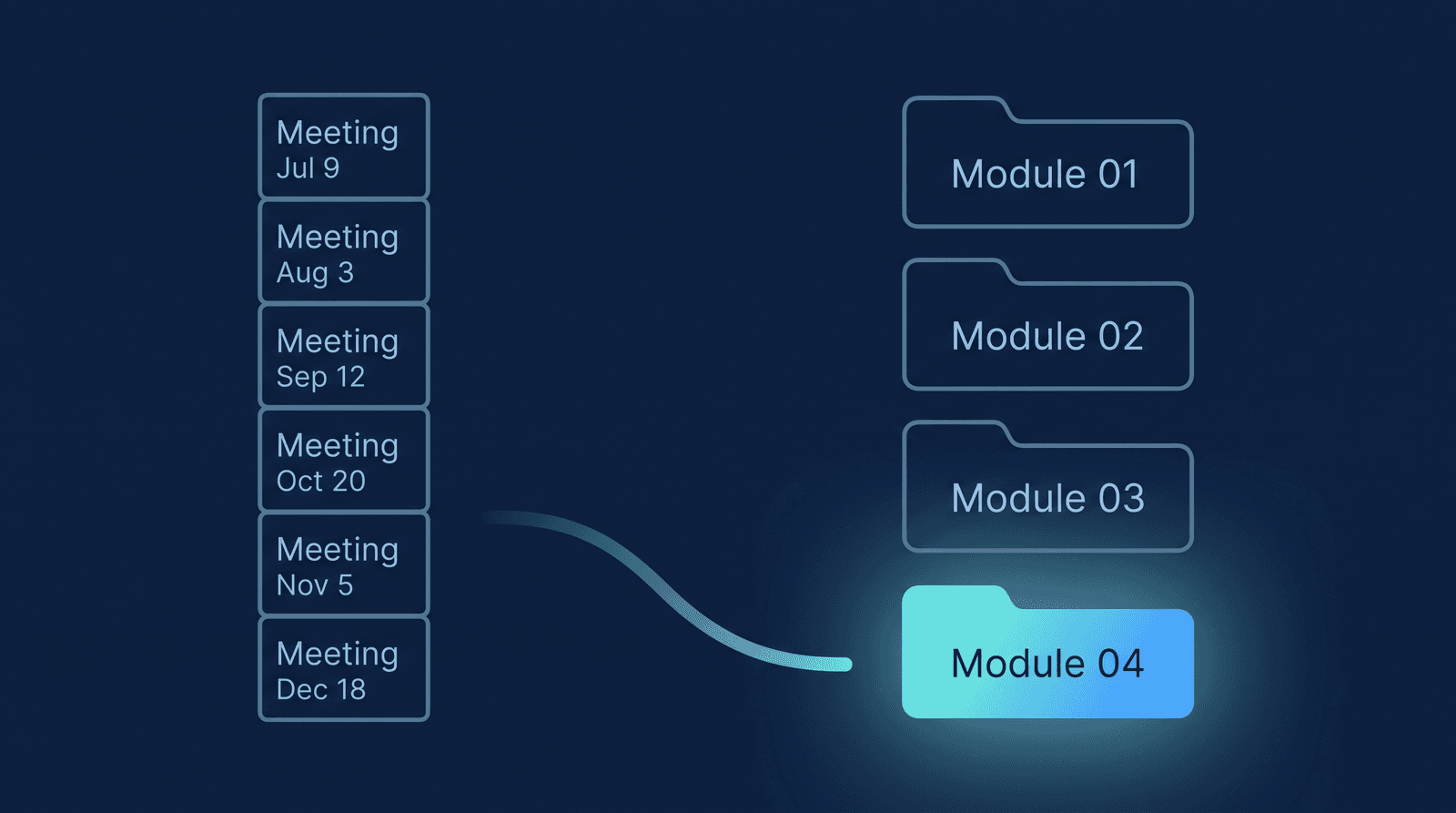
- Pick one Drive folder as your course archive, and put the cohort and module in each Zoom session's meeting topic. Title the Zoom meeting
Spring 2026 — Module 03 — Pricing(cohort name, then module number, always two digits). Backup automation carries that topic straight into the session's folder name inside your one connected Drive folder, so2026-07-22-Spring 2026 — Module 03 — Pricingreads the way a student thinks about the course, not the way Zoom's flat meeting list does. RecordFlow syncs to a single destination folder per account — if you run several cohorts at once, they land in that same archive by default, and the cohort name in the topic is what keeps them identifiable, not a separate folder per cohort. If you'd rather each cohort collect in its own folder automatically, RecordFlow can group sessions by class: name the topicSpring 2026/Module 03 — Pricing(cohort before the slash), and every future session sharing that exact cohort prefix lands together in one shared folder instead of the undivided archive. It's off by default — the linked docs above cover how to turn it on. - Connect an automation that copies each session into that Drive folder the moment it's ready. Doing this by hand — download from Zoom, rename, upload to Drive, repeat every week for every cohort you're running — is the step that quietly slips during a launch week or a busy module. RecordFlow does this automatically once you connect Zoom and Drive, and files land within minutes of Zoom finishing processing.
- Share the relevant session folders directly, not a Zoom link. Google Drive's "anyone with the link can view" sharing opens on any device with no sign-in required — the same way a student already opens a shared doc or a linked resource inside your course platform. Running a single cohort, share your whole connected Drive folder once at kickoff. Running several cohorts through the same archive, share each session's dated subfolder individually instead, so one cohort's students aren't looking at another cohort's replays. Drop the link into your course platform's module page (Teachable, Kajabi, Podia, or your own site all support linking out to an external URL) and the replay is one click away, no Zoom account needed — nothing new for a student to learn, since it's the same click they already use for every other resource on that page.
- Turn on RecordFlow's auto-delete once Drive backups are confirmed. It's an opt-in switch that only clears a session from Zoom after the Drive copy is verified, with a three-day grace period built in — safer than Zoom's own retention policy, which runs on a fixed schedule regardless of whether a backup ever actually succeeded. Either way, the shrinking Zoom pool means next week's live call is never at risk of failing to record.
What to check if a session recording goes missing
How RecordFlow fits
RecordFlow connects your Zoom account to a Google Drive folder once — about 60 seconds — and from that point on, every live session lands there automatically: video, audio, a chat log, and a clean Google Doc transcript with timestamps and speaker labels, so a student can search a session instead of scrubbing an hour of video to find the five minutes on pricing that mattered. Once a session is in Drive, it's a normal folder, yours to reorganize the same way you organize anything else there — nest it into a per-cohort subfolder, move it into a shared folder scoped to one group of students, rename it — the kind of access control and clean, per-course structure Zoom's flat recordings list was never built to offer.
It works the same whether you're running one small cohort or several in parallel — the same automatic-backup pattern that works for a per-cohort group coaching program or an ongoing tutoring roster applies directly to a course library, and if a co-instructor connects their own account, their sessions land automatically too — no chasing anyone to download and re-upload their own recordings. RecordFlow never keeps a copy of the recording on its own infrastructure; the file moves straight from Zoom to the Drive folder you already own.
If you're weighing Drive against staying on Zoom Cloud for the full library, the Google Drive vs Zoom Cloud comparison lays out the cost and retention math side by side — and if a student ever tells you a link won't open, the share-without-a-Zoom-account fix covers exactly that case in more detail.
Never scramble to find 'the Module 3 replay' again.
Connect Zoom and Google Drive once. Every live session lands in an organized folder you own, ready to link into your course platform — no Zoom account required to watch. Free during beta.