A parent messages you Sunday night: can my daughter watch Tuesday's algebra session again before her test Thursday? You open the Zoom portal to find the recording — and it's already gone. Auto-delete kicked in, or the storage cap finally hit, or you just can't remember which of forty session titles it was. Either way, the session you ran is unrecoverable, and the message you have to send back is the one every tutor dreads: "I'm sorry, I don't have that one anymore."
For a tutor or a small teaching institute, a recorded session isn't a courtesy — it's the study material. Students replay it before a test. Parents ask for it after a missed lesson. A course coordinator points a new student at last month's sessions to catch them up. Losing one isn't an inconvenience; it's a broken promise to whoever paid for the seat.
What's actually happening
Zoom Cloud is built around the meeting that produced the recording, not the archive a tutoring business needs it to become. Once a session ends and processes, the file just sits there against your account's storage quota — 10 GB per licensed host on Zoom Pro or Business, pooled at the account level. A solo tutor is working with a single 10 GB pool; a small institute's capacity only grows as fast as it buys more licenses. Either way, a tutor running four or five one-hour sessions a day fills their share faster than it looks like it should, and once it's full, Zoom stops saving new cloud recordings until you buy an add-on or clear space. Institutes running an auto-delete policy for storage hygiene lose recordings even sooner — on a schedule that the student on the other end never sees.
There's a second problem that shows up the moment you try to share instead of store. If your account has "require authentication to view cloud recordings" turned on — common at institutes that lock things down by default — a Zoom share link demands a Zoom account before it'll play. A ten-year-old student, or a parent checking a lesson from their phone, doesn't have one, and doesn't want to make one. The recording exists; nobody can watch it.
Both problems trace back to the same root cause: the recording is living somewhere designed to be temporary, when the job actually requires it to be permanent and easy to hand off.
How to save tutoring session recordings to Google Drive
- Turn on cloud recording for every tutor who teaches, not just the account owner — in Zoom Settings → Recording, Cloud recording must be toggled on per host. A session recorded locally to someone's laptop is invisible to any backup automation and to you the moment that laptop is unavailable. Mention once, at enrollment, that sessions are recorded — most tutoring agreements already cover this, and it's worth a line in yours if not.
- Create one Drive folder per student, or per cohort if you teach group classes.
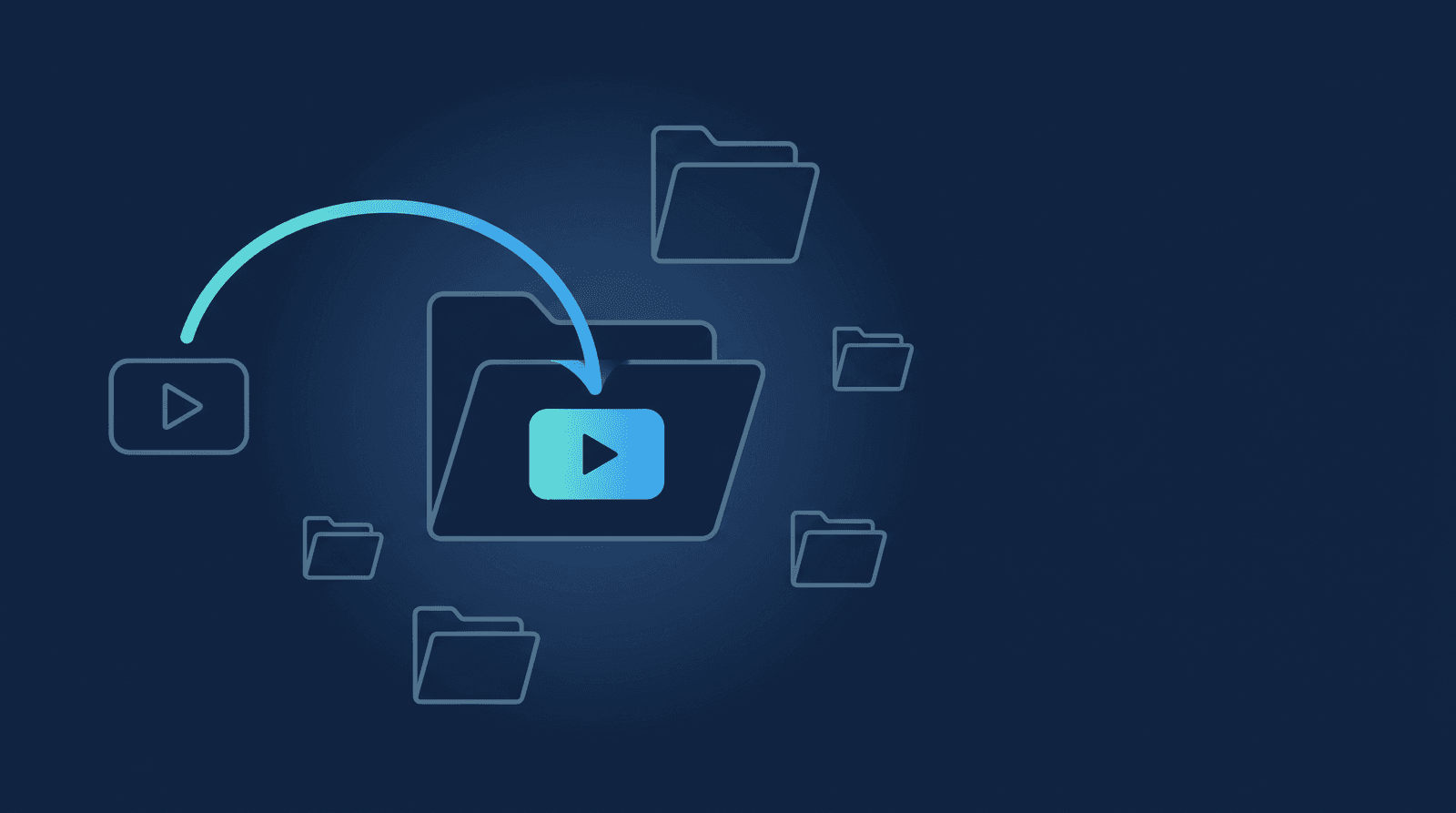
/Students/Amara R/, or/Cohorts/SAT Prep — Summer 2026/for a shared class. This is the structure that makes "can I get last Tuesday's session" a thirty-second lookup instead of a search through forty identically-named Zoom recordings. - Connect an automation that copies each session into the right folder the moment it's ready. Doing this by hand — log into Zoom, download, log into Drive, upload, repeat for every session, every day — is the step that quietly stops happening during a busy exam season. RecordFlow does this automatically once you connect Zoom and Drive.
- Share the student or cohort folder directly, not a Zoom link. Google Drive's "anyone with the link can view" sharing opens on any device without a sign-in — the same way a parent already opens a shared photo album or a school newsletter link. No Zoom account needed on their end, ever.
- Let Zoom's own retention policy do its job once Drive has the backup. Once you've verified a few sessions land safely in Drive, you can leave (or turn on) Zoom's auto-delete without worrying about losing anything — Drive is now the copy that doesn't expire.
What to check if a session recording goes missing
How RecordFlow fits
RecordFlow connects your Zoom account to a Google Drive folder once — about 60 seconds — and from that point on, every tutoring session lands there automatically: video, audio, a chat log, and a clean Google Doc transcript with timestamps and speaker labels, so a student can search a session instead of scrubbing through an hour of video to find the one explanation that mattered. It works the same way whether you're a solo tutor with a handful of regulars or a coordinator running an institute where each instructor needs their own folder — the same automatic-backup pattern that works for a per-cohort group program applies directly to a class or a tutoring roster. Once an instructor connects their own account, their sessions land automatically every week — no coordinator chasing anyone to download and re-upload their own recordings by hand. RecordFlow never keeps a copy of the recording on its own infrastructure; the file moves straight from Zoom to the Drive folder you already own.
If you're weighing whether Drive is even the right destination for teaching recordings versus staying on Zoom Cloud, the Google Drive vs Zoom Cloud comparison lays out the cost and retention math side-by-side — and if you're running a nonprofit tutoring program, Workspace for Nonprofits may already give you far more free Drive storage than you're using.
Never tell a student 'I don't have that one anymore.'
Connect Zoom and Google Drive once. Every tutoring session lands in a folder you own, ready to share with no Zoom account required on the other end. Free during beta.