You're two minutes into a paid session — or a class is about to start — when Zoom shows the red banner: "Cannot start cloud recording. Cloud storage is full." The client is on screen. You freeze.
Here's what to do — starting right now, with the call still running.
Zoom storage full mid-session? Switch to local recording right now
Zoom has a fallback when cloud storage is full: local recording. It writes the video directly to your hard drive, bypassing the cloud entirely.
In the meeting:
- Click Record in the toolbar (or press Alt+R on Windows, Cmd+Shift+R on Mac).
- When Zoom asks where to record, choose Record on this Computer — not "Record to the Cloud."
- Zoom starts capturing locally. The session is saved. (If "Record on this Computer" is greyed out, check that local recording is enabled in your Zoom account settings under Recording — it's on by default for most paid plans but can be disabled by an admin.)
Finish the call normally. The recording lands on your hard drive when the meeting ends — Zoom shows you the file path once it finishes processing.
After the call, copy the local recording to Google Drive before your next session. A file sitting only on your laptop isn't a backup.
Local recording requires that you're the host on your own machine. If you're on a tablet, a borrowed device, or co-hosting, it may not be available — but for most solo practitioners it's always there as the emergency fallback.
What's actually happening
Zoom cloud recording storage is pooled and strictly capped. Most paid plans include 10 GB shared across all Licensed Users on the account — not per person. A single hour of HD video runs a few hundred megabytes after Zoom compresses it, which means a coach or trainer recording ten to fifteen sessions a week fills the shared pool in two to three months. On a team account it fills faster still: everyone draws from the same shared pool, so one heavy week from one host can tip the cap for the whole account.
When the pool is full, Zoom blocks new cloud recordings. There's no warning before the meeting — just the red error when you try to start. If you caught the "storage almost full" email beforehand, you have a short window to act. If not, you get the banner mid-session.
Either way, the root cause is the same: recordings are accumulating in Zoom cloud faster than they're being cleared. The cap isn't a one-time accident — it'll happen again unless something in that pattern changes.
"Storage full" during a live lecture, even though you have space?
This is the version of the confusion instructors hit most: you're mid-lecture, or about to start the next class, and Zoom throws the same "cloud storage is full" error — except your own recording habit is light. A few sessions a week, most cleared out months ago. It doesn't add up until you remember whose storage this actually is.
On a school, department, or training-program Zoom account, cloud recording storage isn't allocated to you individually — it's a single pool shared across every licensed user on the account. Dozens of instructors recording lectures all draw from that same shared allowance, and education-tier plans start from a smaller per-license pool than a standard business plan's 10 GB — some as low as 0.5 GB per licensed user, which fills across a whole faculty even faster. Your own footprint can be a few gigabytes and still get blocked, because everyone else's semester of lecture video is sitting in the same pool.
Two things happen once that pool hits the cap. A lecture already recording to the cloud when the account crosses it keeps recording until the meeting ends — Zoom doesn't cut off a session in progress. What it blocks is the next one: once that class ends, no new cloud recording can start — yours or a colleague's — until the account frees space or buys more.
If you don't manage the Zoom account yourself, this isn't something your own recording settings can fix — flag it to whoever administers the account, since both the cap and the cleanup live at the account level, not the host level. In the meantime, the fallback is the one covered above: switch to local recording for the class that's blocked, then move the file to Drive once it's over.
The durable fix scales the same way regardless of who owns the account: get recordings out of the shared pool automatically instead of leaving them to pile up until the next cap. Doing that for your own recordings shrinks how much of the shared pool you personally hold onto — and if a whole department is hitting this, the same principle applies at account scale. Buying more storage just delays the next cap; moving recordings out of Zoom is what stops it recurring.
How to free Zoom cloud storage so recordings work again
Once the session is over, you need to clear headroom so the next call records to the cloud normally. The safe sequence:
- Open Zoom's Recordings page and look for recordings you can clear — ones you know are already backed up to Drive, or older sessions you've finished with.
- Confirm the Drive copy before you delete. Open the Drive folder and check that the files are there — all of them (video, audio, transcript). Don't delete anything from Zoom until the copy is verified.
- Move cleared recordings to Zoom Trash to reclaim the space. Zoom keeps trashed recordings for up to 30 days, though your account settings can shorten that window. After it closes, they're gone for good — so treat it as a grace period, not a second backup.
A handful of older recordings usually frees enough headroom for your next several sessions. You don't have to clear the whole library in one pass.
The permanent fix: stop letting recordings accumulate
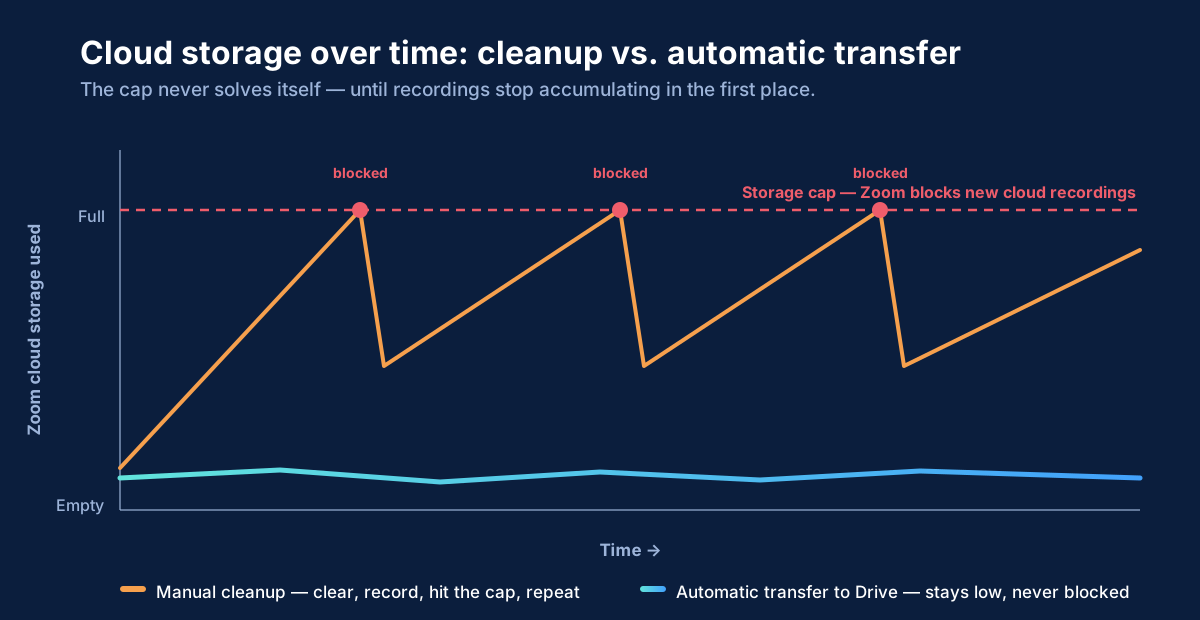
Manual cleanup is a treadmill. Clear enough space to record, record a few more sessions, hit the cap again, clear again. The cap never solves itself — it just resets you back to the same loop.
The permanent fix is to move every recording out of Zoom automatically, so cloud storage never builds toward the cap in the first place. Every recording that lands in Google Drive is headroom Zoom doesn't have to hold. If that transfer happens within minutes of each session's recording being ready, your cloud storage level stays low as a steady baseline — not something you periodically race to fix. Google Drive doesn't auto-delete files, so the archive grows without the clock running out.
RecordFlow is built for this job. Connect it once — sign in with Zoom, connect Google Drive, pick a destination folder — and every cloud recording copies to Drive automatically within minutes of Zoom marking it ready. RecordFlow never stores your recordings — files transfer directly from Zoom to your Drive, so sensitive session content stays between you, your client, and Google. The full how-to on backing up Zoom recordings to Drive covers setup and troubleshooting. Once the backup is confirmed in Drive, you can safely clear the Zoom copy on your schedule — the safe sequence for doing that without losing a recording you meant to keep is worth reading before you start deleting.
The end state: a growing library in a place you control, and a Zoom cloud storage level that never again interrupts a session.
If you keep landing back here
Some accounts hit this wall not because cleanup slipped but because the archive genuinely outgrew the plan. If your library is measured in hundreds of gigabytes, "buy more Zoom storage" and "buy a bigger Drive plan" are the same answer twice, and neither gets cheaper as the archive grows. There is a third option — object storage you own, billed per gigabyte with no tier to move up to — and the arithmetic against Zoom's own published add-on rates is stark enough to be worth ten minutes: what Zoom recording storage actually costs, and what the alternatives cost.
Stop hitting the recording cap mid-session.
RecordFlow copies every Zoom cloud recording to your Google Drive automatically — so your storage level stays low and Zoom won't block you from recording mid-session. Setup takes 60 seconds. Free during beta.