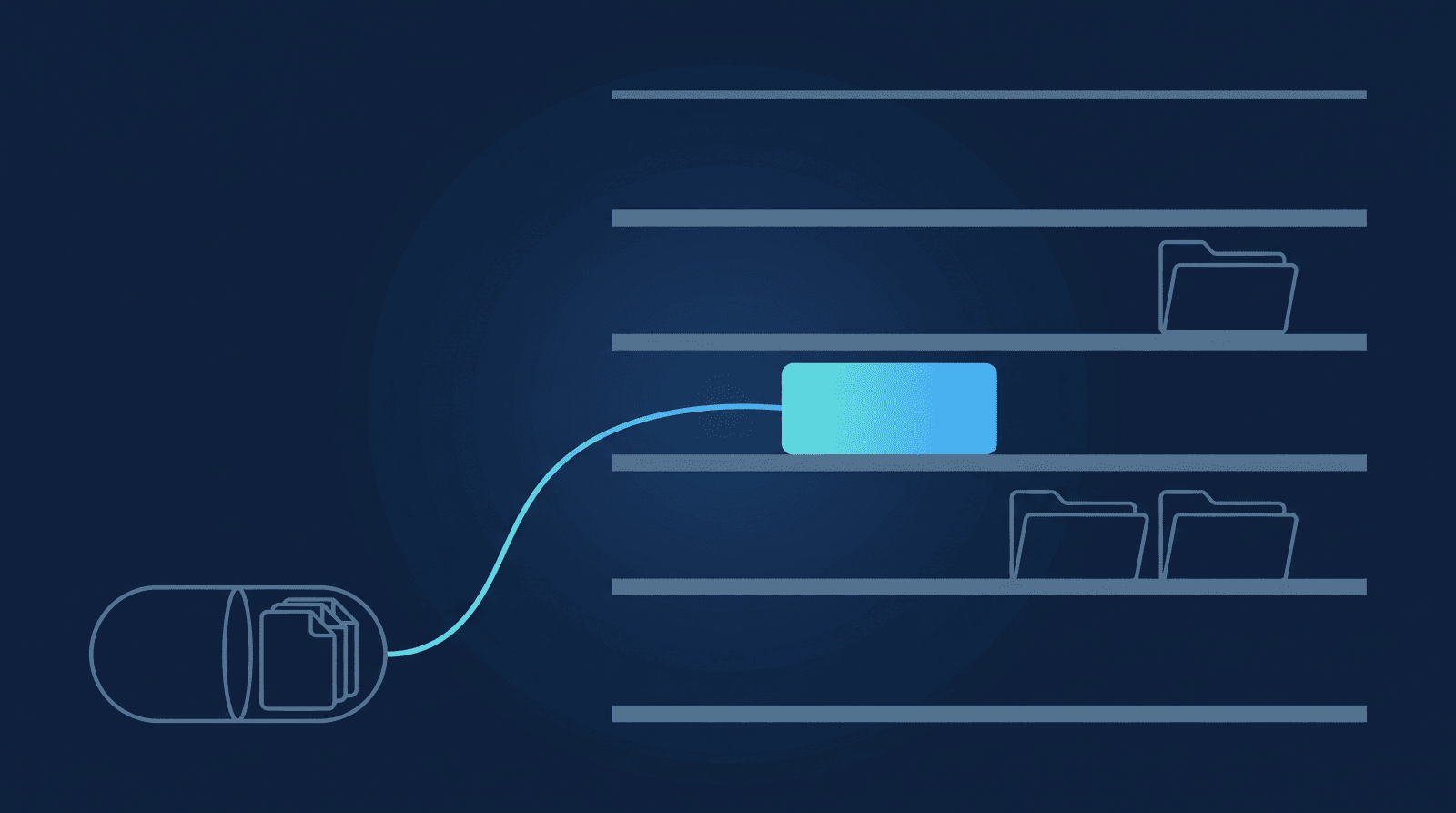
The "cloud recording storage is almost full" email lands. If you're a Microsoft 365 shop, the instinct is to look for the OneDrive setting that already backs everything else up — SharePoint, Teams files, OneDrive sync on every laptop. Zoom doesn't have one. The recordings filling that pool sit entirely outside the Microsoft 365 library the rest of your files live in, and the only levers Zoom hands you are "delete something" or "pay for more room" — neither of which gets a single file into OneDrive.
What's actually happening
Zoom's cloud recording storage is a separate, capped pool — 10 GB per licensed user on Pro, Pro Plus, and Business plans, pooled at the account level (15 GB on Business Plus, unlimited on Enterprise tiers). It has nothing to do with your Microsoft 365 storage — Zoom doesn't read from or write to OneDrive, SharePoint, or any Microsoft Graph API on its own. Zoom's own developer guidance on getting cloud recordings into third-party storage points at building the connection yourself on Zoom's API — there's no setting to flip.
That gap matters more for an M365 shop than a generic one. Your team's files, search, and permissions already live in SharePoint and OneDrive; a Zoom recording that's never copied out sits invisible to all of it — not indexed, not searchable from the same place, not backed up by whatever retention policy already covers the rest of your Microsoft 365 tenant. Zoom warns at 80% of the pool and blocks new cloud recordings once it's full — for everyone on the account, not just whoever filled it — and buying Zoom's storage add-on only raises that same ceiling. It doesn't get anything into OneDrive; it just delays the next "almost full" email.
A quick note on scope: Zoom recordings can currently be archived to a personal OneDrive or the default drive on a work/school Microsoft 365 account — a shared SharePoint document library isn't a supported destination. So if your team's convention is "everything important lives in a shared SharePoint site," today's fix lands recordings in OneDrive first, not directly in that site.
How to fix it: auto-archive to OneDrive instead of paying for more Zoom room
The durable fix isn't a bigger Zoom pool — it's getting every recording out of Zoom and into OneDrive automatically, the moment it's ready, so the pool never climbs toward the cap in the first place. The full OneDrive setup walkthrough covers this end to end, including the archive-history setting for backfilling months or years of existing recordings; here's the short version:
- Confirm cloud recording is on. Zoom Settings → Recording → Cloud recording should be toggled on — off, and recordings save locally instead, invisible to any cloud automation.
- Connect RecordFlow to Zoom and OneDrive. RecordFlow installs from the Zoom App Marketplace as a one-click OAuth app (read access to recordings, never your password), then connects to your Microsoft account via an app-folder-scoped permission — it creates and confines RecordFlow to one dedicated
Apps/RecordFlowfolder inside your OneDrive, and genuinely can't see or touch anything else there. - Record your next session to the cloud. Once Zoom finishes processing, RecordFlow copies the video, audio-only file, chat log, and any transcript into that OneDrive folder — the transcript arrives as a formatted Word (
.docx) document with speaker labels and timestamps, not a raw.vttfile.
Once a backup is confirmed, you can clear the Zoom copy safely — the back-up → verify → delete sequence works the same whether the backup landed in Google Drive or OneDrive, and the delete step is opt-in and never runs ahead of a verified copy.
What to check if a recording doesn't arrive
How RecordFlow fits
RecordFlow closes the exact gap Zoom leaves open for a Microsoft 365 shop: sign in with Zoom, connect OneDrive, done — about 60 seconds, no Power Automate flow to build or maintain, free during beta. Every cloud recording lands in your Apps/RecordFlow folder within minutes of Zoom marking it ready, transcripts included as Word documents, and a failed transfer retries automatically with an hourly safety sweep behind it. RecordFlow never stores your recordings on its own infrastructure — files stream directly from Zoom to your OneDrive. The pool stays small because recordings leave it continuously, not because you keep paying Zoom to make room for more.
When the OneDrive plan has a ceiling too
Moving recordings to OneDrive fixes the Zoom pool, and for most Microsoft 365 shops the terabyte per user that comes with the licence swallows a recording archive without anyone noticing. If yours is the case where it doesn't — a heavy recorder, a shared archive, or a tenant already tight on storage — then you have swapped one plan ceiling for another, and the option worth knowing about is storage priced per gigabyte with no ceiling at all. What Zoom recording storage actually costs puts Zoom's add-on rates, consumer drive plans and object storage side by side with the list prices checked.
Stop paying Zoom to hold what OneDrive already should.
RecordFlow copies every Zoom cloud recording to your OneDrive automatically — no Power Automate flow, no manual downloads. Setup takes 60 seconds and it's free during beta.