Zoom's "storage almost full" email lands, or your team gets the account-wide version of the same alert — and now there's a decision to make: where should these recordings actually go? RecordFlow's destination picker shows four options — Google Drive, Dropbox, OneDrive, YouTube — and there's no single best place to save Zoom recordings, only the right one for what you already run. Whether you're setting this up for the first time or rethinking it after that alert, the choice matters more than it looks: it decides what actually gets preserved, not just where it ends up.
The short version: three of the four are storage you own outright, and one is a publishing platform that only ever keeps the video. Which one is right depends less on features and more on what you already use, and what you actually need to keep.
What's actually happening
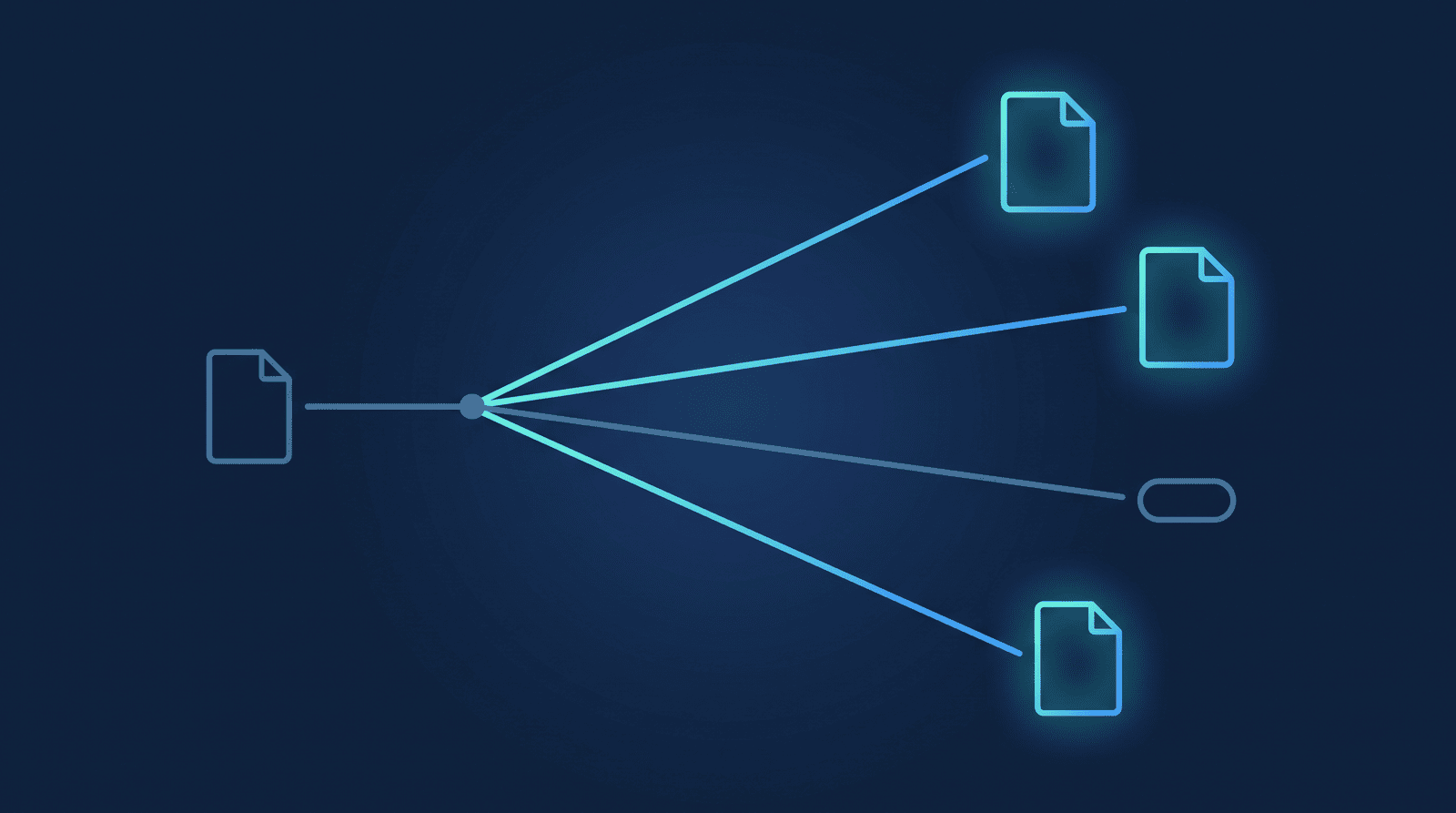
Google Drive, Dropbox, and OneDrive are what RecordFlow treats as container storage — a hierarchical place that accepts whatever bytes you send it, organized however you like. When RecordFlow archives a Zoom recording to any of the three, it copies the recording and its accompanying files: the video, the audio-only file, and — when Zoom generated one — the transcript (rendered as a Google Doc on Drive, a formatted Word document on Dropbox and OneDrive) and the meeting chat log. You control the folder, you can share it the way you already share files with clients or teammates, and nothing about those files changes in transit.
YouTube is a different kind of destination entirely — a media channel, not a file store. It accepts one thing: the video. There's no folder, no transcript, no chat log, because a video platform has nowhere to put them. YouTube also re-encodes every upload for playback — YouTube's own help documentation confirms it "always re-encodes videos to optimize their playback quality" — so what viewers watch isn't a byte-for-byte copy of the file Zoom produced, the way a Drive, Dropbox, or OneDrive copy is. RecordFlow uploads every video as Private. That's not a limitation to route around later; it's the right default for a recording of people who consented to being on the call, not to being published.
Zoom doesn't build any of these connections itself. Zoom's own developer guidance for moving cloud recordings to third-party storage points developers at building the integration on Zoom's API — webhooks and REST calls, not a setting Zoom ships. That's the gap RecordFlow closes for all four destinations, the same way, so the setup steps look nearly identical no matter which one you pick.
Google Drive vs Dropbox vs OneDrive vs YouTube for Zoom recordings
| Destination | Keeps | Best fit | Setup guide |
|---|---|---|---|
| Google Drive | Video, audio, transcript (Google Doc), chat log | Google Workspace teams and solo Google users | Guide |
| Dropbox | Video, audio, transcript (Word doc), chat log | Dropbox-native consultants and small teams; client file-sharing habits | Guide |
| OneDrive | Video, audio, transcript (Word doc), chat log | Microsoft 365 teams | Guide |
| YouTube | Video only, re-encoded, always uploaded Private | Class, cohort, or webinar replay audiences | Guide |
Current setup steps and account access live on each destination's guide above — check there for what's needed to connect.
Match the destination to what you already run
The fastest way to decide is to skip the feature comparison and ask what ecosystem the rest of your files already live in:
- Already on Google Workspace? Pick Drive. The recording lands next to every other document your practice or team already stores there — see how to back up Zoom recordings to Google Drive.
- Already on Microsoft 365? Pick OneDrive. Same reasoning — the recording joins the library where the rest of the team's files live instead of sitting off to the side in Zoom's cloud. Walkthrough: how to save Zoom recordings to OneDrive.
- Already sharing client files through Dropbox? Pick Dropbox — you're not adding a second storage habit on top of the one you already have. Walkthrough: how to save Zoom recordings to Dropbox.
- Running a class, cohort, or webinar series where students expect a replay? That's the one case none of the three storage options solve on their own — a Drive or OneDrive link isn't what a subscriber expects to find on the channel they already follow. See how to upload Zoom recordings to YouTube, and if the session involves anything confidential rather than a public class, read whether client recordings belong on YouTube at all first.
The tradeoffs worth knowing before you pick
A few honest details that don't show up until you're a few weeks into using one:
- Dropbox and OneDrive are app-folder scoped. RecordFlow requests permission to one dedicated folder —
Apps/RecordFlow— inside your account, not your whole Dropbox or OneDrive. There's no folder picker for either, because the permission itself is what fixes the destination; RecordFlow genuinely cannot see or touch anything else in your account. - Only Drive, Dropbox, and OneDrive keep the transcript and chat log. If a recording's value is partly in what was said and typed — not just the video — that alone probably settles the pick against YouTube.
- One destination at a time, today. A RecordFlow connection archives to Drive, Dropbox, OneDrive, or YouTube — not more than one simultaneously. Pick the one that matters most now; switching later from the dashboard doesn't touch anything already archived, it only changes where new recordings land going forward. If your workflow genuinely needs more than one destination at once — publishing to YouTube while also keeping a full archive, say — reach out through support and describe the use case; it's the kind of thing that shapes what RecordFlow builds next.
How RecordFlow fits
Every destination connects the same way: sign in with Zoom once, connect the destination you picked, done — about 60 seconds, no re-doing the setup per recording type. From then on, every new cloud recording, including passcode-protected sessions and multi-hour calls, transfers directly from Zoom to your chosen destination rather than sitting on RecordFlow's servers in between. Existing backlog doesn't have to be lost either — RecordFlow's archive-history setting can reach back into recordings from before you connected, on any of the three storage destinations. If you outgrow your first pick, switching destinations is a setting change, not a migration project.
Pick a destination, connect once, stop thinking about it.
Connect Google Drive, Dropbox, OneDrive, or YouTube — setup takes about 60 seconds. Free during beta, no credit card.