A student messages you Thursday: "Is Tuesday's replay up yet? I want to rewatch the Q&A part before the assignment's due." You know the recording exists — Zoom finished processing it days ago — but "up" where? Your students don't have Zoom accounts, don't want one, and definitely don't want to dig through a flat list of "Cohort Call" entries hoping one matches. They think in terms of a channel they can subscribe to and a playlist they can scrub through, the way they watch everything else.
What's actually happening
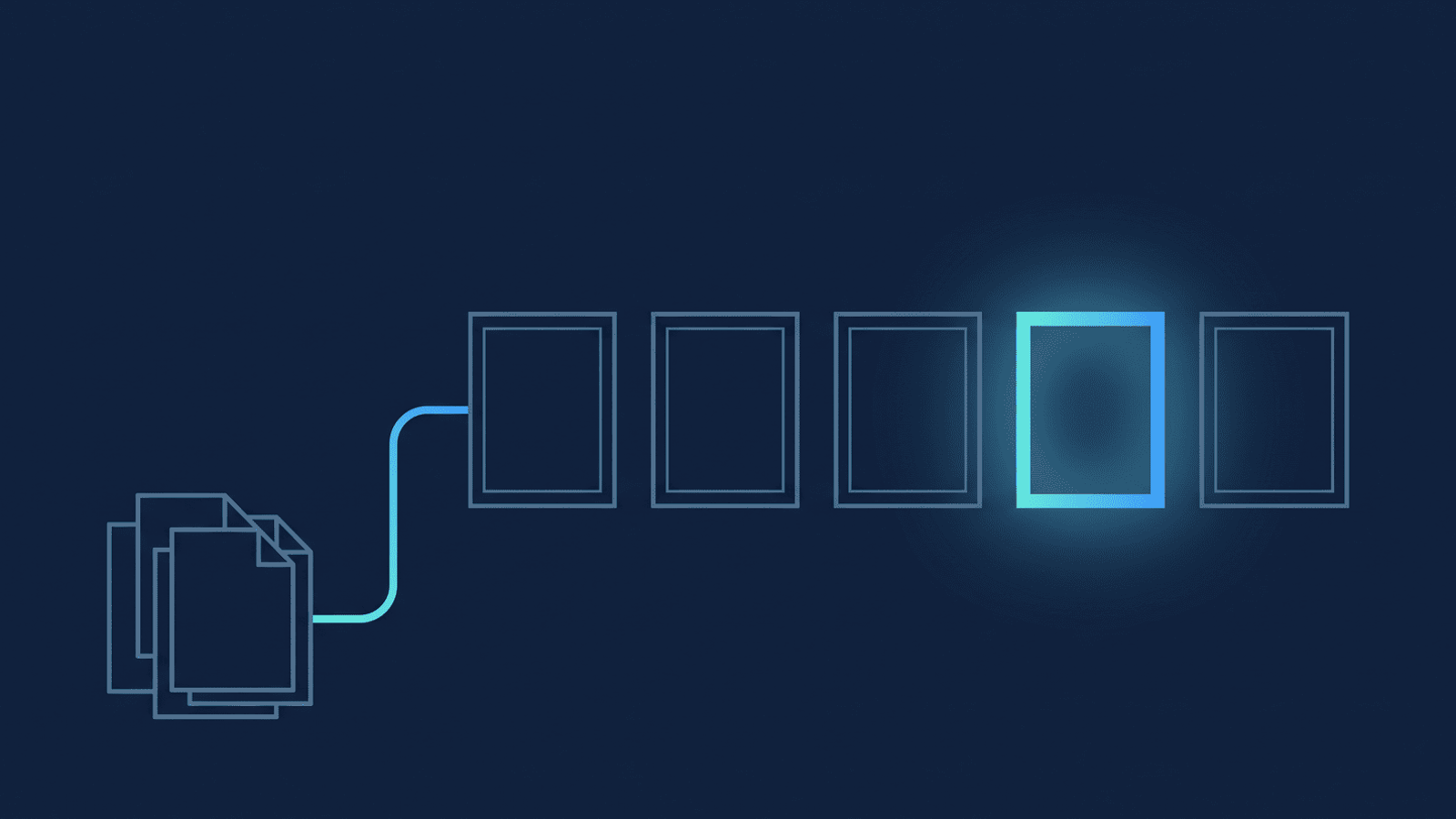
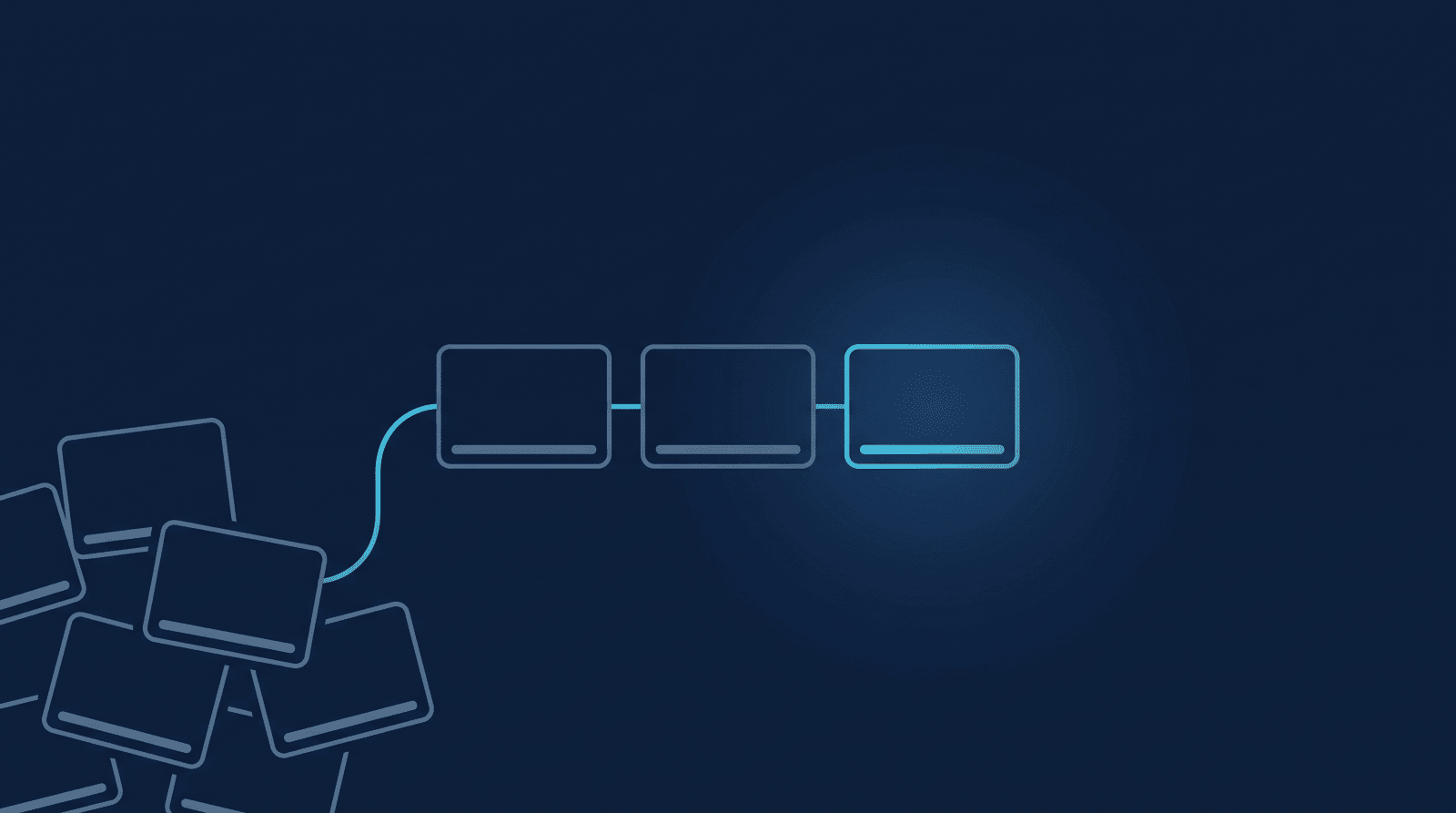
Zoom Cloud has no concept of a course library. Every session you record is a standalone entry in a flat list — no module numbers, no playlist, nothing that reads as "Week 4 of 10" instead of a timestamp. Zoom's own developer guidance for moving recordings anywhere outside Zoom points at building the connection yourself against Zoom's API — there's no native YouTube publish button, and no native "make this a browsable series" option either.
Even once a recording lands on YouTube, "browsable" and "private" pull in opposite directions, and the platform is explicit about which one wins by default. A video you upload isn't automatically part of any collection — a YouTube playlist is something you or a viewer builds by hand, video by video, it doesn't happen from an upload alone. And an unverified channel can't even accept a full-length class in the first place: without phone verification, YouTube caps uploads at 15 minutes — a single lecture or workshop routinely runs longer. Verify the channel once (YouTube Studio → Settings → Channel → Feature eligibility) and the ceiling jumps to 256 GB or 12 hours, whichever comes first, so this is a one-time setup step, not a recurring wall.
How to build the replay library
Steps 1–5 are one-time setup — done once per instructor, channel, or cohort. Step 6 is the only one that repeats: a 30-second click each time a new class finishes uploading.
- Turn on cloud recording for every instructor who teaches a session, not just the account owner — Zoom Settings → Recording & Transcript, Cloud recording toggled on per host. A guest instructor recording locally to their own laptop is invisible to any backup automation, so this is the step that quietly loses a session mid-term if it's skipped.
- Verify your YouTube channel once, before connecting anything. YouTube Studio → Settings → Channel → Feature eligibility → complete phone verification. This removes the 15-minute cap so your first automated class upload doesn't bounce.
- Connect Zoom and YouTube — about 60 seconds. Go to recordflow.org/sign-in, sign in with Zoom, then connect the Google account that owns your channel. Once connected, every class recording uploads to that channel automatically, titled
<session name> — <date>from the Zoom meeting's own topic — so put the cohort and module in the topic (Fall 2026 — Module 03 — Pricing) and the title on YouTube reads the same way. - Know what "uploaded" means before a student asks for the link. Every video RecordFlow uploads lands Private — the people on the call consented to being recorded, not to being published, so nothing goes out to a public or even semi-public audience automatically. That's the correct default, and it's also the one manual step standing between "recorded" and "replay library."
- Make one playlist per cohort, once. In YouTube Studio, create a playlist (
Fall 2026 Cohort) and set the playlist itself to Unlisted so it doesn't show up on your channel's public Videos tab. This is a native, free YouTube feature — anybody can create and share a playlist, no special access needed. - Flip each session's video to Unlisted and add it to that playlist, right after it uploads. Unlisted videos can be seen and shared by anyone with the link, and viewers don't need a Google Account to watch — the same no-login experience your students already get from a shared Drive or OneDrive folder. This step matters even after step 5: a private video stays unviewable to everyone but you no matter what playlist it's sitting in — playlist visibility and video visibility are two separate settings, and both need to say Unlisted for a student to actually press play.
- Share the playlist link once, at kickoff or in your course platform's module page. From then on, each new class you connect and record adds itself to the channel automatically — the only recurring manual step is the 30 seconds it takes to switch a fresh upload from Private to Unlisted and drop it in the playlist.
What to check if a replay doesn't show up
Where the archive fits — and where it doesn't
A replay library and a client archive are two different jobs, and it's worth being precise about which recordings belong in which. Publish to YouTube: a live class, a cohort call, a webinar — anything the enrolled group already expects to rewatch together. Keep out of YouTube entirely, even Unlisted: a confidential 1:1 coaching or therapy session, or anything covered by a professional confidentiality obligation — we've written the straight answer on why Unlisted isn't the same thing as private storage for that case specifically.
How RecordFlow fits
RecordFlow's job is the automatic half of this: connect Zoom and YouTube once, and every class or cohort session uploads to your channel within minutes of Zoom finishing processing — titled and dated from the Zoom meeting topic, landing Private so publishing is always your decision, never an automatic one. The one YouTube Studio step that turns a private upload feed into an actual student-facing library — flipping a session to Unlisted and dropping it in the cohort playlist — stays exactly that: a 30-second click per session, not a re-upload. And because YouTube only ever gets the video, connecting a storage destination alongside it keeps the audio-only file, chat log, and a clean transcript archived too — the replay is what students watch; the archive is everything else from the session, kept in storage you control.
Stop copying class recordings to YouTube by hand.
Connect Zoom to YouTube in about 60 seconds. Every class uploads automatically — titled, dated, private by default — so publishing the replay is a 30-second click, not a re-upload. Free during beta.