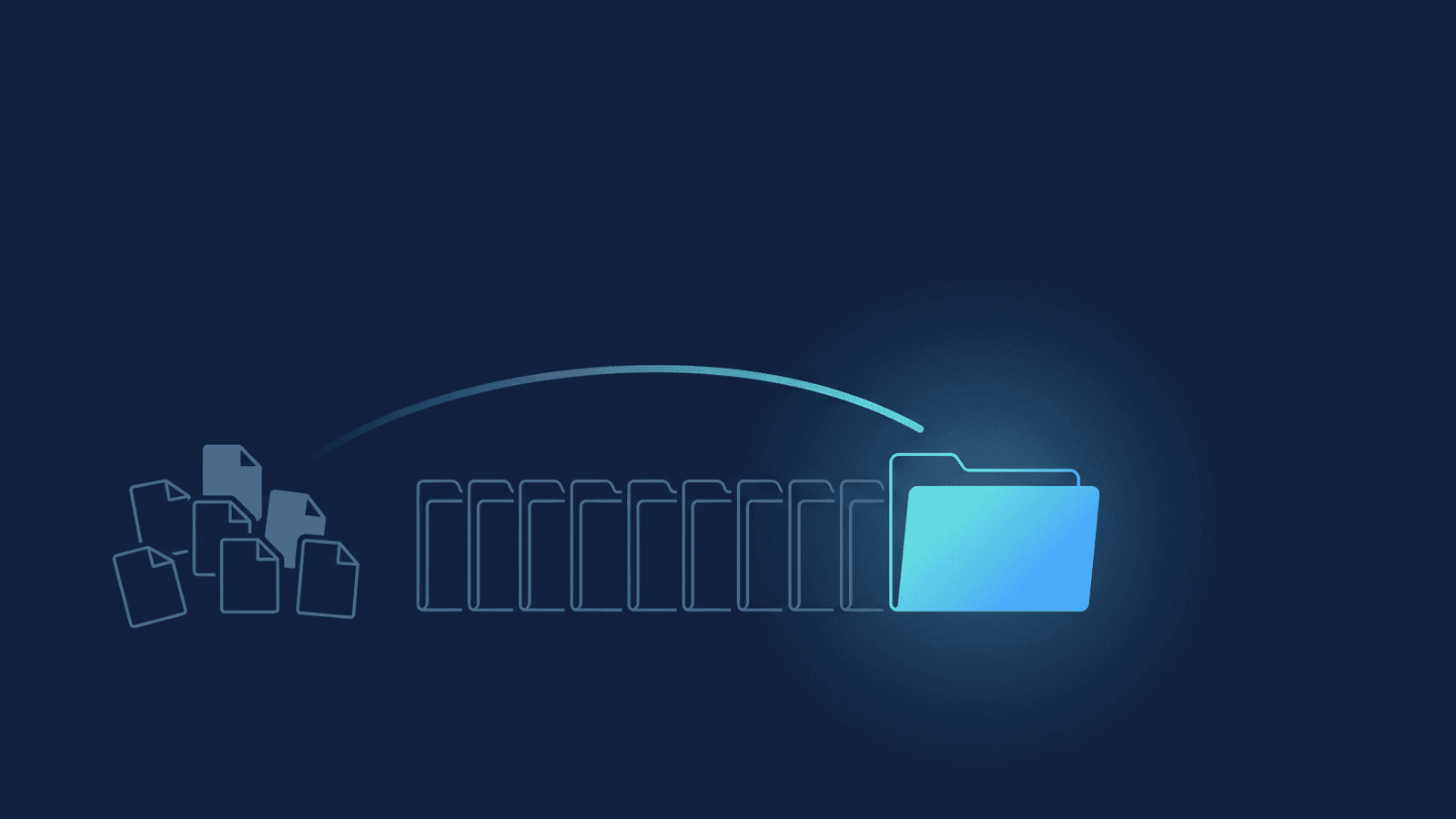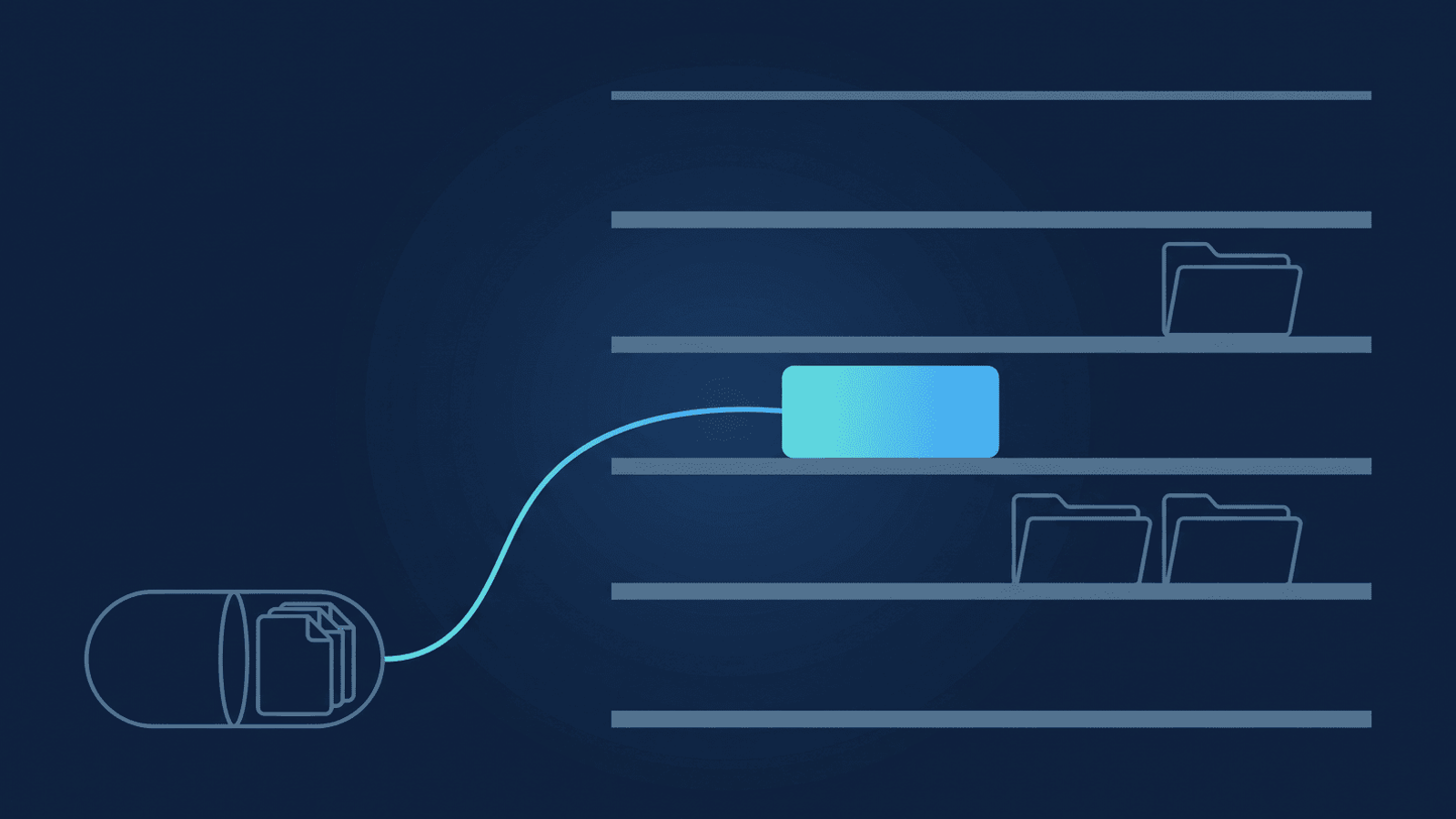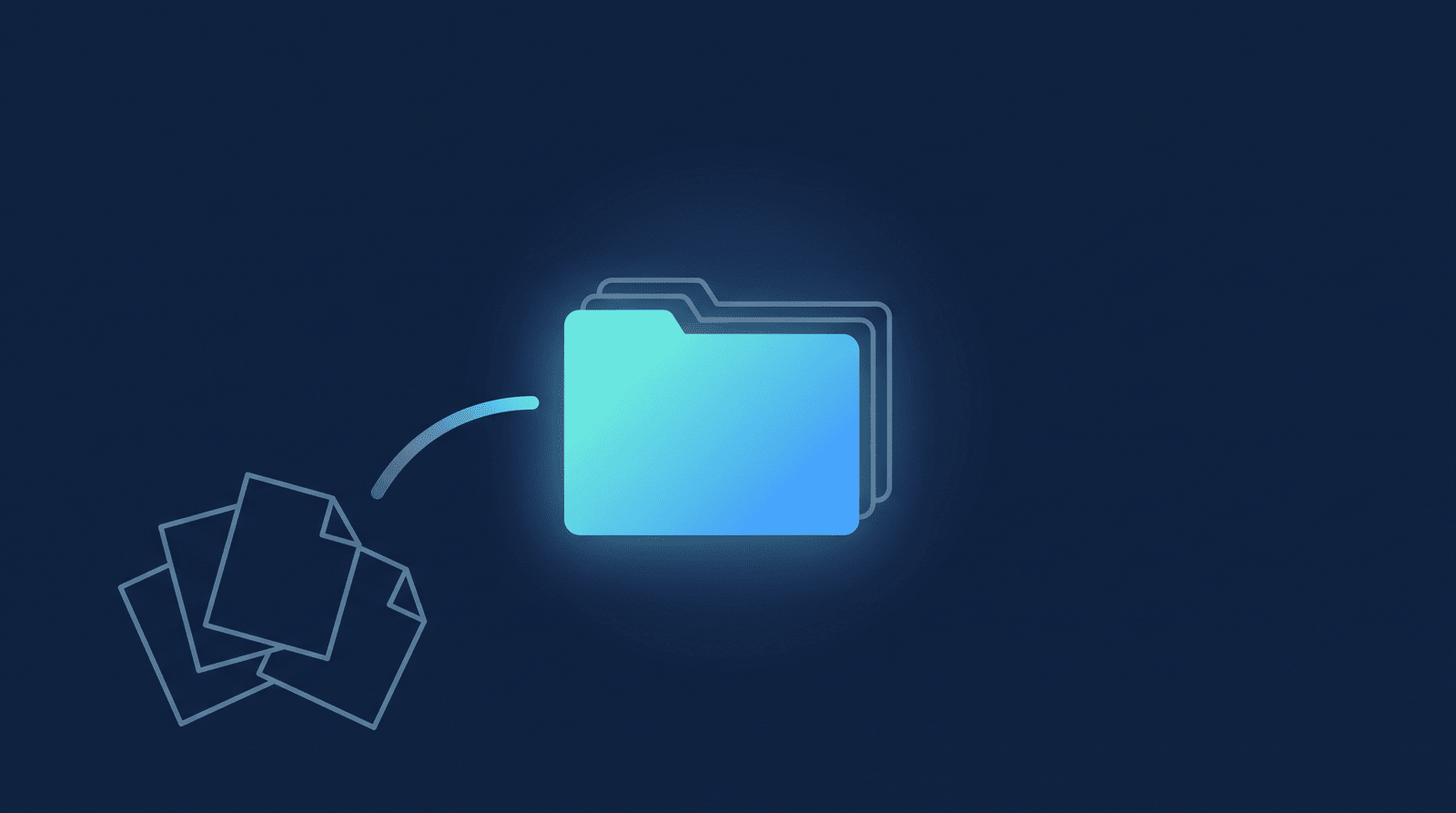
A student pings you two weeks into a new term: "Where's the recording from Tuesday's cohort call? I had a scheduling conflict." Your syllabus, your slides, your worksheets — everything else in the course — already lives in OneDrive; the one thing your students actually rewatch doesn't. You open Zoom's recordings list looking for it, and every entry reads some variant of "Cohort Call" with a timestamp — no module numbers, no way to tell which session is Tuesday's without opening each one and scrubbing to the intro.
What's actually happening
Zoom Cloud is built around a single meeting, not a growing library. Every session you record adds a file against your account's cloud storage — 10 GB per licensed host on Zoom Pro or Business, pooled at the account level. A weekly one-hour call for an eight-to-twelve-week cohort can chew through a meaningful slice of that pool before the term wraps — faster if you run office hours alongside the main session, or teach more than one cohort in parallel. Once the pool is full, Zoom stops saving new cloud recordings for the account, which mid-term means the risk isn't losing an old file, it's failing to capture this week's live call at all.
There's a second problem that shows up the moment a student tries to watch instead of you trying to store. If your account has authentication enabled for viewing cloud recordings turned on, a Zoom share link demands a Zoom login before it plays — and a student who enrolled through your course platform, not through Zoom, often doesn't have one and doesn't want to create one just to watch a replay.
Underneath both is the same gap: Zoom doesn't ship a OneDrive connector for cloud recordings. Zoom's own developer guidance on moving recordings to third-party storage points at building the connection yourself on Zoom's API — webhooks and REST calls, not a setting you flip on. So the recordings sit in Zoom's cloud, disconnected from the OneDrive library everything else in the course already lives in, racing the same storage cap as everyone else's, with no concept of "Module 3 of a 10-module course" — just a flat list of meeting titles and dates.
How to build a course video library in OneDrive
- Turn on cloud recording for every instructor who teaches a session, not just the account owner — Zoom Settings → Recording, Cloud recording toggled on per host. Cloud recording needs a paid Zoom plan (Pro, Business, Education, or Enterprise) — it's off entirely on free accounts, so a guest instructor on a Basic plan can't produce a cloud copy no matter what's toggled. A co-facilitator recording locally to their own laptop is invisible to any backup automation, and invisible to you the moment their machine is unavailable. Say once, at enrollment, that live sessions are recorded — most course terms of service already cover this, and it's worth a line in yours if not.
- Put the cohort and module number in each Zoom session's meeting topic, separated by a slash. Title the meeting
Fall 2026/Module 03 — Pricing(cohort name before the slash, then module number, always two digits). RecordFlow names each session's OneDrive folder from the recording's date plus that topic, so2026-08-18-1400-Fall 2026_Module 03 — Pricingreads the way a student thinks about the course, filed under a folder for the year the session ran — not the way Zoom's flat meeting list does. The slash matters beyond readability: it's what step 4 below uses to group every module into one shared cohort folder. - Connect Zoom and OneDrive. Go to recordflow.org/sign-in, sign in with Zoom, then connect your Microsoft account. RecordFlow's Microsoft permission is scoped to a single app folder, so it automatically creates one dedicated
Apps/RecordFlowfolder and can read and write only inside it — there's no folder to pick, one less setup decision. (This targets a personal OneDrive or a work/school account's own default drive — a shared SharePoint document library isn't supported.) - Turn on Group recordings by series in Settings. With it on, RecordFlow turns the cohort prefix from step 2 into an actual per-cohort folder: every module sharing that exact prefix collects in one place automatically, instead of sitting loose as separate dated subfolders under the year folder. It's off by default — see the linked docs for how to turn it on — and it only applies to sessions synced after it's turned on, not anything already archived.
- Share the class folder with students directly, not a Zoom link. Turn on OneDrive's "Anyone with the link" sharing option on the cohort folder from step 4 — it opens without a Microsoft or Zoom sign-in, the same way a student already opens a shared doc elsewhere on your course platform. Share it once at kickoff and every future module for that cohort appears inside it automatically. Running several cohorts through the same account, share each one's class folder individually so one cohort's students aren't looking at another cohort's replays. On a school or work tenant, an admin can disable "Anyone" links account-wide, which is worth checking before you promise students a no-login replay.
- Already have a term or two of past classes sitting in Zoom from before you connected anything? RecordFlow's archive-history setting reaches back into your existing backlog, not just what's recorded going forward. It starts at the past month by default, and you can widen it in Settings whenever you're ready — widening triggers a backfill of everything newly in range, streaming even large files to OneDrive in chunks so a semester's backlog moves as reliably as a single class.
What to check if a session recording goes missing
How RecordFlow fits
RecordFlow connects Zoom to OneDrive once — about 60 seconds — and from then on, every live session lands in your Apps/RecordFlow folder within minutes of Zoom finishing processing: the video, the audio-only file, the chat log, and if Zoom generated a transcript, a formatted Word document with speaker labels and timestamps, so a student can search a class instead of scrubbing an hour of video to find the five minutes on pricing that mattered. Each folder is named from the date and your meeting topic and filed under the year the session ran, so a term's worth of classes reads like an actual course archive, sitting in the same OneDrive your syllabus and slides already live in — not a separate storage location for the one asset students actually come back to.
If a term or two of past sessions are still sitting in Zoom's cloud, widening archive history backfills them into the same library instead of leaving them behind, using the same chunked, verified-before-anything-else transfer that handles a fresh class. And if your program runs on Google Workspace instead of Microsoft 365, the same pattern — automatic backup, one archive per account, topic-driven folder names — applies directly to a Drive course library.
Stop scrambling for 'the Module 3 replay.'
Connect Zoom and OneDrive once. Every live class lands in an organized folder inside your OneDrive, transcript included as a Word document — free during beta.