A student emails Wednesday morning: they missed Monday's two-hour lecture and want to rewatch it before the problem set is due. You send the Zoom link — an hour later: "It's asking me to log into Zoom, and I don't have an account." Or worse, you go to grab the link yourself and the recording has already aged off the list, because your Zoom account's storage filled up sometime last week. Underneath both problems is a third one you've been quietly wondering about since week one: your lectures run one to two and a half hours, and you're not fully sure a recording that long survives Zoom's own processing and makes it somewhere safe in one piece.
What's actually happening
A Zoom cloud recording's playback page lives at a zoom.us URL, and whether that page opens freely or demands a login depends on a setting called "Require authentication to view cloud recordings." Many Zoom accounts leave that setting off, but school and department accounts often turn it on — and Zoom doesn't warn you when you copy a link that a student without institutional Zoom access is about to hit a wall. A student enrolled through your course platform, not through Zoom, often has no Zoom login and no interest in creating one just to watch a replay.
The second problem is storage. Zoom's cloud recording storage is granted per licensed user and pooled at the account level on every plan, and education tiers start smaller than a standard Business plan — some Education plans allot as little as half a gigabyte per licensed user before you multiply by however many instructors share the pool. A single one-to-two-and-a-half-hour lecture in HD eats into that allowance fast, and once the pool fills or a department-set retention policy trims older files, a recording a student wanted for next week's review can simply be gone.
The third worry — whether a long lecture recording even transfers reliably — comes from a real mechanic, just not the one it sounds like. For a lecture in the one-to-two-and-a-half-hour range, Zoom doesn't publish a length or size ceiling that makes the recording unsafe to move; what it does publish is that cloud recordings take real processing time on Zoom's servers before they're ready to download or share at all — typically around twice the meeting's length, and, per Zoom's own guidance, occasionally up to 24 hours under heavy load. A 90-minute lecture reasonably takes a few hours to finish processing; that's normal, not a sign the file is at risk. Once Zoom marks it ready, moving it off Zoom's servers is a separate step, and it's that step — not the recording's length — that determines whether the copy you end up with is complete.
How to give students lasting, no-account access
- Confirm cloud recording is on for every instructor teaching a session, not just the course owner — Zoom Settings → Recording, with Cloud recording toggled on per host. A guest lecturer or TA recording locally to their own laptop won't show up in any backup automation, cloud storage archive, or the Recordings & Transcripts page at all.
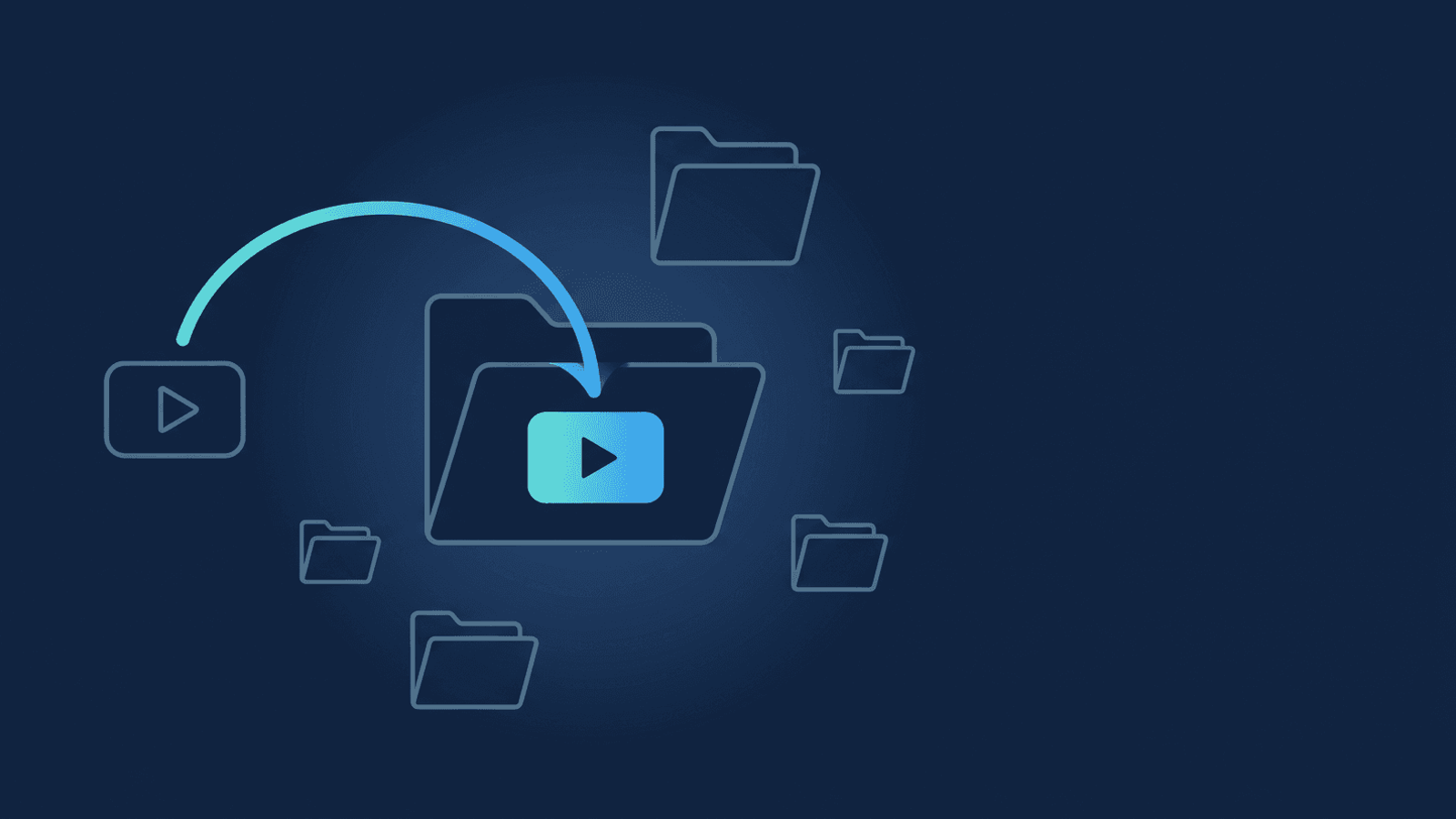
- Pick one Drive (or OneDrive, or Dropbox) folder as your course's lecture library, and put the class name in the Zoom meeting topic —
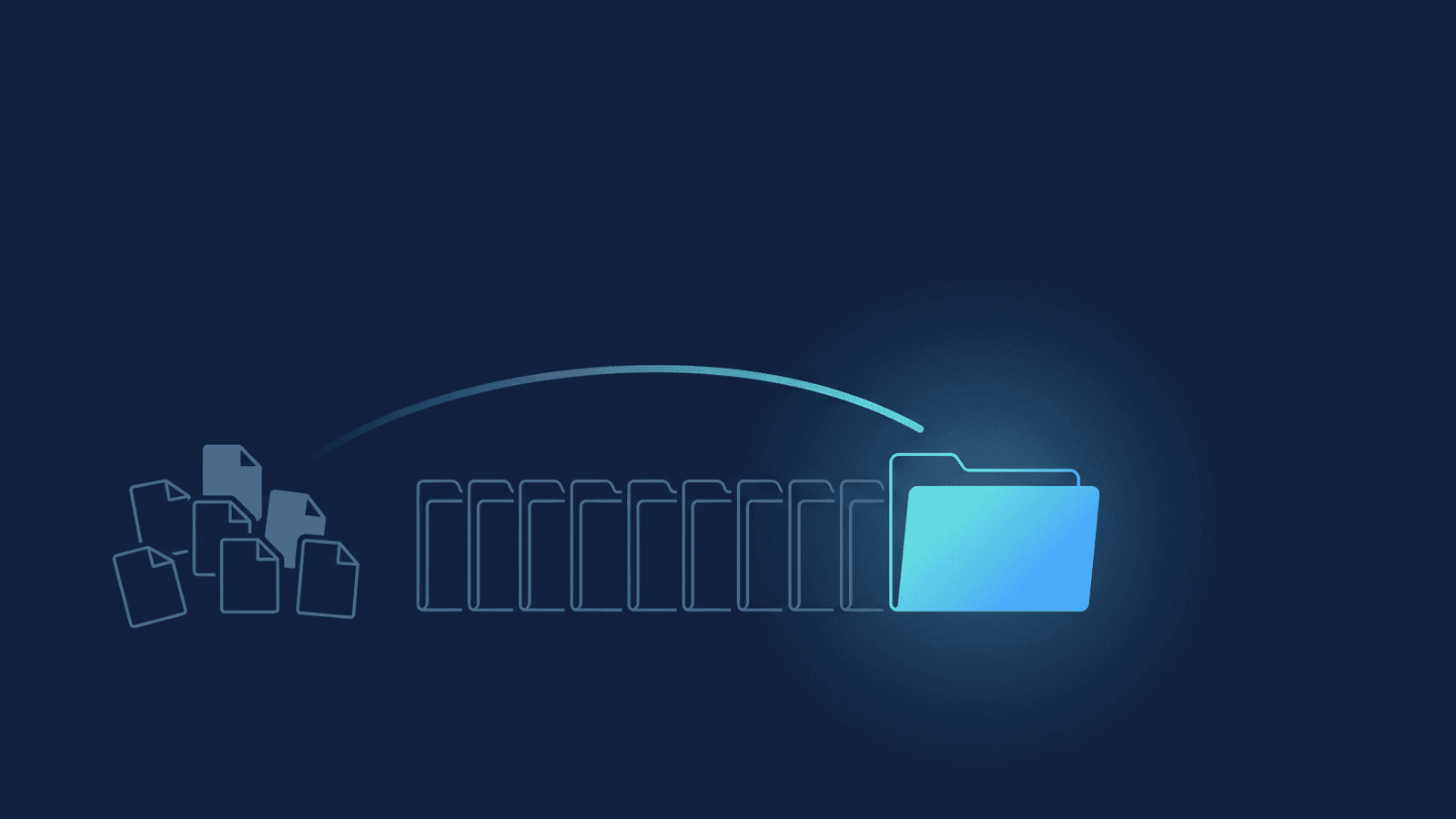
Intro to Statistics — Week 6: Regressionrather than a bare default title. An automatic backup carries that topic straight into the archived folder's name, so a term's worth of lectures reads the way a student thinks about the course, not as a flat list of same-looking meetings. If you're teaching more than one section under the same class name and want each section's sessions grouped into their own shared folder automatically, use a "/" instead of the dash to separate the class name from the session —Intro to Statistics/Week 6: Regression— and RecordFlow files every session sharing that exact class prefix into one folder; see the setup guide for grouping sessions by class for the full walkthrough. - Connect an automatic backup so each lecture copies over the moment Zoom finishes processing it, regardless of how long the session ran. RecordFlow does this once you connect Zoom and a storage destination: recordings move in small pieces with automatic retry on failure, so a two-and-a-half-hour lecture transfers the same way a fifteen-minute office-hours call does — it just takes longer wall-clock time, the same way it takes Zoom longer to finish processing it in the first place.
- Share the class folder's link directly, not a Zoom share link. Google Drive's "anyone with the link can view" setting (OneDrive and Dropbox offer the same option under a different name) opens the recording in any browser with no sign-in, no app, and no Zoom account — the same click a student already uses to open a shared reading or slide deck on your course platform. Drop the folder link into your LMS or course page once at the start of the term, and every new lecture that lands in it is already covered by that same link.
- Turn on auto-delete from Zoom only after the archive copy is confirmed, if you want to reclaim storage proactively rather than waiting for a retention policy to do it for you. That way the shrinking Zoom pool never puts next week's lecture at risk of failing to record in the first place.
What to check if a lecture recording goes missing or won't share
How RecordFlow fits
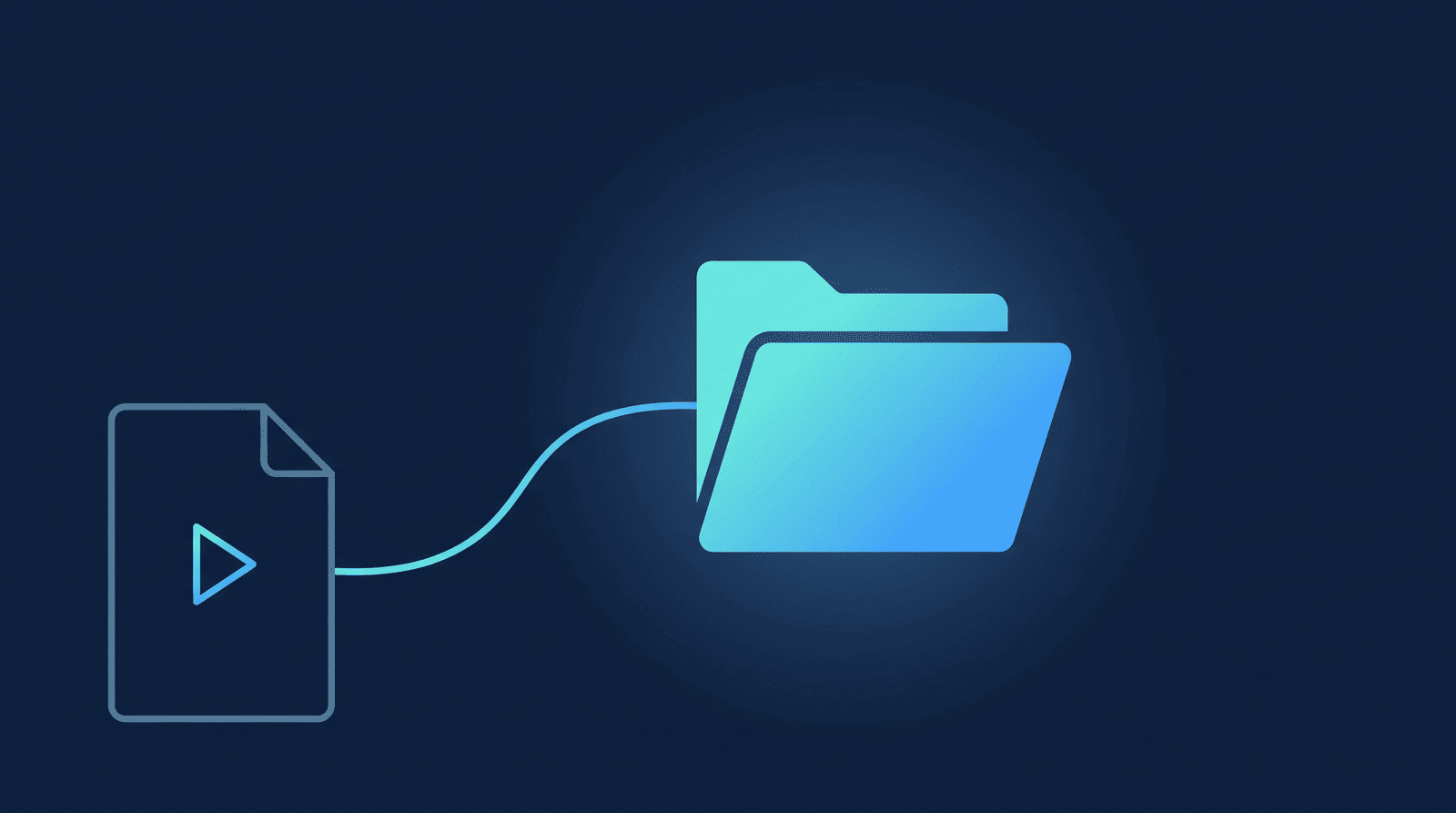
RecordFlow connects your Zoom account to a Google Drive, OneDrive, or Dropbox folder once — about 60 seconds — and from then on, every lecture lands there automatically as soon as Zoom finishes processing it: video, audio, a chat log, and a clean transcript with timestamps, so a student can search a two-hour recording for the ten minutes on regression instead of scrubbing the whole thing. A long lecture moves the same way a short one does — copied in small pieces, retried automatically if any piece fails — and RecordFlow never keeps a copy of the recording on its own infrastructure; the file goes straight from Zoom to the folder you already own. Once it's there, sharing it is a normal Drive share, the same click your students already use for everything else on your course page.
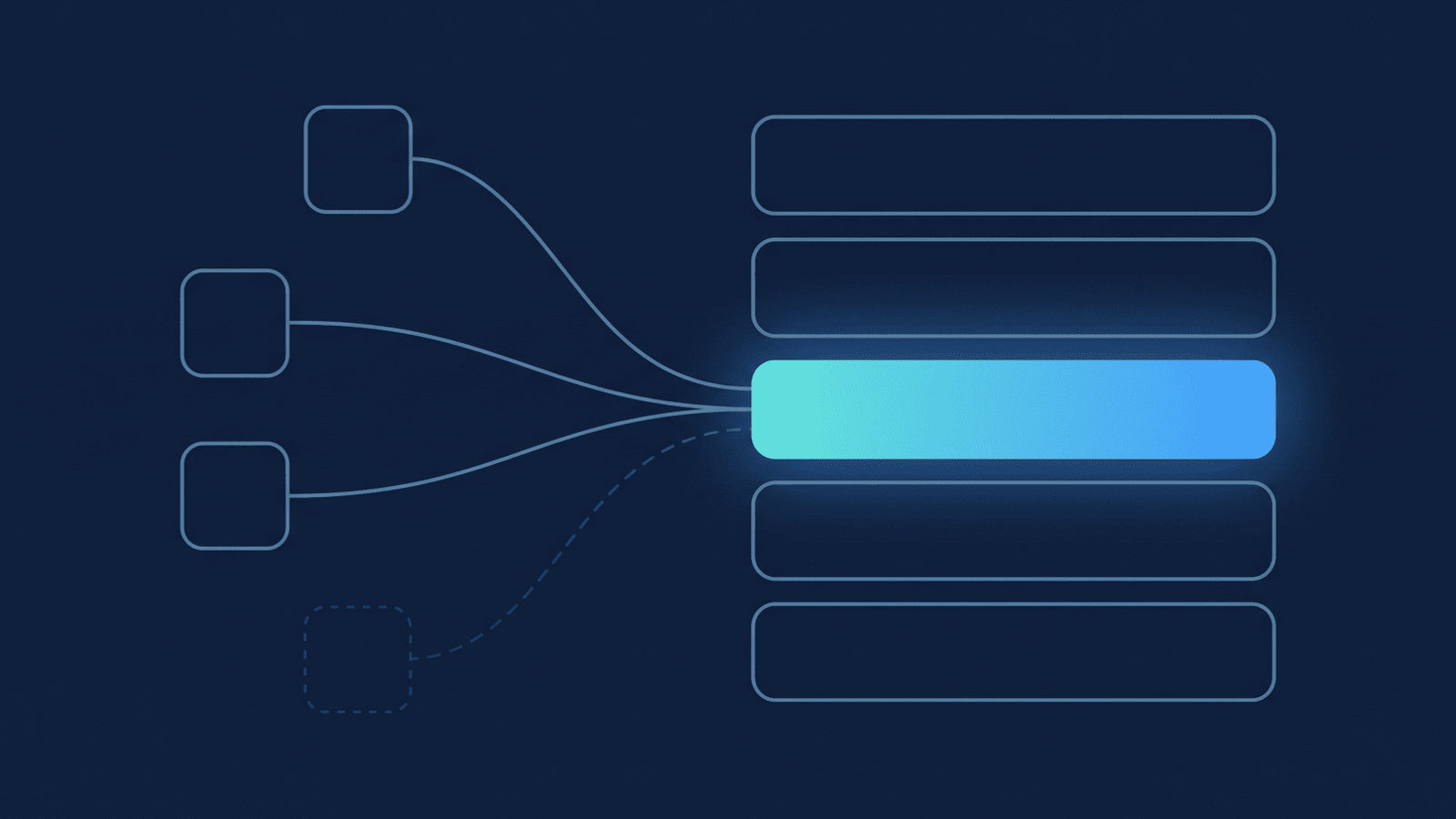
The same pattern that works for a course or cohort's growing recording library applies directly to a single instructor's lecture archive, and if a link ever bounces a student to a Zoom login they don't have, the no-account sharing fix covers exactly that case in more detail. If you're the IT admin archiving lecture recordings for an entire department rather than one instructor's own course, our guide to campus-wide Zoom storage covers that account-level version of the same problem.
Never send a student a Zoom login wall again.
Connect Zoom to Google Drive, OneDrive, or Dropbox once. Every lecture — however long — lands in a folder you own, ready to share with no Zoom account required. Free during beta.