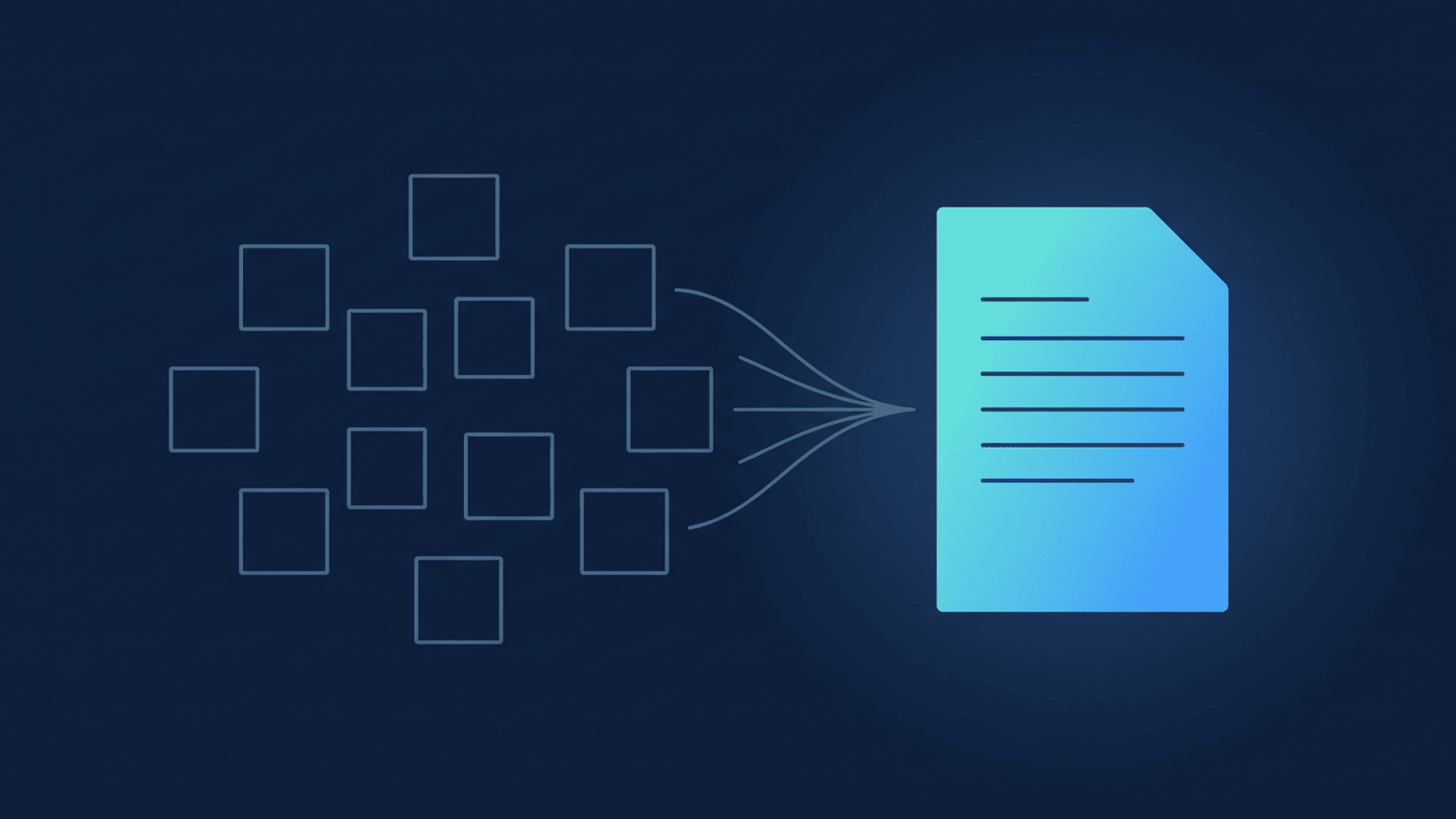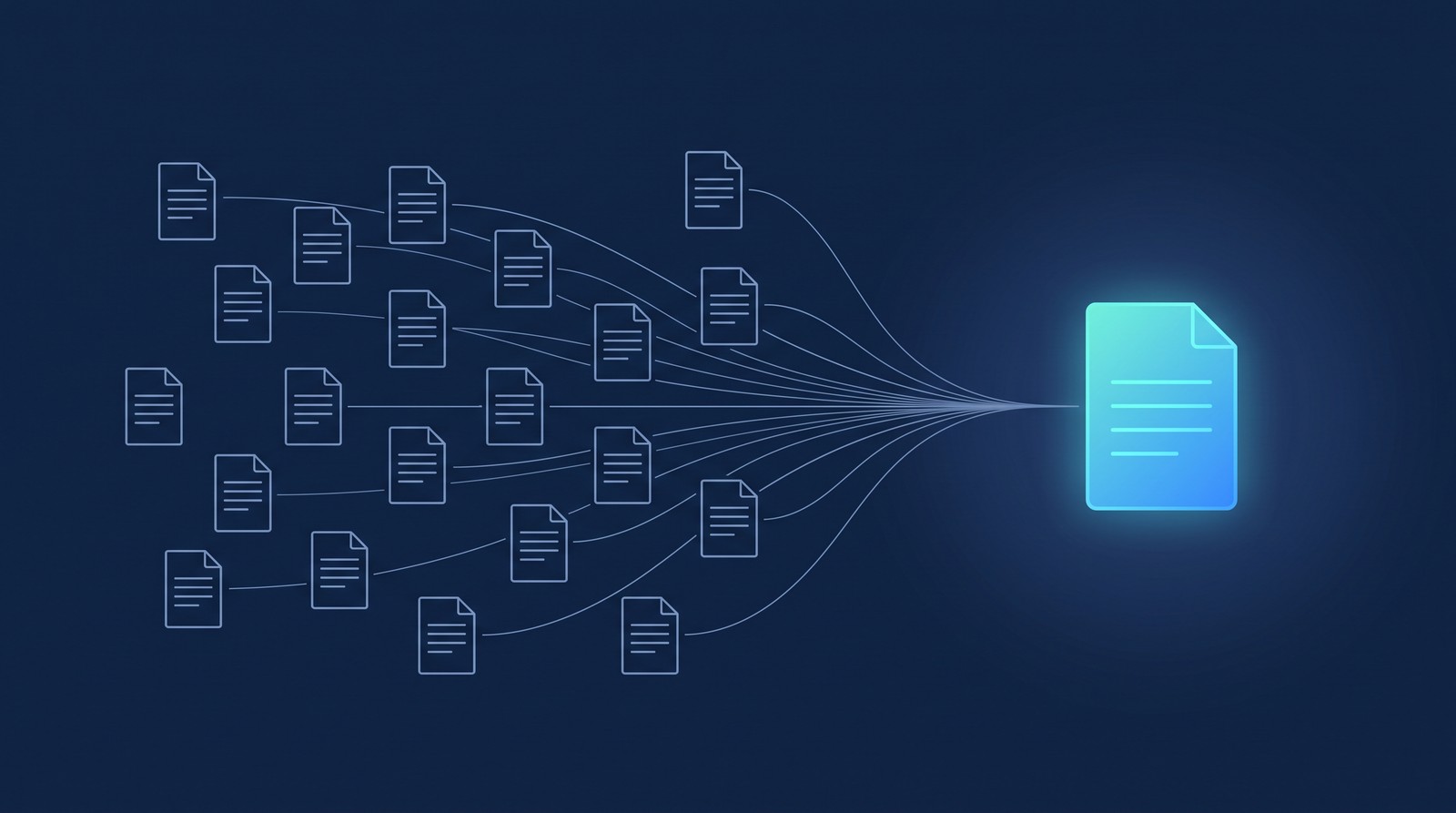
You have forty coaching calls, or a semester of class recordings, or a quarter of discovery calls — each one already backed up, each one already transcribed. And you still can't answer the question you actually have. What did clients keep asking about this month? Which objection came up across six of my last ten sales calls? When did we first talk about the pricing change? A single transcript answers a question about one meeting. Those questions span all of them, and re-watching forty recordings to find the pattern isn't realistic.
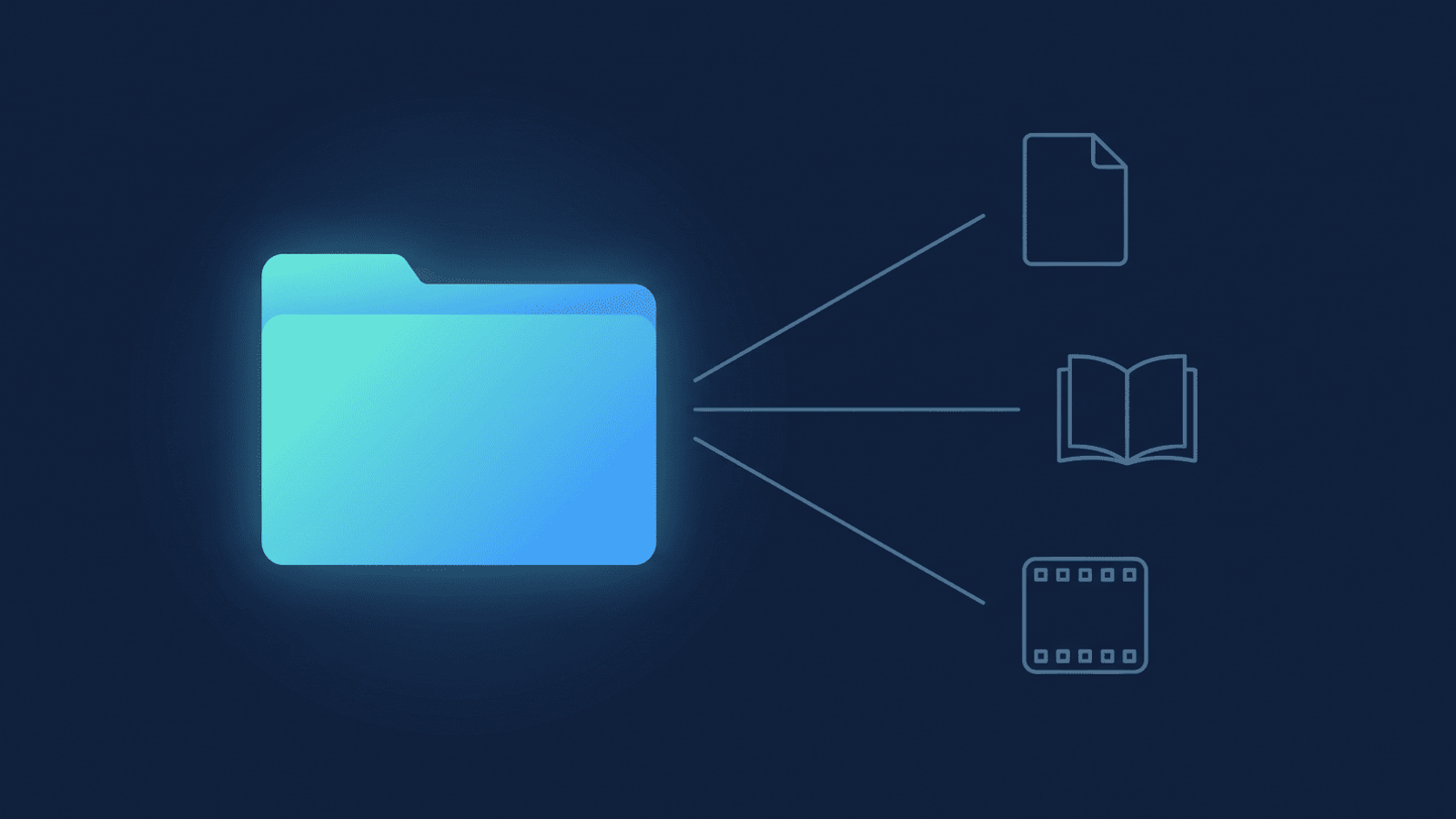
The fix isn't a new tool. It's treating the folder itself as the asset — a knowledge base you can ask questions across — instead of dozens of separate documents you'd open one at a time.
Why a folder of transcripts is a knowledge base
Gemini Notebook — Google renamed NotebookLM to Gemini Notebook in July 2026, same product, same URL, new name — takes Google Docs, PDFs, and a handful of other file types from Drive as "sources," and answers questions grounded only in the sources you've added, citing the specific source document behind each part of the answer. Add one transcript Doc and you can ask about that one call. Add every transcript Doc from a client's history, a cohort's sessions, or a quarter of calls, and the same question — "what themes came up across these?" — now has an answer with citations back to the individual sessions that raised each one.
Two things have to be true for that to work. First, each recording needs a transcript Gemini Notebook can actually read — not the raw .vtt caption file Zoom hands you, which is fragmented into three-second cues and isn't accepted as a Gemini Notebook source at all. RecordFlow uploads a clean, readable Google Doc transcript into Drive alongside the raw .vtt for every recording it syncs; the companion deep-dive on converting Zoom transcripts to Google Docs covers that conversion in full, so this post won't re-explain it — it assumes you're already there and focuses on what happens once you have a folder of these Docs, not just one.
Second, you need to be able to tell the sessions apart once you're picking sources. A notebook with thirty transcript Docs all named "Zoom Meeting" or "Transcript" is not a knowledge base — it's an unlabeled pile you have to open each file to identify. This is where the recording's file name does real work, not just bookkeeping.
For the wider picture — what Docs, Gemini Notebook, and Vids can each do with a Zoom recording once it's in Drive — see the ecosystem overview of Zoom recordings in Google Workspace.
Build the knowledge base
- Get every recording's transcript into Drive as a clean Google Doc. If you haven't set this up yet, RecordFlow does this automatically the moment a Zoom recording finishes — see the companion how-to on backing up Zoom recordings to Google Drive automatically for the 60-second setup, and the transcript-to-Doc conversion post for what the Doc looks like once it lands.
- Pick the corpus boundary before you build the notebook. A knowledge base is only useful if it answers questions about a coherent set of sessions — one client's full history, one cohort's class recordings, one quarter of discovery calls. Decide the boundary first; it becomes the notebook.
- Create a Gemini Notebook and add the transcript Docs as sources. In Gemini Notebook, start a new notebook, choose "Add source," pick Google Drive, and select the transcript Docs for the sessions inside your chosen boundary. Because RecordFlow names each meeting folder with the start date and the meeting topic (for example
2026-06-03-Quarterly review), you can tell sessions apart in the source picker without opening each one first. - Ask across the set. Try questions that only make sense across many sessions, not one: What objections came up more than once? Which commitments did this client make and never revisit? What questions has this cohort asked most often? Gemini Notebook grounds every answer in the sources you added and cites which transcript it pulled from, so you can jump from the answer straight to the exact call.
How RecordFlow fits
RecordFlow isn't the AI here — Gemini Notebook is. RecordFlow's job is narrower: the moment a Zoom recording finishes, it copies the video, audio, chat log, and transcript into a Drive folder you own, and lands a clean Google Doc transcript alongside the raw .vtt, in a folder named by date and topic. RecordFlow never reads or analyzes what's inside those transcripts — it copies the file into your Drive and stops there; what Gemini Notebook does with it from that point on runs on your own Google account, not ours. That combination — every session landed automatically, transcribed into a document Gemini Notebook can actually read, and named so you can tell sessions apart — is what turns a folder of recordings into a corpus you can build a notebook from, instead of a pile of files you'd have to sort by hand first.
Turn your Zoom archive into a knowledge base you can query.
Pick a Google Drive folder once. Every recording lands there automatically with a clean, correctly-named Google Doc transcript, ready to add as a Gemini Notebook source. Free during beta.